Author: Alisha Anjum

  • Editing PDF Documents for Free with iLovePDFKit

    Editing PDF Documents for Free with iLovePDFKit

    Introduction

    We all know the moment when a deadline is close and a PDF gets in the way. A student has to fix one line in an essay, an office worker spots an error in a contract, or a freelancer needs to swap a price in a proposal. There is no time to search, compare tools, or fight with a sign-up form. Editing PDF documents for free feels like it should be simple, yet it often is not.

    Most sites make a promise, then hide what matters. They ask for an account, push a free trial, or lock the real tools behind payment walls. Instead of just editing PDF documents for free, people end up sharing emails, payment details, and personal data for a task that takes just a couple of minutes.

    “PDF is a universal file format that preserves fonts, images, and layout of any source document.” — Adobe

    That reliability is exactly why PDFs are everywhere, and why a smooth, free PDF editing option matters so much.

    We built iLovePDFKit for the opposite experience. Our tools focus on fast, accurate work with no account, no cost, and no stored profiles. You open the site, choose what you need, and you are already close to the download step. Editing PDF documents for free becomes a normal, everyday task instead of a headache.

    In this guide we walk through what is possible when editing PDF documents for free with iLovePDFKit, how the process works step by step, and how your files are handled from a privacy point of view. By the end, it should feel easy to move between formats, clean up pages, protect files, and get back to real work in just a few clicks.

    Key Takeaways

    • Free online tools make editing PDF documents for free simple for quick fixes and full document changes without any software install. With iLovePDFKit everything runs in the browser, and the tools stay open to everyone without hidden pay walls. This keeps basic document tasks fast for school, work, or business.

    • iLovePDFKit gives access to conversion, page control, and security tools with no sign-up at any point. People upload a file, wait a short moment while our engine works, then download the result straight to their device. The whole path from upload to download usually finishes in only a few minutes.

    • Files pass through our servers only while they are processed, then they are cleared to reduce exposure. This setup supports students, office staff, and freelancers who care about privacy but still want editing PDF documents for free on laptops, tablets, and phones.

    What Can You Actually Do When Editing PDF Documents for Free?
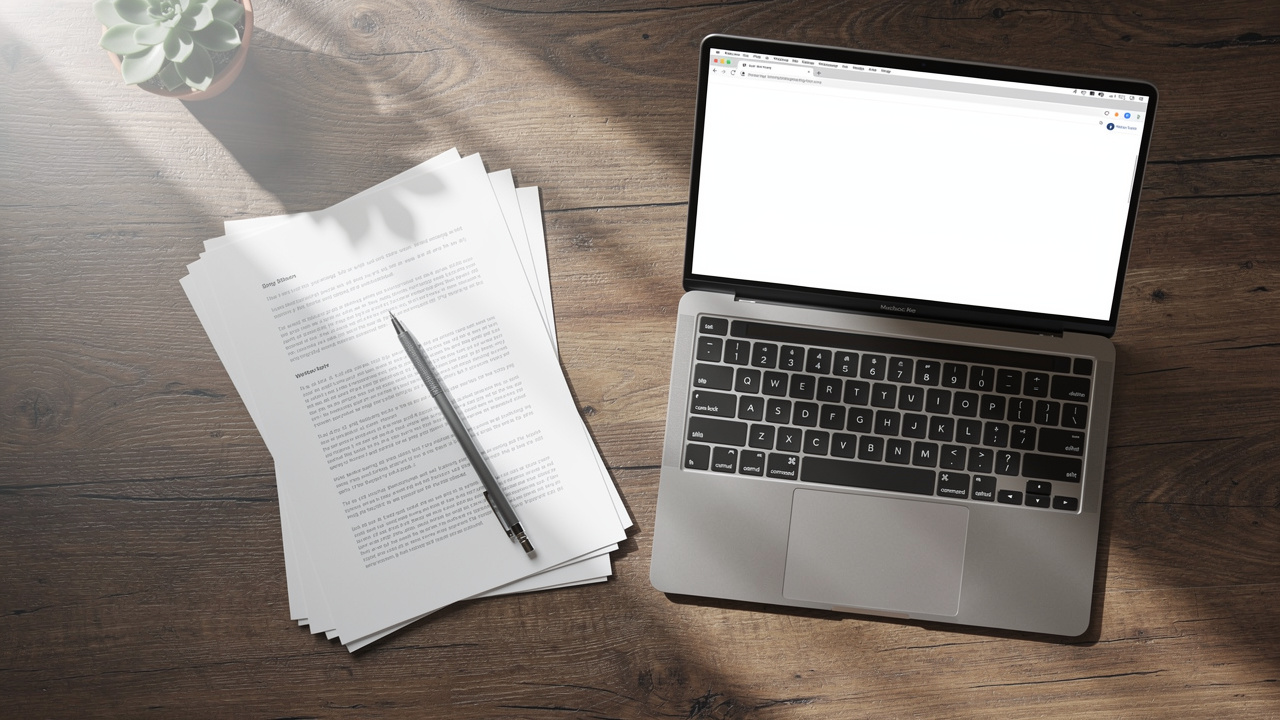
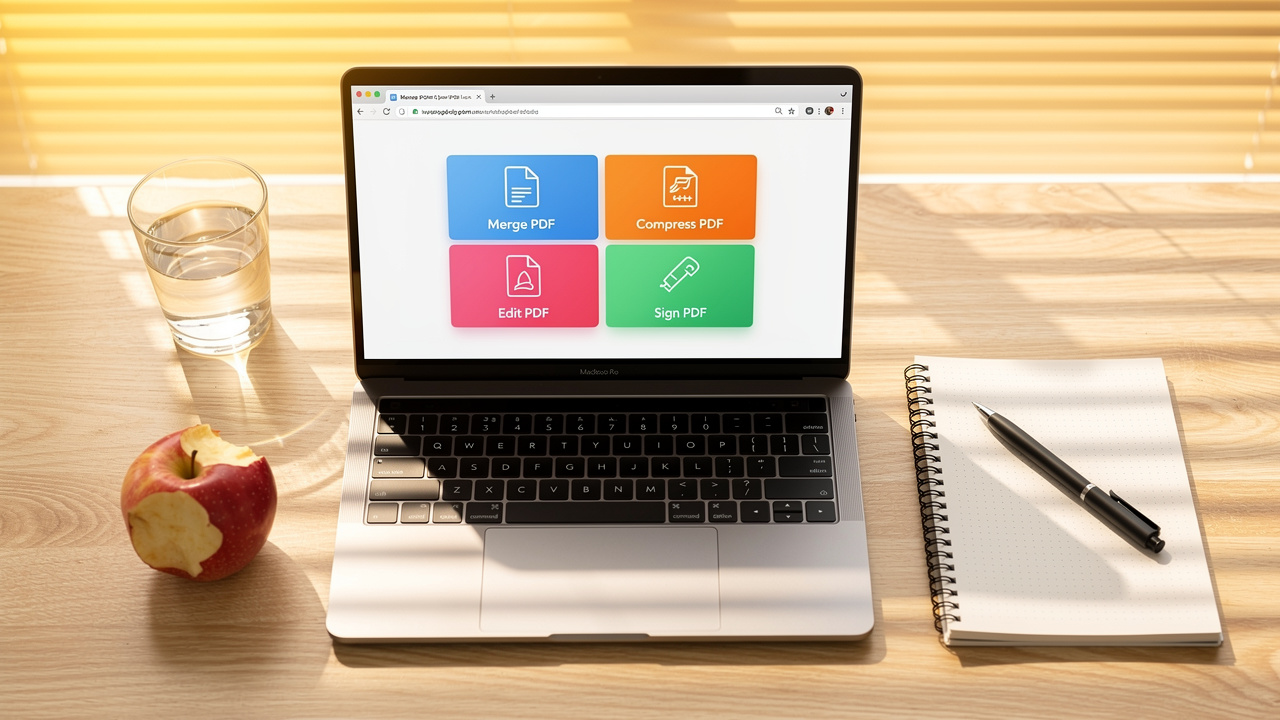
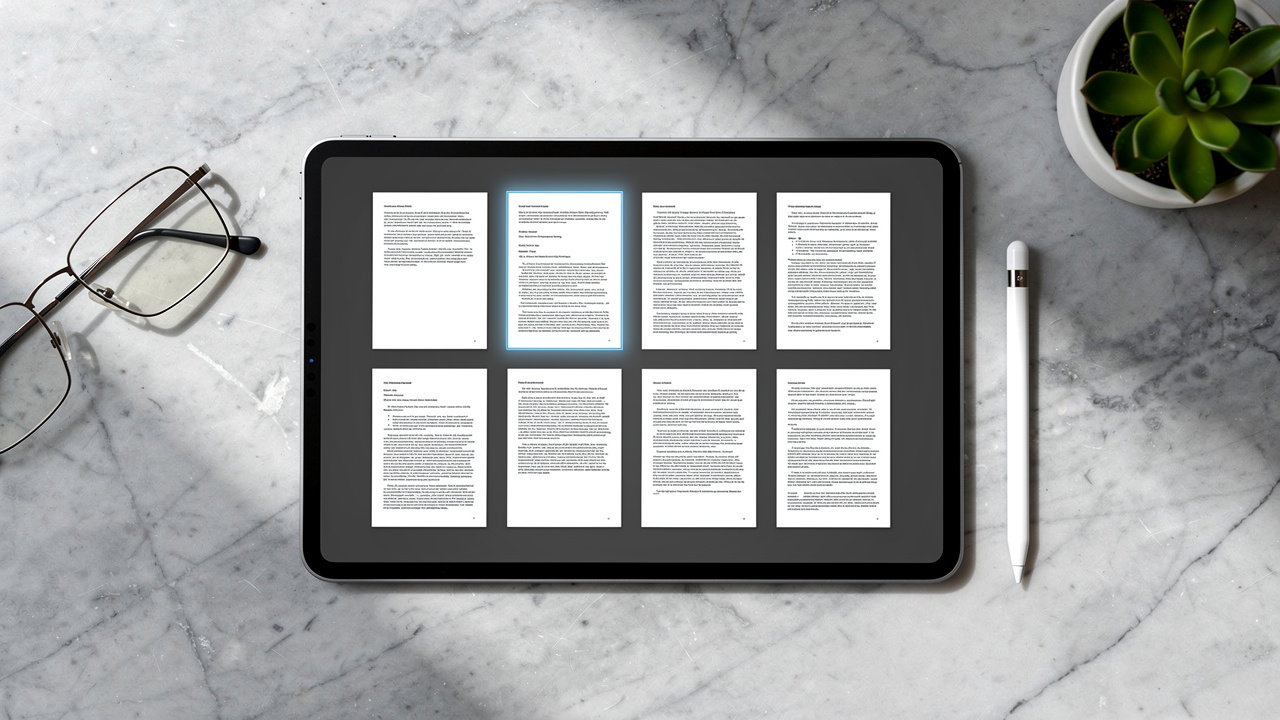
    Overview of PDF editing tools on a clean workspace

    When people think about editing PDF documents for free, they often picture typing directly on the page in the browser. Many tools keep that feature for paid plans. With iLovePDFKit we focus on a smarter path that still gives full control over text and layout. We convert your PDFs into formats that are easy to edit, then you send them back to PDF once the changes look right.

    The core of this method is our PDF to Word tool. It turns a static PDF into an editable Word file while holding on to fonts, styles, images, and page layout with pixel-perfect accuracy. After that, editing PDF documents for free becomes the same as working in Word. You correct lines, move sections, or replace pictures, then save back to PDF for sharing or upload.

    We follow this same idea for other file types. With PDF to Excel, tables and data move into real Excel sheets where formulas and sorting are easy. PDF to PowerPoint changes each PDF page into editable slides so that students and professionals can adjust bullet points, swap images, or add speaker notes in a normal slide deck. Editing PDF documents for free is no longer stuck in one format.

    • For content editing you can move in both directions between PDF and other formats. PDF to Word, Excel, and PowerPoint help open up the content so people can rewrite or reshape it. After the work is done, the Word to PDF, Excel to PDF, and PowerPoint to PDF tools turn everything back into clean, shareable PDFs.

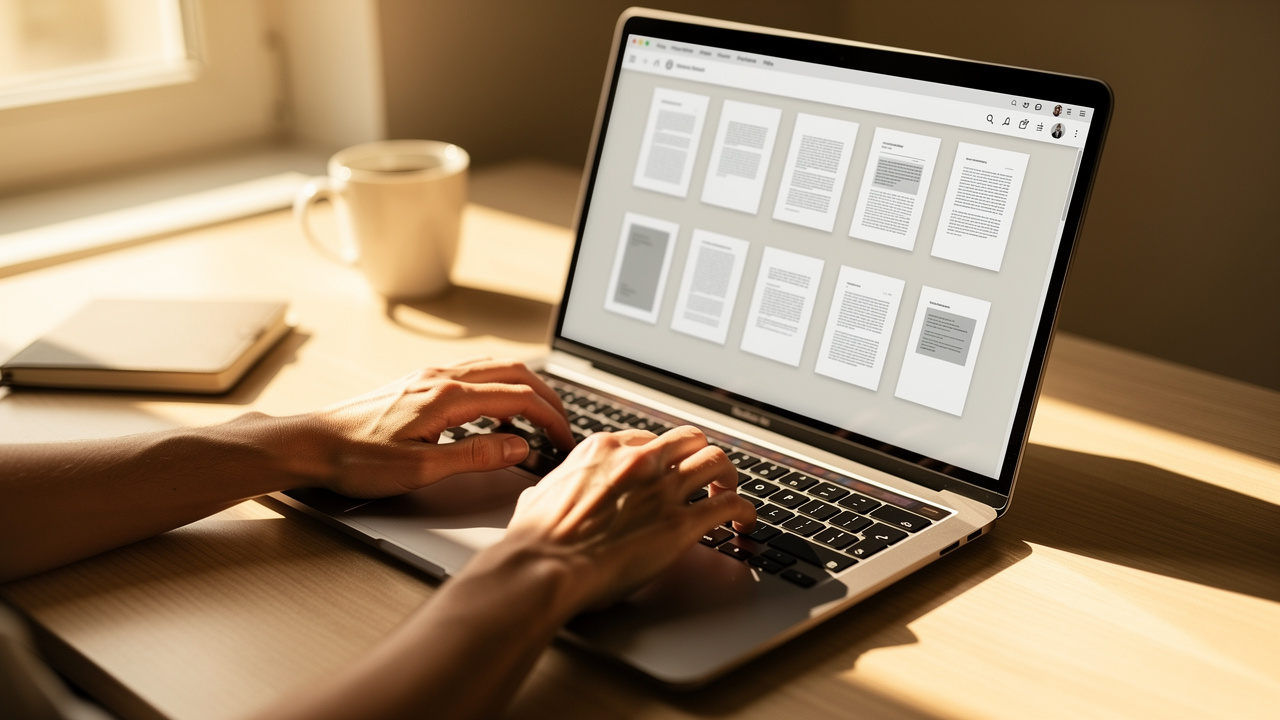
    • For page management we provide focused tools that save time during editing PDF documents for free. Delete PDF Pages uses a visual page grid so people can see each page and remove the ones they do not need. Our Add Page Numbers tool lets you place numbers at the top or bottom and choose the style that fits the document.

    • For media and images we help people move between PDF and picture files without any cost. PDF to JPG turns each page into a high quality image for slides, web upload, or design work. JPG to PDF then combines one or many pictures into a single, neat PDF, handy for receipts, scanned notes, or photo sets.

    On the security side, iLovePDFKit also includes the Protect PDF feature. This lets people set a password before they send files to clients, teachers, or partners, which adds control when editing PDF documents for free and then sharing the result. All of these tools stay open and free, with no trial period, no feature caps, and no hidden fees.

    “The best tools are almost invisible: they let you focus on the work, not the software.” — Common productivity advice

    How to Edit a PDF Document for Free Using iLovePDFKit
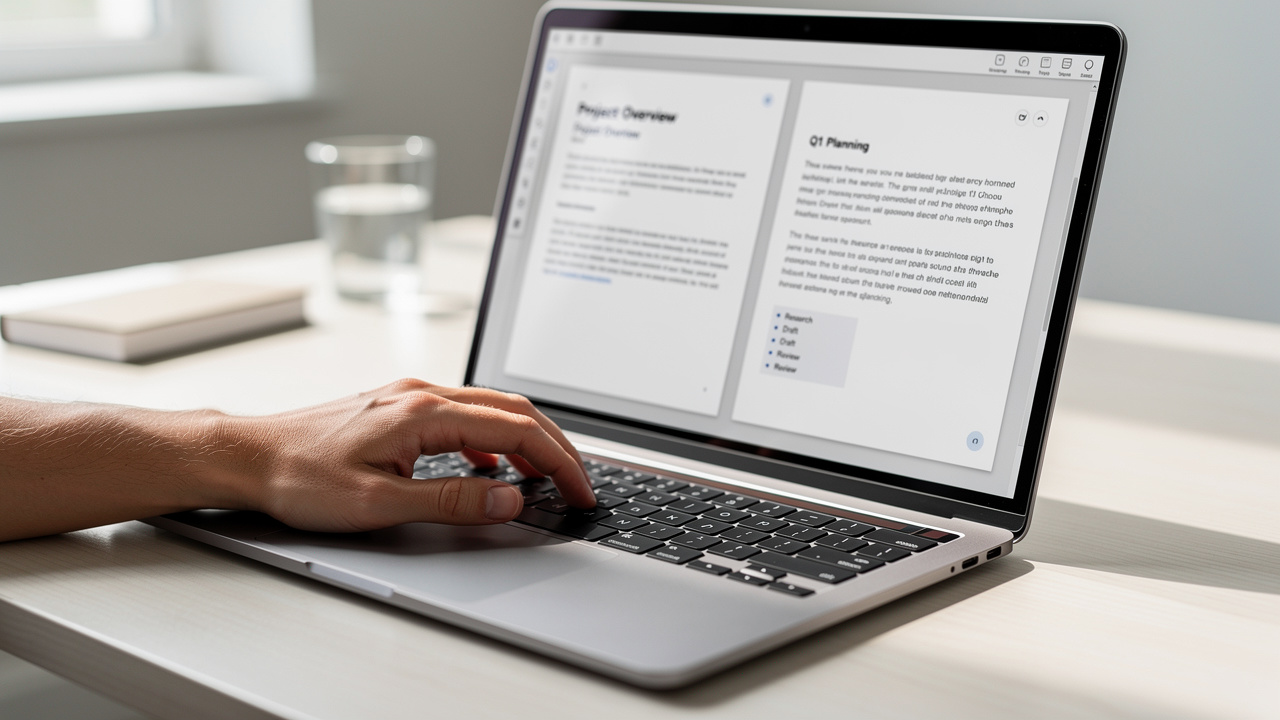
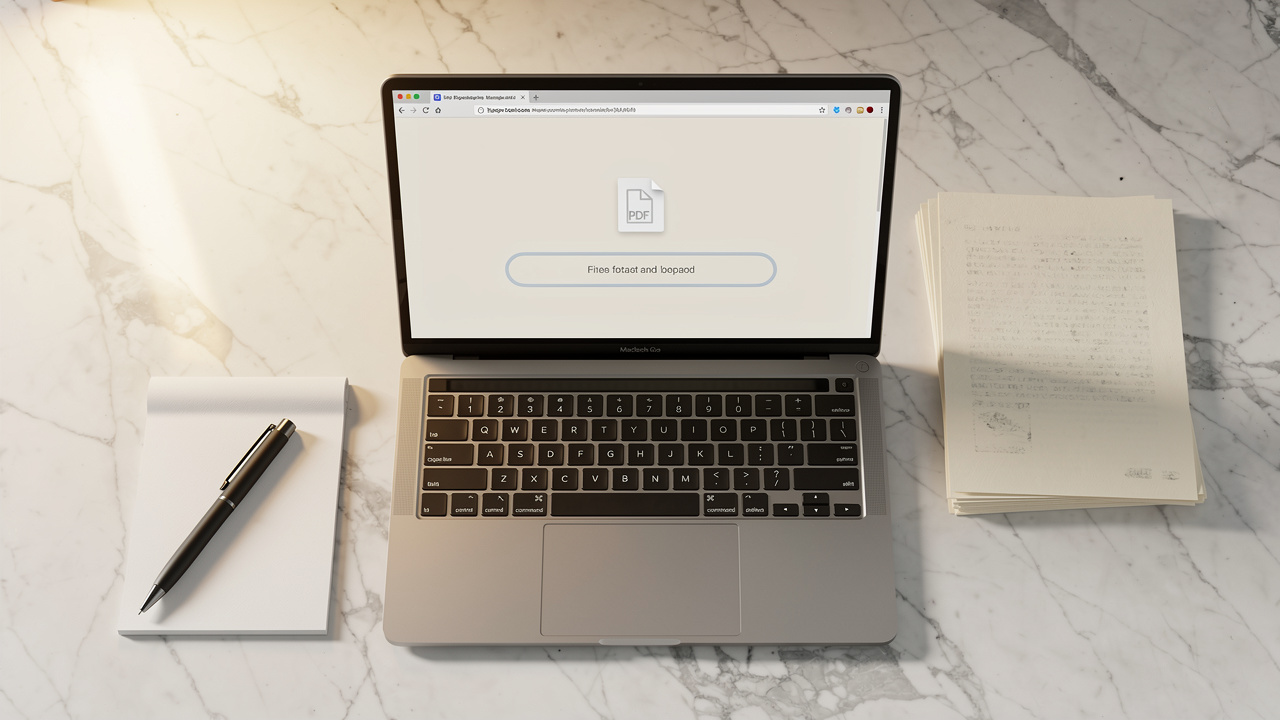
    Step-by-step PDF editing process on a laptop

    Now we can walk through how editing PDF documents for free works in practice with iLovePDFKit. The same simple flow applies whether someone needs to fix text, manage pages, or protect a file before they send it on. There are no forms, no email checks, and no credit card steps in between.

    First, decide what kind of change is needed. If the goal is to correct text or move parts of a report, start with PDF to Word. If a person only wants to cut pages, add page numbers, or set a password, the Delete PDF Pages, Add Page Numbers, and Protect PDF tools are better fits. Choosing the right tool is the only decision needed before the real work of editing PDF documents for free begins.

    1. Choose the right tool and open the iLovePDFKit page in a browser on a computer or phone. The home screen shows all tools in clear groups such as convert to PDF, convert from PDF, pages, and security. Click the tile that matches the task so the upload view appears with brief text that explains what the tool does.

    2. Upload the PDF from the device or cloud storage and wait for a short moment. People can drag a file into the window or click the central button to browse folders. The upload bar gives direct feedback, and most normal files move into the system in a few seconds. There is no need to sign in before this step.

    3. Let iLovePDFKit process the file and prepare the new version for download. Our engine works in real time while the browser shows a progress status, so people are not left guessing. With conversion tools, we create a new Word, Excel, PowerPoint, or image file that mirrors the layout of the original PDF. With page tools, the interface presents a live preview of each page.

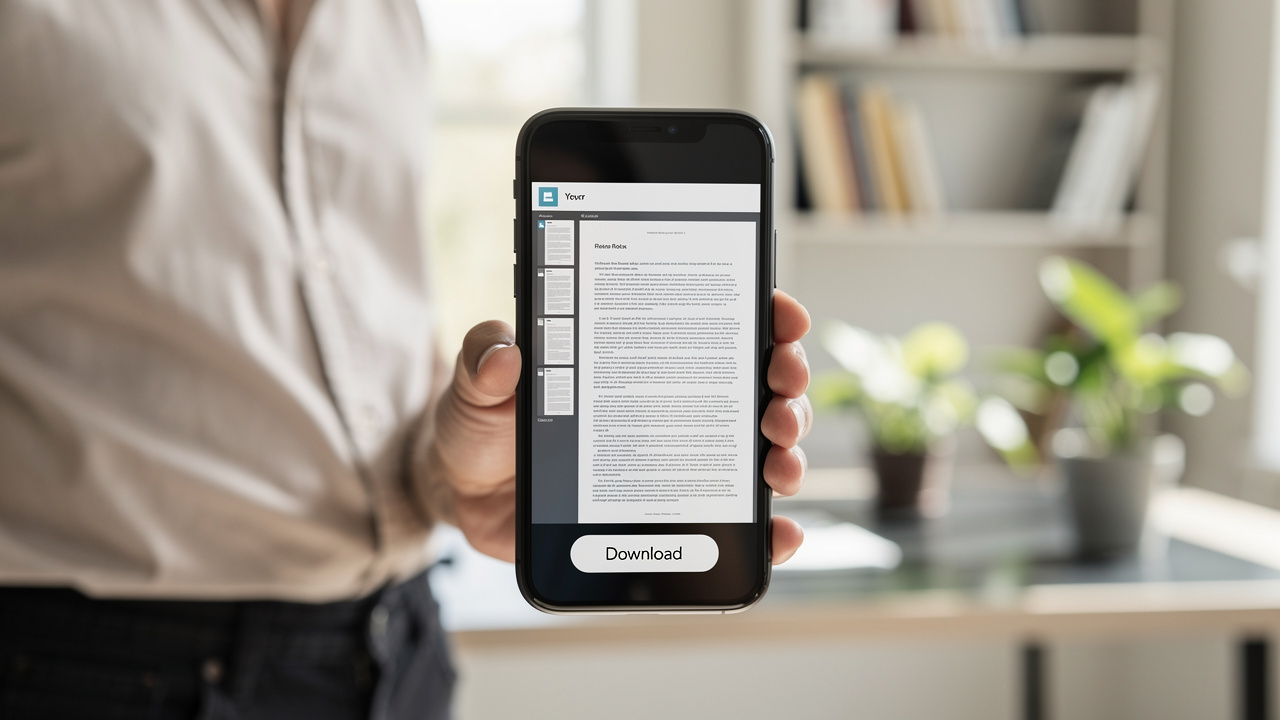
    4. Download the result straight to the same device and continue the task. For conversion tools, open the Word or other output file in local software and finish editing PDF documents for free without any watermark or lock. For tools that change the PDF directly, the new PDF is ready to share as soon as the download completes.

    To keep this smooth:

    • Have the file ready in an easy-to-find folder before you start.

    • Check the output quickly after download so any small issues can be fixed right away.

    • Keep the original PDF as a backup in case you want to compare versions.

    This full path often takes less than five minutes, even for long homework tasks or detailed business reports. The same steps work on Chrome, Firefox, Safari, Edge, and other modern browsers on both Windows and Mac. iLovePDFKit also runs well in mobile browsers on iOS and Android, so people can keep editing PDF documents for free when they are on the move.

    Is It Safe to Edit PDF Documents Online for Free?

    Professional woman safely editing PDF documents online

    Questions around privacy are normal any time a file is sent through the web. School assignments, invoices, and contracts can all hold personal details that people do not want drifting around on random servers. So it is fair to ask how safe editing PDF documents for free can be on an online platform.

    With iLovePDFKit we design the system so files are held only while they are needed. When someone uploads a PDF, our servers keep it during the short time it takes to convert, split, merge, or protect it. After the task finishes and the download link is ready, the file leaves active storage rather than staying in a long term archive. This limits how long sensitive content is present in the system.

    We also avoid accounts for simple work. Because iLovePDFKit keeps every tool open without registration, there is no stored user profile to match with a document. People who care about editing PDF documents for free without leaving a long data trail often prefer this approach. They open the page, upload a file, get the result, and leave without handing over contact details.

    The Protect PDF tool adds another layer for people who want more control after editing. Before sending a file to someone else, the user can apply a password so only the intended person can open it. This is helpful for freelancers sending proposals, staff handling client records, or students who need to submit graded work in a safe way.

    • Students gain a simple path when they send essays, lab reports, and project files online. They can work on editing PDF documents for free, set a password when needed, and upload the final version to their school portal with more peace of mind.

    • Office professionals who handle invoices, contracts, and HR forms can reduce risk. They can clean up pages, convert between formats, and protect key files without passing everything through long account setups.

    • Freelancers and small business owners who share quotes and design drafts can keep client data safer. They can rely on short term processing and password control rather than long term cloud storage linked to a personal login.

    “Treat every document you share as if it matters to someone else as much as it does to you.” — Advice often given in security training

    As with any online tool, it is wise to think carefully before uploading highly sensitive items such as passports, full medical records, or files restricted by company policy — platforms like Canva’s Free Online PDF Editor also highlight how design-focused tools handle uploads, which offers a useful contrast when evaluating privacy practices. By keeping processing short, removing the need for sign-ups, and providing password protection, iLovePDFKit gives a clear path for safe editing PDF documents for free. People keep control of their work and their data while still enjoying fast, easy tools.

    Conclusion

    Young man editing PDF documents on a smartphone in a cafe

    Editing PDF documents for free does not have to feel like a trade between price, time, and privacy. With iLovePDFKit the basic steps stay clear. Open the tool, upload the file, let the engine work, and download the new version without extra steps or surprise pay walls.

    We support conversion in both directions, so people move between PDF, Word, Excel, PowerPoint, and images while keeping layout and style close to the original. Our page tools handle jobs such as deleting pages or adding page numbers, and our Protect PDF tool adds passwords when sensitive files need extra care.

    Most important, there is no registration step and no long term profile. That means anyone can try iLovePDFKit right away and start editing PDF documents for free from a laptop, work desktop, or mobile browser. The best way to see the difference is to open a file and watch how quickly the task is done.

    FAQs

    Do I need to create an account to edit a PDF for free on iLovePDFKit?

    No account is needed at any stage when people use iLovePDFKit. Every tool is open from the moment the site loads, so editing PDF documents for free starts right away. There is no email form, password setup, or trial sign-up before upload or download.

    Can I edit the text in a PDF for free?

    Yes, although the method is different from typing straight into a PDF in the browser. With iLovePDFKit, people first use PDF to Word to turn the file into a fully editable Word document that keeps fonts, images, and layout close to the original. They then change the text and design inside Word and use Word to PDF to create a fresh, final PDF. This keeps editing PDF documents for free simple and flexible.

    Is there a file size limit for free PDF editing?

    iLovePDFKit is built for normal daily files such as essays, reports, proposals, and contracts, so those usually process with no trouble. Very large documents with many high resolution images may take longer or might not fit within practical limits. The easiest way to check is to upload a typical file and see how fast editing PDF documents for free completes.

    Can I edit a PDF on my phone without downloading an app?

    Yes, iLovePDFKit works in mobile browsers on both iOS and Android. People open the site in Chrome, Safari, or another modern browser, then follow the same upload and download steps as on a computer. This means editing PDF documents for free is possible from a phone or tablet during a commute, between meetings, or away from a desk.
  • Removing Password From PDF: Simple Methods Explained

    Removing Password From PDF: Simple Methods Explained

    Introduction

    Everyone has that moment: a deadline is close, the report is ready, and the file is stuck behind a password prompt. The document is yours, yet opening or sharing it suddenly feels harder than writing it. At that point, removing password from PDF stops feeling optional and becomes urgent.

    We see this often with students, office teams, and small business owners. A thesis draft cannot be printed, a contract cannot be edited, or a client cannot review a proposal because the PDF is locked.

    This guide walks through clear, safe ways to remove a password from a PDF that you own and are allowed to edit. We focus only on legitimate use where the current password is known. You will see how to do it with iLovePDFKit in the browser, when desktop software is a better fit, and where the hard limits are.

    Before we dive into the details, here is a short overview.

    Key Takeaways

    If you are in a hurry, these points cover what matters most when you need help with removing password from PDF.

    • PDF files use two main password types. A Document Open password stops anyone from opening the file without the code. A Permissions password lets people read the file but can block printing, copying, or editing.

    • Every safe method for removing a PDF password starts the same way: we must already know the current password, and the tool only removes it after we enter that code. No trusted service will guess or break a password for us.

    • iLovePDFKit gives fast, free, browser‑based PDF work with strong privacy. Desktop apps help when files must stay offline. Both approaches process files securely and remove them soon after the work is done.

    Understanding PDF Password Types Before You Remove Them

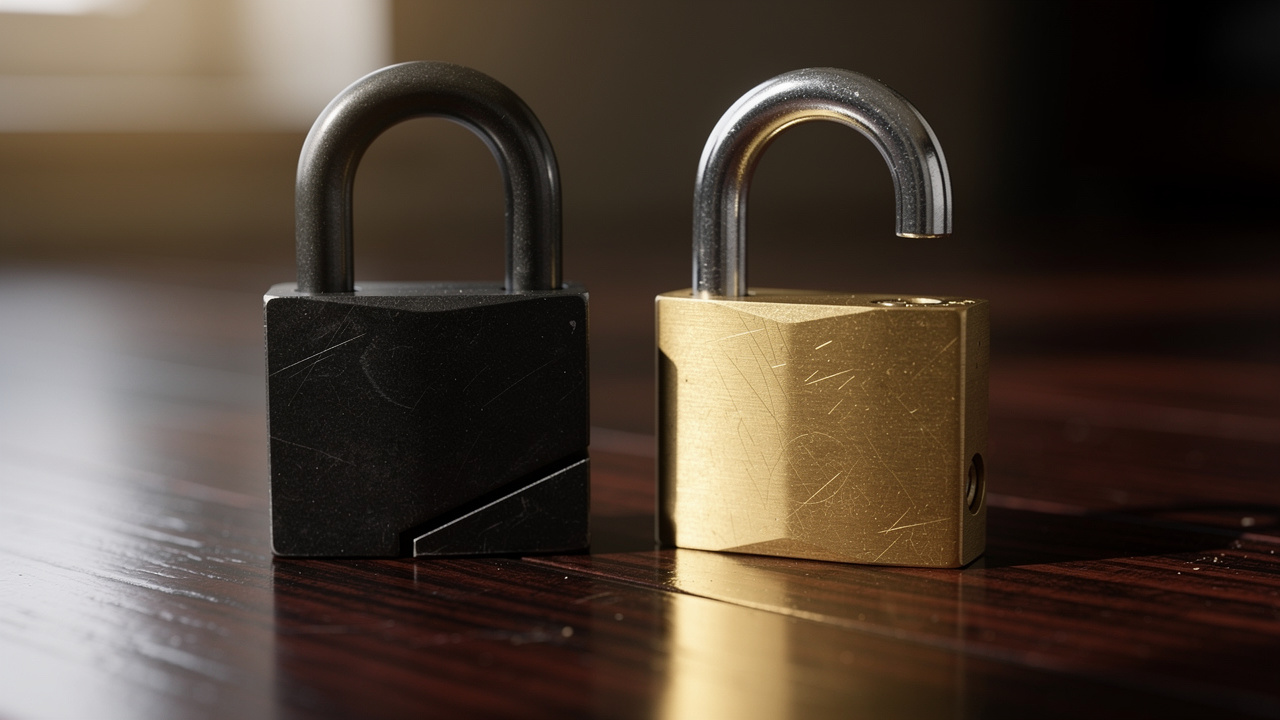
    Two padlocks representing different PDF password types

    Before we talk about removing password from PDF, it helps to know what type of lock you are dealing with. PDF security is not all the same. Some passwords block access to the file, while others allow reading but restrict actions like printing or editing.

    A Document Open password is the strict option. When this is set, opening the PDF always shows a prompt asking for the code. Without the right text, no one can view, print, or copy from the document. This is common for files that carry grades, salaries, contracts, or other sensitive data — and researchers have shown that even password-protected PDFs can carry risks, as outlined in this piece where Researchers Find New Hack to read content of password-protected PDF files.

    A Permissions password works differently. The file opens without a prompt, so anyone who has the PDF can read it. However, the creator can block actions such as editing, copying text, adding comments, or printing pages. To turn these limits off, you need the Permissions password inside a PDF editor or trusted tool.

    Here is a quick comparison that sums up both types:

    FeatureDocument Open PasswordPermissions Password
    Blocks file access✅ Yes❌ No
    Restricts editing or printingN/A✅ Yes
    Password needed just to view✅ Yes❌ No
    Password needed to remove protection✅ Yes✅ Yes

    Once you know which type is in use, removing a PDF password becomes clearer, and it also makes sense why every method still asks for the password at least once.

    How To Remove A PDF Password Using A Free Online Tool

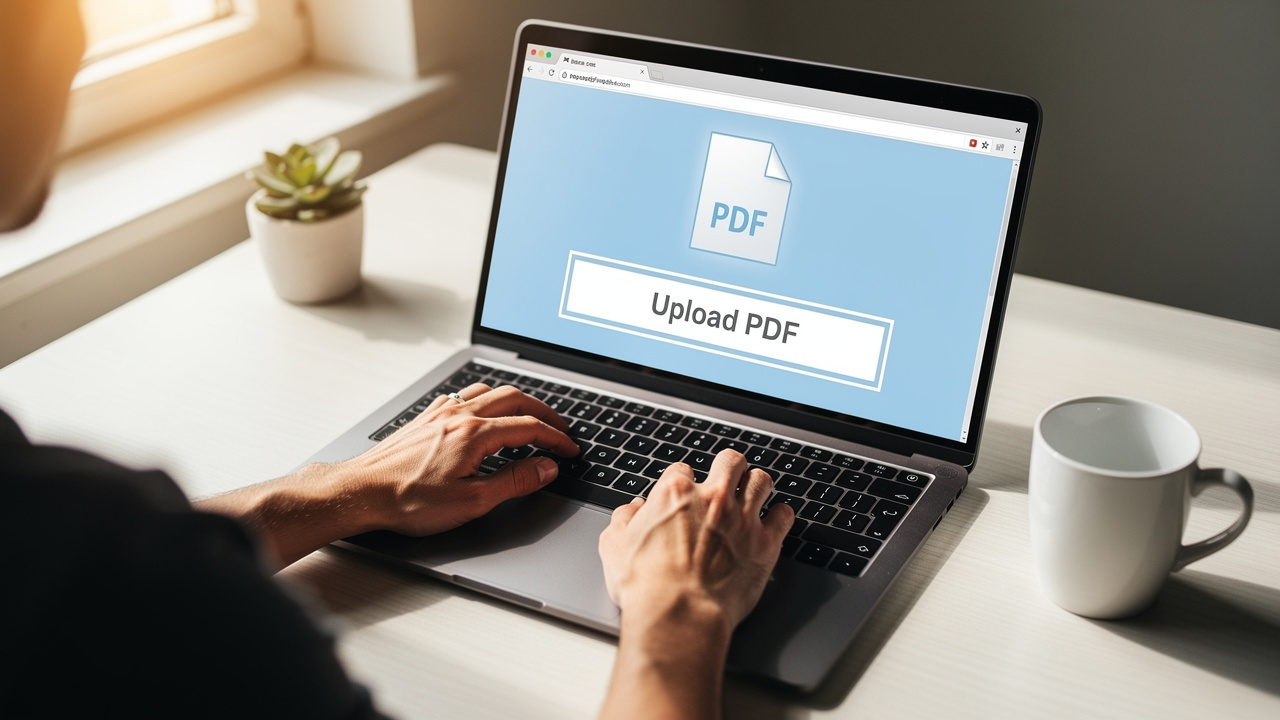
    Person uploading PDF file to browser-based online tool

    For most people, the quickest way of removing password from PDF is an online tool that works directly in the browser. This avoids installing software, asking for admin rights at work, or dealing with updates. That is exactly where iLovePDFKit helps.

    iLovePDFKit is built for quick tasks that pop up during class, meetings, or freelance work. The service is free to use, does not ask for signup, and runs in any modern browser on Windows, macOS, Linux, phones, or tablets. When you remove a password from a PDF with our tool, processing happens in real time on our servers.

    Security sits at the center of this process. Files travel with SSL encryption, are stored only while the task runs, and are erased automatically right after. For tools that add protection, we use AES‑256 encryption and never store the password itself. The same care applies when we help with removing password from PDF, so documents stay private.

    Here is how the online method works, step by step:

    1. Open iLovePDFKit In Your Browser
      Visit our website from any device with internet access. There is no need to download a program or create an account. The remove password from PDF tool sits alongside our other PDF tools and is ready whenever you need it.

    2. Add Your PDF File
      Click to choose a file from your computer, or drag and drop it into the upload area. If you prefer cloud storage, you can import from services such as Google Drive or Dropbox. In every case, the file reaches us through an encrypted connection.

    3. Confirm That You Know The Password
      After upload, the tool checks the file and notices that it is protected. A prompt asks for the current password so we can continue. Enter the same password you use to open the PDF on your own device, which confirms that you are allowed to edit it.

    4. Start The Password Removal Process
      With the correct code entered, start the task with a single click on the button that removes the password. The iLovePDFKit engine reads the file, takes away the requested protection, and creates a new copy. This usually takes only a few seconds.

    5. Download The New PDF Without A Password
      When the task finishes, a clear link appears to save the fresh copy. You can store it on the local device or send it back to the same cloud drive used earlier. The new document opens without a prompt, so printing and sharing are much faster.

    iLovePDFKit processes files in seconds and deletes them right after the task finishes, so documents and passwords never stay on our servers.

    This method fits our main audiences very well:

    • Students can remove passwords from lecture notes or old assignments on shared campus computers without asking to install anything.

    • Office workers can handle protected invoices or reports directly in the browser they already have open.

    • Freelancers and small business owners get a free, fast way of removing password from PDF files from any laptop or phone.

    For most everyday files where you know the password and just want quick access, iLovePDFKit is the easiest tool to keep in mind. In the next section, we cover when desktop software makes more sense.

    How To Remove A PDF Password With Desktop Software

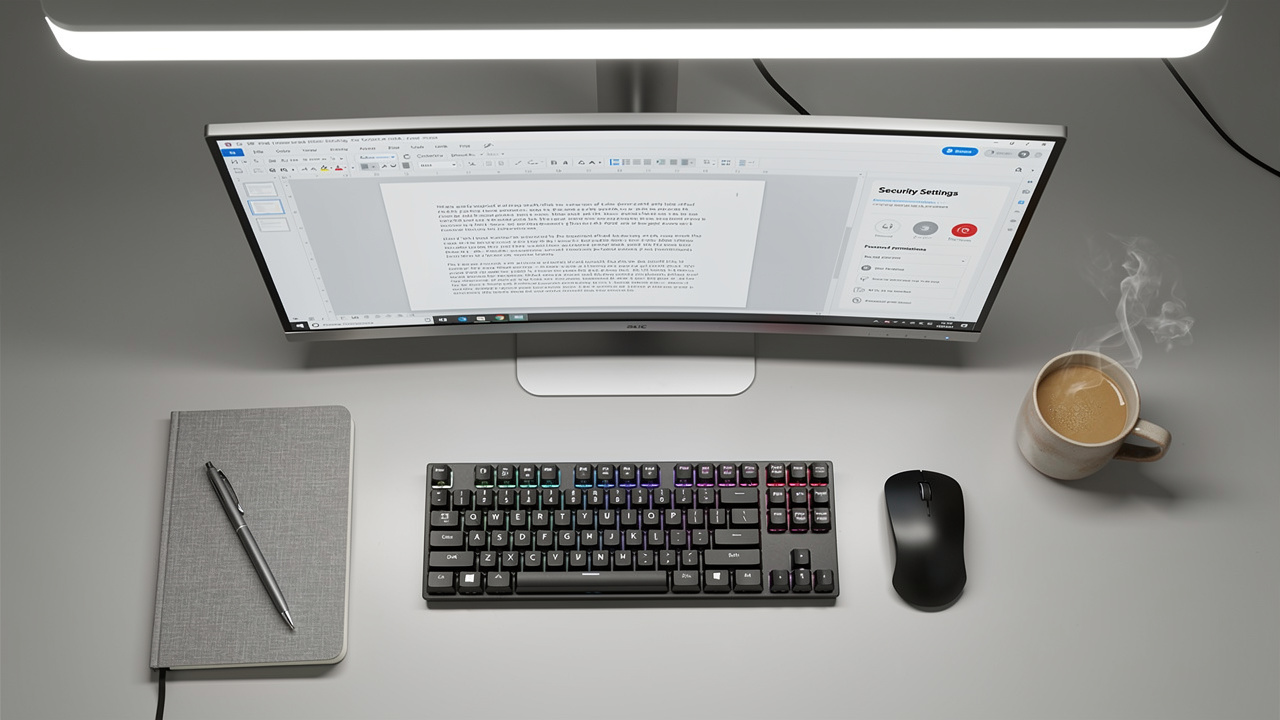
    Desktop computer with PDF editor security settings open

    Sometimes removing password from PDF needs to happen fully offline. This can be the case for internal company reports, medical records, or any file that workplace rules say must never be uploaded anywhere. In these cases, desktop software that runs on your own machine is the better fit.

    Popular PDF editors on desktop, such as Adobe Acrobat Pro and similar tools, can remove both types of passwords as long as you know the current code — Adobe itself offers guidance on Protecting privacy: Securely removing PDF passwords for data safety. The free Adobe Acrobat Reader can open a protected file when the password is entered, but it cannot save a new copy without that protection. For removing password from PDF, a full editor or another paid tool is usually required.

    For a PDF with a Permissions password, the steps in a desktop editor usually look like this:

    1. Open The PDF In The Desktop Editor
      Start the program and open the protected file. Because a Permissions password only limits actions, the content normally appears right away, even if editing and printing are blocked.

    2. Go To The Protection Settings
      In the toolbar, look for a section that handles security features. In Adobe Acrobat Pro this sits under Tools → Protect → Encrypt. Other editors use similar paths.

    3. Remove The Security And Confirm The Password
      Inside the security settings, choose the option that turns off protection for the current file. When the program asks for the Permissions password, type the code you already know. Once confirmed, the restrictions on editing and printing are removed.

    4. Save A Fresh Copy Of The File
      Save the PDF using Save or Save As. The new copy opens without extra prompts and allows edits, copying, and printing according to the changes you made.

    For a PDF with a Document Open password, the flow is almost the same, with one extra step at the start:

    1. Open The PDF And Enter The Password
      When you open the file, the program asks for the Document Open password before showing anything. Type the code to access the content.

    2. Go To The Same Protection Menu
      Once the file is open, use the same path to reach the security settings, such as Tools → Protect → Encrypt, and choose the option that turns off security.

    3. Confirm Removal And Save
      The editor may ask if you really want to remove the password. After you agree, save a new copy. From then on, that PDF opens without a password request.

    Desktop software keeps the entire process on your computer, which can be important when company policy is strict. It often includes extra tools like redaction, form editing, and batch work. The trade‑off is cost and the need to use the same device where the software is installed.

    When You Cannot Remove A PDF Password — Key Limitations

    Heavy vault door representing PDF password removal limitations

    With all this talk about removing password from PDF, it is important to be clear about what cannot be done. Trusted tools, online or offline, must respect the limits set by file owners, laws, and security standards. That is why the same simple rule appears again and again: we must know the current password, and some special types of protection cannot be removed at all.

    “Security is a process, not a product.” — Bruce Schneier

    Here are the main limits that matter in practice:

    • 🔒 Forgotten Passwords
      When a password is forgotten, regular tools cannot help. They always ask for the code first, even if you only want to take the lock away. This protects sensitive information from being opened by guesswork. In business settings, an IT team may hold backup copies of important passwords.

    • 🏢 Server‑Based Security
      Some PDFs use server‑based security that comes from a central system. Large companies and public offices often protect documents in this way. Only an administrator or the person who set up the policy can change or remove it. Web tools like iLovePDFKit and home software cannot override these rules.

    • ✍️ Digitally Signed Or Certified PDFs
      Many official PDFs carry digital signatures or certificate‑based locks. These features prove that the file has not been changed since the signer approved it. Taking away the password would damage that proof, so trusted tools simply refuse to do it. The only safe path is to ask the signer for a new version.

    • 📚 DRM‑Protected E‑Books And Paid Content
      E‑books and other paid content often rely on digital rights management (DRM). This extra layer is meant to stop copying or sharing beyond the license. Standard PDF editors and online tools are not able to remove DRM, and trying to bypass it may break store rules or local law.

    If none of these limits apply and you know the password, removing password from PDF is safe and simple with tools such as iLovePDFKit or desktop apps. Knowing where the line sits helps set fair expectations and keeps your work on the right side of policy.

    Conclusion

    Person relieved after successfully removing PDF password

    Password protection has a clear role, but it should not block your own work once access is allowed. When you understand the difference between Document Open and Permissions passwords, removing password from PDF feels less like a puzzle and more like a short routine.

    For everyday study, work, and freelance projects, iLovePDFKit offers the quickest path: open the site, add the file, type the known password once, and save a fresh copy in seconds. There is no software to install, no account to remember, and files are erased right after processing.

    Desktop software still has a place when documents must stay offline or when you work with very strict company rules. In many other cases, though, the browser is enough. The next time a report, thesis, or invoice appears with a lock icon, you can head to iLovePDFKit, upload the PDF, and remove the password without stress.

    FAQs

    We hear the same questions again and again when people talk about removing password from PDF. Here are short answers that clear up the most common doubts.

    Can I Remove A PDF Password If I Have Forgotten It?

    No, not with regular, trusted tools. Every method we describe, including iLovePDFKit and desktop editors, asks for the current password before changing security. These tools are made to remove a password that you already know, not to guess or break one. In some offices, an IT team or document owner may be able to reset access through their own systems.

    Is It Safe To Upload A Sensitive PDF To An Online Tool Like iLovePDFKit?

    Yes, as long as the service treats privacy with care. iLovePDFKit uses SSL encryption for every upload and download, so files cannot be read in transit. Documents are stored only while the task runs and are deleted from our servers right after. We do not keep the password entered during removing password from PDF. For highly secret files that must never leave a closed network, offline desktop software remains the safer choice.

    Do I Need To Pay Or Create An Account To Use iLovePDFKit?

    No, iLovePDFKit is free to use and does not ask for registration. You simply visit the site, choose the tool for removing password from PDF, add the file, and start the task. This makes it easy to handle one‑time jobs on borrowed devices, school computers, or a quick work session without new logins or fees.

  • Top Free PDF Tools in 2026: Edit, Merge & Secure

    Top Free PDF Tools in 2026: Edit, Merge & Secure

    Introduction

    The moment a professor asks for one clean PDF, or a client sends a contract to sign, the same problem keeps coming up. Paid tools appear with trials and locked features, and “free” sites limit you to two tasks per day or stamp a big logo on every page. That is exactly why guides like Top 20+ Free PDF Tools in 2026: Edit, Merge & Secure Online matter so much now.

    Free PDF tools in 2026 are far more capable than the clunky apps many people remember. Editing, merging, compressing, converting between Word, Excel, PowerPoint and PDF, even locking a file with a password can all happen inside a browser tab, without paying a cent. For students, office staff, and small teams, that is the difference between smooth work and constant friction.

    This is where iLovePDFKit comes in. It is a completely free, browser-based set of tools with no registration, no limits, and pixel-perfect conversions. Files are processed securely in real time, with no long-term storage.

    In this guide, we walk through 20+ of the best free PDF tools, grouped by use case so it is easy to pick the right one. By the end, it will be clear when a quick web tool is enough, when a desktop app helps, and why iLovePDFKit can sit at the center of daily document work.

    Key Takeaways

    • Free PDF tools in 2026 can handle editing, merging, compressing, converting, and basic security tasks. Many people can cancel paid subscriptions. This is especially helpful for students, freelancers, and small teams.

    • iLovePDFKit offers a full online suite with no sign up, no limits, and no watermarks. It keeps layouts accurate and processes files securely in real time. Everything runs in the browser.

    • Different tools shine at different jobs, such as conversion, design, or signatures. Many free plans add caps, watermarks, or missing features. Security always matters, so tools that avoid long-term file storage are safer choices.

    Why Free PDF Tools Matter More Than Ever in 2026

    Stacked PDF documents and folders on a modern desk

    PDFs sit at the center of work and study in 2026. Lecture slides, contracts, invoices, reports, research papers, even scanned receipts often end up as PDFs. With remote classes, mixed office schedules, and constant email sharing, almost everyone touches a PDF file most days.

    Paid software still exists, and tools like Adobe Acrobat can cost fifteen to twenty-five dollars every month — a significant expense when you consider the best free PDF editor options available today. For a busy legal team that may be fine, but for students or freelancers that cost adds up very fast. Many people settle for “free” tools that then block them after a couple of tasks or print watermarks on every export.

    Browser-based PDF editors now feel more like full apps than quick hacks. Modern sites can convert Word, Excel, and PowerPoint without wrecking the layout. They can also compress large PDFs for email, split big reports into sections, and combine many small files into one tidy package.

    We built iLovePDFKit for people who want that power without the usual strings. Every tool is free, runs in the browser, and works without any account. Files move through secure processing, are handled in real time, and are not kept around.

    Other names such as iLovePDF, Smallpdf, and PDF Candy are also strong options, but they often add daily caps or feature walls — and comparing them against the 15 Best Markup Tools available today shows just how varied free tool quality can be. That makes it hard to rely on them during exam weeks or busy client seasons. Knowing which features to care about is the next step when picking a tool that fits.

    “Perfection is achieved, not when there is nothing more to add, but when there is nothing left to take away.”
    — Antoine de Saint-Exupéry

    The best PDF tools feel like that quote: they stay out of the way and let you finish the task quickly.

    What Features Should You Look for in a Free PDF Tool?

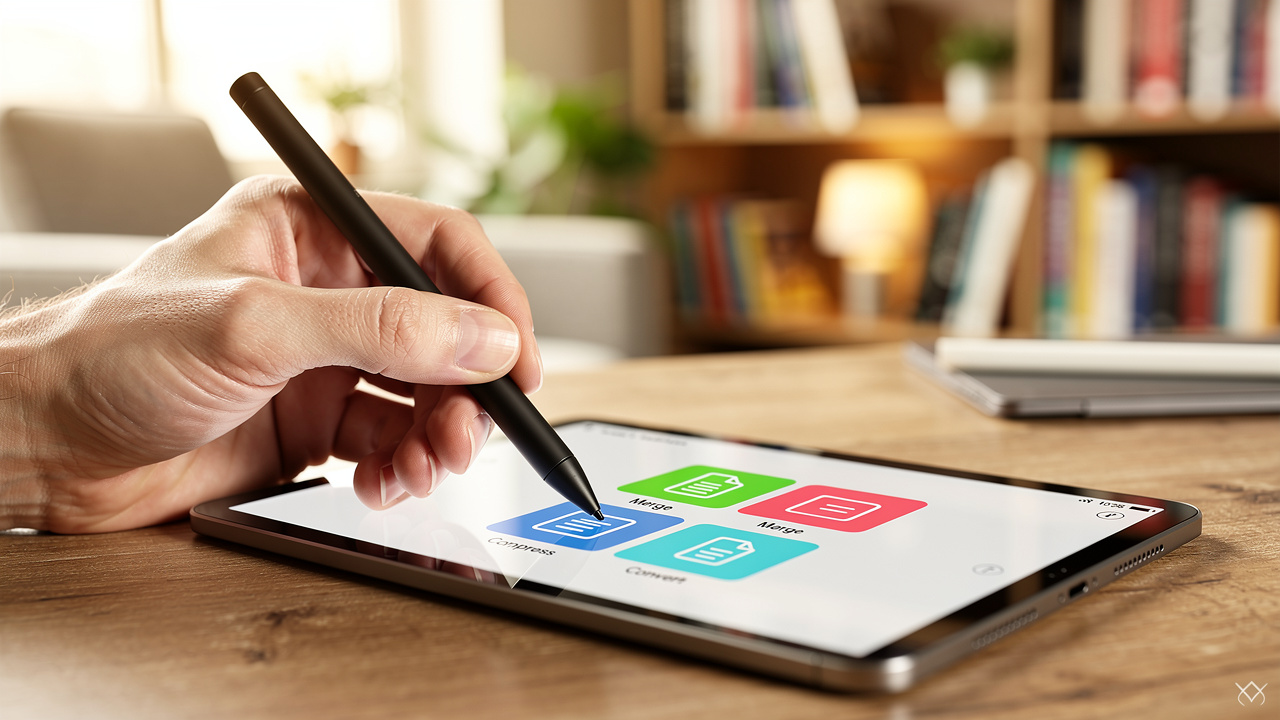
    Person using tablet to manage and edit PDF documents

    Not every free PDF tool is worth trusting with a thesis, client offer, or tax document. Some only add notes, while others feel close to a full editor. A short checklist helps separate handy tools from ones that cause more stress than they save.

    Core editing and page management come first. A good free PDF tool should make it quick and simple to:

    • Merge two or ten PDFs into one

    • Split a long file into smaller parts

    • Compress a file for email or upload

    • Reorder, delete, or rotate pages

    When possible, direct text editing is a bonus, especially for small fixes like typos.

    Conversion quality is the next big test. A strong free tool converts Word, Excel, PowerPoint, JPG, and PNG to PDF and back again, while keeping fonts, spacing, tables, and images in the right place. This is a core strength of iLovePDFKit, which aims for pixel-perfect results on both Office files and images.

    For image-heavy work, dedicated image-to-PDF and PDF-to-image tools save a lot of time. Turning scans and photos into one neat PDF, or exporting slides as images for social posts, should only take a few clicks.

    Security and privacy matter just as much as features. Helpful tools offer password protection and process files securely without long-term storage. iLovePDFKit focuses on real-time handling with no file storage concerns, which is important for contracts or student records.

    Friction is also a factor. Many services demand an account even for basic actions. iLovePDFKit and a few others skip that step, which is perfect when working from a borrowed device or a shared lab computer.

    To keep this simple, here is a quick summary:

    • A helpful free tool handles merging, splitting, compressing, page order changes, and sometimes direct text fixes. That covers most day-to-day tasks for study and work.

    • Strong conversion support for Word, Excel, PowerPoint, JPG, and PNG avoids messy layouts and rework. This is one of the main reasons people stick with a tool long term.

    • Real-time secure processing without long-term storage reduces risk with sensitive files. Password options are also useful when sharing grades, contracts, or invoices.

    • Browser-based access without registration or watermarks keeps things fast and clean. That is the model followed by iLovePDFKit.

    Top 20+ Free PDF Tools in 2026: Edit, Merge & Secure Online

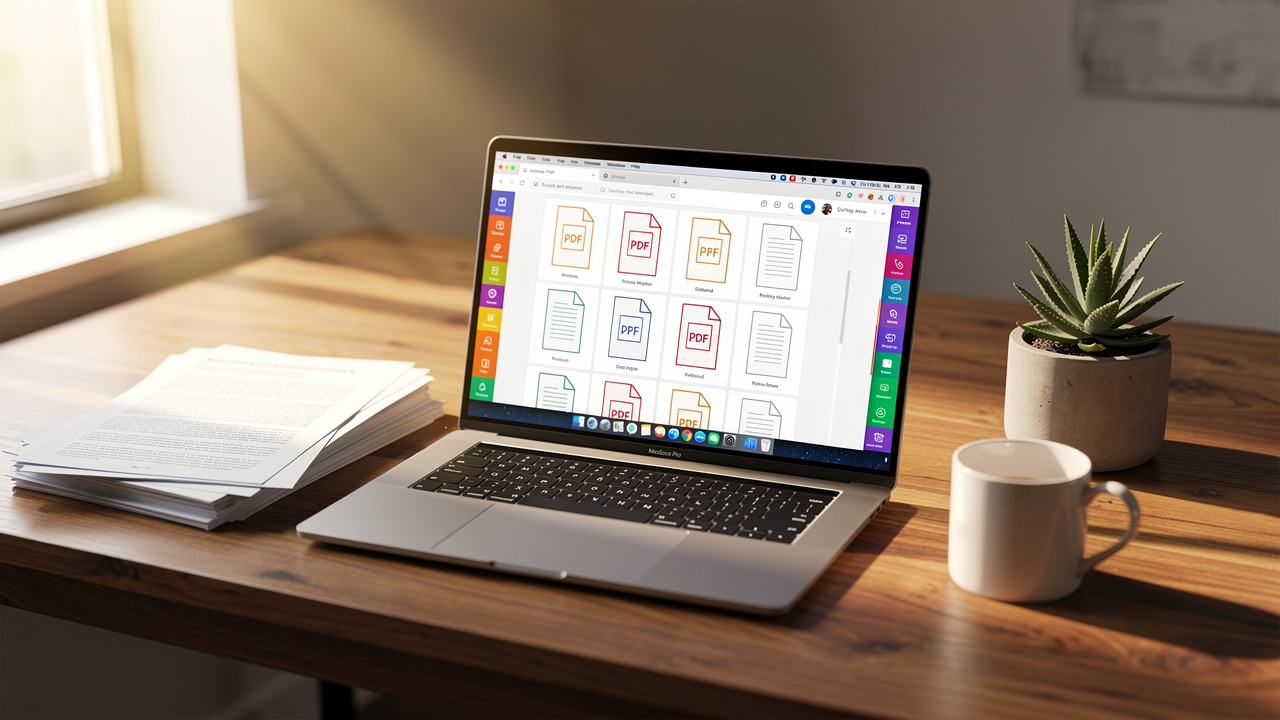
    Laptop showing free PDF tool suite in browser window

    This section is the heart of the guide. Here we group more than twenty free PDF tools by what they do best, so it is easy to match them with real tasks — drawing on insights from trusted sources covering the best PDF editors 2026 has to offer. iLovePDFKit appears in several spots because it covers many workflows in one place.

    All-In-One Free PDF Suites

    • iLovePDFKit is our top pick for a full online suite. It converts Office files and images with very accurate layouts and also covers everyday tasks like merging, splitting, compressing, and adding passwords. It has no daily caps, no watermarks, and never asks for sign up.

    • PDF24 Creator works best as a free desktop kit for Windows. It offers editing, merging, converting, compressing, OCR, and eSign features without cost. The main limit is that it only runs on Windows.

    • PDF Candy packs more than forty tools into a clean web interface. It can edit original text, convert many formats, and even run OCR on scans. The free plan allows only one task each hour, which is tight for heavy use.

    • Sejda mixes web and desktop tools with a strong focus on privacy. It edits text, fills forms, merges, splits, and can redact content. Free users are limited to three tasks per day and size limits.

    Best Free Tools For Conversion

    • iLovePDFKit converts Word, Excel, and PowerPoint to PDF and back again with high accuracy. It also handles image formats like JPG and PNG. All of this works in the browser with no account needed, which makes it a reliable everyday converter.

    • iLovePDF offers quick conversions between Office formats and PDF. It is very easy to use for simple jobs. Editing original text inside PDFs needs a paid plan though.

    • Smallpdf provides clean conversion tools with a simple layout that works well on phones. It supports many formats and has apps on mobile and Windows. The free plan only allows two tasks per day.

    • Google Drive with Google Docs can act as a free converter for text-heavy PDFs. Upload the PDF, open it with Docs, edit, then export back to PDF. Complex layouts and heavy design work often break during this step.

    Best Free Tools For Editing PDF Content

    • iLovePDFKit offers browser-based tools for everyday edits such as reorganizing pages, deleting or rotating them, and making small text or annotation changes. It is a solid pick when you need to fix a detail quickly before sending a file.

    • PDF Candy stands out among free tools for editing original text and images. Many simple layout changes are possible right inside the browser. The one task per hour rule still applies here.

    • Sejda lets people change existing text, add images, and adjust forms. It is helpful for contracts and simple layout tweaks. On very complex pages the editor can behave in less predictable ways.

    • Canva PDF Editor treats a PDF as a design project. Users can move text, change fonts and colors, and add design elements from its library. It does not offer OCR, advanced security, or legal eSign features.

    Best Free Tools For Merging, Splitting And Compressing

    • iLovePDFKit makes merging many PDFs into one file very quick. It splits large documents and compresses heavy files for email in the same place. No account, limits, or watermarks get in the way, which is perfect for repeated daily use.

    • PDF24 Creator Online offers merging, splitting, and compression in a simple web view. People on any platform can use these tools from a browser. It is a good match when someone does not want to install software.

    • iLovePDF is a well-known choice for merging and splitting. The interface is very clear, even for people who seldom edit PDFs. Some extra features and higher limits sit behind paid plans.

    Best Free Tools For eSignatures And Form Filling

    • iLovePDFKit is a helpful companion for eSign tools. It prepares documents for signing by merging exhibits, compressing attachments, and exporting to clean PDFs that are easy to send for signature.

    • DocHub centers around signatures and forms. The free plan supports up to two thousand documents, five signatures each day, and three sign requests per day. Font choices are narrow on the free tier.

    • iLovePDF supports basic signing and annotations. It fits simple agreements or school forms that only need one or two names. Heavy signing workflows may push people toward a more focused service.

    • Smallpdf includes eSign tools in both web and mobile apps. The interface fits small screens very nicely. Daily task caps still apply on the free plan.

    Best Free Tools For Secure PDF Management

    Woman reviewing secure PDF documents at office desk
    • iLovePDFKit processes each file in real time and does not keep it afterward. That makes it a smart pick for contracts, reports, or student data. Password and conversion tools live in the same place, so you can secure and share in one pass.

    • Sejda auto deletes uploaded files after two hours. This policy helps people feel safer when they upload pay slips or legal forms. The task limits still matter during busy days.

    • PDF24 Creator Desktop runs fully on the local machine. Since files never leave the computer, it avoids server-side privacy worries. People who handle very sensitive documents often prefer this style.

    Best Free Tools For Mac And Mobile

    • iLovePDFKit In The Browser runs on macOS, iOS, Android, Windows, Linux, and ChromeOS through any modern browser. There is nothing to install, and the same interface appears on laptops, tablets, and phones.

    • Apple Preview on macOS comes installed on every Mac. It reads PDFs, adds notes and highlights, rearranges pages, and sets passwords. It cannot edit original text or run OCR on scans.

    • Smallpdf for iOS and Android works well for quick edits from a phone. It includes a camera scanner for turning paper into PDFs. Free users must still respect the two tasks per day limit.

    Understanding the Limitations of Free PDF Tools (And How to Work Around Them)

    Hands holding smartphone with PDF document management app

    As helpful as free tools are, they all come with trade-offs — and resources like The 8 best AI PDF summarizer tools show how AI-assisted alternatives are filling the gaps left by traditional free tools. Knowing these trade-offs ahead of time makes it easier to choose the right mix of web and desktop apps.

    Some of the most common limits include:

    • Daily and hourly task caps
      Smallpdf allows only two tasks per day, and PDF Candy allows one task per hour. That is fine for an occasional conversion, but painful during exam week or when sending many client documents.

    • Watermarks on exported files
      Some freemium tools place a logo on every page of the exported PDF. For a resume, research paper, or proposal, that mark can look unprofessional and force a repeat of the work with a better tool.

    • Feature paywalls
      Many services hide advanced features such as OCR, batch processing, or deep text editing behind paywalls. It helps to think about real needs before starting, so time is not wasted setting up an account only to find a key feature locked.

    • Security and privacy concerns
      Health records, pay slips, or signed contracts need extra care. Any online tool means sending files to a server, so it is wise to look for clear statements on storage. iLovePDFKit keeps things simple with secure real-time processing and no file storage concerns, while Sejda deletes uploads after two hours.

    • Registration walls
      Some sites block even basic merges behind an account wall. For most everyday jobs such as converting, merging, compressing, and simple edits, iLovePDFKit lets people work freely without sign ups or limits, which avoids these problems at once.

    Used together, a few carefully chosen tools cover almost every job while sidestepping most of these limits.

    Conclusion

    Free PDF tools in 2026 cover almost every common task, from converting homework files to locking down client reports, and independent reviews of the best PDF editors: picks from PCWorld confirm that quality free options are more accessible than ever. With the right picks, there is no need to pay for basic editing, merging, compressing, or simple signatures.

    The best choice always depends on the work at hand. Some tools focus on design, others on desktop editing, and some on secure online handling. For many students, office workers, and small teams, a fast browser-based toolkit is the easiest starting point.

    That is the role we built iLovePDFKit to play. It offers completely free, registration-free access, pixel-perfect conversions, and real-time secure processing from any modern browser. Bookmark it as a daily helper, and then mix in a few of the other tools listed here when a special case appears.

    Try iLovePDFKit with your next file. There is no sign up, no download, and you get clear results in a few clicks.

    FAQs

    Is iLovePDFKit Completely Free To Use?

    Yes, iLovePDFKit is fully free to use. There are no plans, trials, or hidden fees. Every tool is open without sign up, and everything runs straight in the browser. People can convert, edit, and manage PDFs without paying anything.

    Can I Merge Multiple PDFs For Free Without Creating An Account?

    Yes, merging PDFs is free on several tools. iLovePDFKit lets people combine many files into one document in the browser with no account at all. Services such as PDF Candy, iLovePDF, and PDF24 Creator also support merging on their free tiers.

    Are Free Online PDF Tools Safe For Sensitive Documents?

    Safety depends on how each tool handles files. Any online editor must receive the document on a server, so clear privacy rules help a lot. iLovePDFKit focuses on secure real-time processing and avoids long-term storage, while Sejda removes uploads after a short period. For very sensitive work, some people still prefer desktop apps that keep files local.

    What Is The Difference Between Free And Paid PDF Tools?

    Free tools usually cover the core jobs such as converting, merging, and compressing PDFs. Many of them add caps on daily tasks, watermark exports, or hold back advanced features behind paid upgrades. A fully free suite like iLovePDFKit removes those caps and fees for normal work, so only people with very advanced or heavy needs need to consider paid software.

  • How to Delete PDF Pages Online in Seconds

    How to Delete PDF Pages Online in Seconds

    Introduction

    A report is ready, the deadline is close, and then a last look at the PDF shows a random blank page in the middle. Or a contract is about to be shared, and one section still holds sensitive notes that should not leave the team. In moments like this, knowing how to delete PDF pages can save a grade, a client, or even a job.

    PDFs are great for keeping formatting intact, but they are not easy to edit with standard tools. Built‑in viewers on laptops and phones rarely let anyone remove pages. Many desktop editors ask for paid subscriptions before they allow even a simple delete action. That makes a basic task feel far more painful than it should be.

    Common reasons people need to remove pages include:

    • Getting rid of accidental blank pages after printing or scanning

    • Deleting internal notes or draft sections before sending a file

    • Shortening long PDFs for email or upload limits

    • Removing duplicated chapters or outdated annexes

    We built iLovePDFKit to make this simple. With our Delete PDF Pages tool, anyone can remove pages in seconds, right in the browser, without installing software or creating an account. In this guide, we walk through exactly how to delete PDF pages with iLovePDFKit, why this tool is a better fit than heavy desktop programs, and how we keep every file safe and private. By the end, the goal is for every reader to feel calm when a PDF needs a quick clean‑up, not stressed.

    “If a page does not help the reader, it gets in the way.”
    — Common principle in technical writing

    Key Takeaways

    • It is easy to learn how to delete PDF pages online using iLovePDFKit, and the tool works in any modern browser for free. No sign‑up, plug‑ins, or software downloads stand in the way of a quick edit. This keeps the whole process fast and simple.

    • iLovePDFKit shows every page as a clear thumbnail so each one is easy to recognize at a glance. Pages can be selected one by one or in groups, which makes batch deletion very smooth. A larger preview helps prevent mistakes before anything is removed.

    • Every file passes through SSL‑protected connections, and our servers erase documents shortly after processing finishes. Because no user account is needed, there is no long‑term data trail tied to personal details. This lets people delete pages with strong privacy and peace of mind.

    How To Delete PDF Pages Online Step-By-Step

    Person uploading a PDF file in a browser on a laptop

    When someone searches for how to delete PDF pages, what they really want is a short, clear path from messy file to clean final version. That is why our Delete PDF Pages tool focuses on four simple steps. The whole flow usually takes less than a minute, even for large documents.

    1. Upload The PDF File That Needs Editing
      First, open the Delete PDF Pages tool on iLovePDFKit in any browser. On the page, either drag and drop the PDF into the main area or click the upload button and choose the file from the computer, phone, or tablet.

      • The tool works smoothly with files that come from cloud folders once they are downloaded locally.

      • Thanks to real‑time processing, the document is ready to edit within a few seconds, even when it has many pages.

    2. Select The PDF Pages To Remove
      After the upload, iLovePDFKit shows a visual grid made of high‑quality page thumbnails. This view makes how to delete PDF pages feel closer to sorting slides than dealing with code or complex settings.

      • Click any page to select it.

      • Keep clicking to mark several pages at once for batch deletion.

      • When a page is hard to recognize from the small thumbnail, tap the eye icon to open a larger preview, so you know exactly what you are about to remove before going further.

    3. Delete The Selected PDF Pages
      Once every unwanted page is selected, click the delete button in the interface. Our engine removes those pages almost instantly, even when many are selected at once. This is the moment when blank pages, duplicate sections, long appendices, or sensitive content disappear from the working copy.
      The grid updates right away, so you can scroll and confirm that the remaining pages look clean and that the order still makes sense.

    4. Download The New, Cleaned PDF
      When the page list looks right, click to process and download the edited file. iLovePDFKit creates a fresh PDF that contains only the pages you decided to keep. The original PDF on the device stays exactly as it was, which means there is always a backup if you ever want it.
      Now the new file is ready to share by email, upload to a learning platform, or send to a client without extra clutter.

    Pro tip: Always use the larger page preview before confirming deletion. This small habit makes how to delete PDF pages much safer, since it cuts the risk of removing an important page by mistake.

    Why Use iLovePDFKit To Delete PDF Pages

    Tablet screen showing PDF page thumbnails for selection

    There are many ways to learn how to delete PDF pages, but not every method is friendly, fast, or free. Some tools hide page deletion behind paywalls, while others ask users to install heavy programs that slow down older laptops. We designed iLovePDFKit to remove that friction.

    With our Delete PDF Pages tool, we focus on a clean visual experience. That matters when someone is rushing to trim a report, clean a slide deck, or cut extra pages from a research article. Instead of digging through menus, you see every page in a tidy grid and act within a few clicks.

    “Good tools get out of the way and let you focus on the work.”
    — Common saying among software designers

    Here is what sets iLovePDFKit apart:

    • Free To Use For Deleting Pages
      iLovePDFKit is completely free to use for deleting PDF pages, with no trial timers or surprise upgrade screens. Students can polish assignments, and small business owners can tidy proposals without worrying about budgets. This keeps basic PDF tasks open to everyone, not only to teams that pay for large software packages.

    • No Registration Or Login Needed
      The tool works with no registration at all, which saves time and protects privacy. There is no need to hand over an email address or create a profile just to delete one or two pages from a file. When someone only wants to learn how to delete PDF pages, they should not have to manage yet another account.

    • Visual, Accurate Page Selection
      Our visual interface makes page selection accurate, even in long documents. High‑quality thumbnails show text blocks, tables, and images clearly, so it is easy to spot blank pages or repeated sections. The eye icon offers a bigger preview, which gives extra confidence before pressing delete, especially when the PDF holds research data or contracts.

    • Fast Processing On Common Devices
      We built the processing engine to be fast on common devices and networks. That means page removal feels quick, not like waiting through long loading bars. Office teams on tight schedules and freelancers sending last‑minute proposals can clean their PDFs and move on with real work instead of wrestling with their tools.

    Because iLovePDFKit runs fully in the browser, it works the same way on Windows, macOS, Linux, and mobile systems. If a person knows how to delete PDF pages on one device with iLovePDFKit, they already know how to do it on all of them.

    How iLovePDFKit Keeps Your Documents Safe

    Desktop computer screen showing PDF page being deleted

    Whenever someone uploads a contract, a transcript, or a medical form, safety is the first concern. Learning how to delete PDF pages is not enough if the file is left exposed on a random server. We keep security at the center of how iLovePDFKit works, so people do not have to trade privacy for convenience.

    • SSL Encryption For Every File
      Every file moves through SSL‑protected connections from the moment it leaves the device until the edited file is downloaded. This level of protection is the same style that banks and trusted online stores rely on for sensitive data. It helps keep other parties from reading or copying documents while they are on the way to our servers or back to the user.

    • Automatic File Removal After Processing
      After the tool finishes removing pages and the new PDF is ready, our systems erase the uploaded files and the processed versions within a short time. We do not keep long‑term archives of personal documents on our side. This means a cleaned report or contract does not sit around on our servers after the task is done.

    • No Central User Profile Or History
      Because iLovePDFKit does not require an account, there is no central profile that collects every file a person has ever edited. No sign‑up also means we do not store passwords or contact details that could be tied to document history. Each visit to the Delete PDF Pages tool is treated as a fresh, simple session.

    To add an extra layer of safety on the user side, it is good practice to:

    • Avoid using shared public computers for very sensitive files

    • Check that the browser shows the padlock icon before uploading

    • Delete downloaded copies from shared devices once they are no longer needed

    Whether someone is trimming pages from legal paperwork, internal budgets, or classroom reports, the same protections apply to every user and every file, every time. We design the tool so that strong security and simple use work side by side, which lets users focus on how to delete PDF pages while we handle the hard work behind the scenes.

    Conclusion

    Person downloading a clean edited PDF on a smartphone

    For many years, people thought learning how to delete PDF pages meant buying complex software or calling the one tech‑savvy person in the group. That is no longer the case. With iLovePDFKit, page deletion becomes a quick stop in the browser that fits into any workday.

    Our Delete PDF Pages tool stays free, clear to use, and focused on visual precision. Strong built‑in security, SSL protection, and automatic file removal help keep private documents safe from prying eyes. The original file on the device never changes, and the edited version comes out clean and ready to share.

    We invite anyone who needs a leaner, more professional PDF to try iLovePDFKit right now. Open the Delete PDF Pages tool, upload a file, click away what is not needed, and download the final version. A cleaner document is only one upload away.

    FAQs

    Will Deleting Pages From A PDF Reduce Its File Size?

    Metallic padlock on stack of documents representing security

    Yes, deleting pages almost always reduces the size of a PDF file. The change is strongest when the removed pages contain large images, graphs, or rich design elements. When we delete blank or text‑only pages, the file still becomes smaller, just by a smaller margin. This helps when email services or upload forms have strict size limits.

    Can I Delete Multiple Pages At Once?

    Yes, iLovePDFKit supports batch deletion, which makes how to delete PDF pages in long documents much faster. Simply click every thumbnail that needs to go, then use the delete option once. There is no need to repeat the process page by page, which saves a lot of time in reports, books, or slide decks.

    Is It Safe To Upload Sensitive PDFs To This Online Tool?

    With iLovePDFKit, safety is built into the normal workflow. SSL encryption protects every file while it moves between the device and our servers. After processing, both source and edited files are removed from our systems within a short window, so they are not stored long term. Because we do not require an account, there is no personal profile that gathers document history. This makes how to delete PDF pages online safer for contracts, invoices, or other private records.

    Will My Document Formatting Change After Deleting Pages?

    No, deleting pages with iLovePDFKit does not change the layout or style of the remaining pages. Fonts, images, margins, and spacing all stay as they were before. The tool simply removes the selected pages and builds a new PDF from the pages that remain. As a result, the document keeps the same professional look while losing only the parts that are no longer needed.

    Do I Need To Create An Account Or Install Software To Use iLovePDFKit?

    No, there is no need to register or install anything to learn how to delete PDF pages with iLovePDFKit. The tool runs fully in the browser on laptops, desktops, tablets, and phones. Just open the page, upload the PDF, delete the unwanted pages, and download the new file. This keeps the process quick for students, office teams, and freelancers who work across many devices.

  • Convert PDF to Word Without Losing Formatting (Free 2026 Guide)

    Convert PDF to Word Without Losing Formatting (Free 2026 Guide)

    Introduction

    Anyone who works with reports or assignments has lived through this. You upload a clean, well‑spaced PDF to a converter, open the Word file, and everything looks wrong. Headings jump to new pages, tables fall apart, and your once polished document now needs an hour of fixing. So here is the Convert PDF to Word Without Losing Formatting: The Free 2026 Guide

    This happens because a PDF and a Word file play by different rules. A PDF freezes every line, image, and table in a fixed position, like ink on paper. Word, on the other hand, is flexible, so text can move when settings change.

    In this guide, I will show how to convert PDF to Word without losing formatting using only free tools. I will focus on iLovePDFKit, a browser‑based converter that keeps layouts, fonts, and images close to the original with no installation and no sign‑up. By the end, you will know which method to pick, how to avoid messy conversions, and how to get a clean Word file in just a few clicks.

    I write and edit documents every day, so I have tested the same tools people rely on. Here I share what actually works for real‑world files, without asking for a credit card. I have seen the failures too.

    Key Takeaways

    If time is short, these quick points give the main ideas from this guide.

    • PDFs freeze every element in place. Word lets text move and reflow. That gap, plus scanned PDFs that act like images, causes most formatting issues.

    • iLovePDFKit converts PDF to Word for free in any browser. No account or download is required. It aims to keep layouts, fonts, tables, and pictures almost identical.

    • Word and Google Docs help with plain text files. They often change complex designs. Simple checks before and after conversion can still cut down repair time.

    Why Formatting Gets Lost When You Convert PDF To Word

    Two documents showing formatting differences between PDF and Word

    To fix formatting problems, it helps to understand what the converter is trying to do. A PDF works like a photo of a page, where every word and image sits at set coordinates. A Word document is more like a text file, ready to stretch, shrink, or wrap around new content.

    “Think of a PDF as a snapshot of your page and a Word file as a living document that keeps rearranging itself.”

    When a tool converts your file, it has to guess where paragraphs begin and end, how tables were built, and which fonts should appear. That guesswork is where things start to slip. Even a small change in font size or spacing can push elements onto the next line or page.

    Most people see the same problems:

    • Fonts often change during conversion. That happens when a font is missing. Spacing shifts, and titles may wrap badly.

    • Paragraphs can break into separate pieces. The tool may think each wrapped line is new. You end up with tiny text boxes.

    • Tables and columns lose alignment. Merged cells confuse the converter. Numbers and labels can slide into the wrong place.

    • Images may move or shrink. They sometimes drift away from the text they explain. In bad cases, pictures even disappear.

    • Headers and footers can vanish. The converter does not always see them as special areas. Page numbers and dates then go missing.

    Scanned PDFs make things even harder, because the file is only a picture and needs OCR (Optical Character Recognition) to read text. Digital PDFs with selectable text usually keep their layout better.

    Not sure which type you have? Try selecting some text:

    • If you can highlight individual words, it is a digital PDF.

    • If the whole page selects like a photo, it is a scan and needs OCR.

    That is why picking the right converter for your file type matters.

    The Best Free Methods To Convert PDF To Word Without Losing Formatting

    When I test converters, I care about one thing first, which is how close the Word file looks to the original PDF. Cost, speed, and extra features come after that. The good news is that you do not need paid software to get strong results, as long as you pick the right method for your document — tools like Free PDF to Word from Nitro are among the options worth knowing about.

    I usually reach for two free paths, depending on how complex the file looks:

    • For heavy layouts with tables, images, or multi‑column text, I go straight to iLovePDFKit.

    • For plain reading copies or quick edits, built‑in tools like Microsoft Word or Google Docs can be enough.

    Let me walk through these options so you can match each file to the method that will protect its formatting best. In every case, the goal is to convert PDF to Word without losing formatting while keeping the process fast and free.

    Method 1 — Use iLovePDFKit For Pixel-Perfect Free Conversion (Recommended)

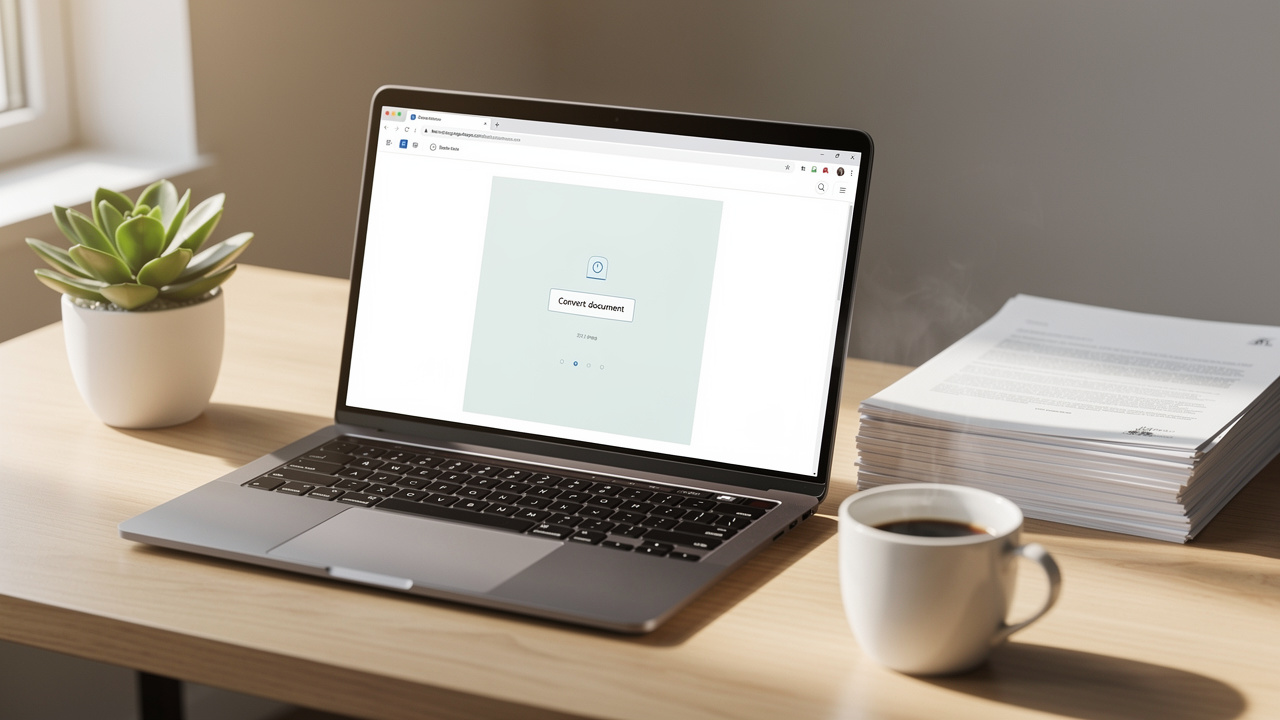
    Laptop browser showing online PDF to Word conversion tool

    For serious work, iLovePDFKit is the tool I trust most. It runs inside any modern browser and charges nothing, and it also skips the usual sign‑up wall. The stand‑out part is how closely the Word file matches the PDF, with fonts, spacing, and images lining up almost exactly where they began.

    “The closer your converted file is to the original, the more time you save. Good formatting is a quiet kind of productivity.”

    Files are processed online for conversion rather than stored as permanent archives. That matters when sharing contracts, grades, or client work. Because the converter reads the original structure instead of snapping a picture, it handles digital PDFs from Word, PowerPoint, or other editors very well, which is ideal for students, freelancers, and office staff who live in those programs.

    Here is how to use iLovePDFKit step by step:

    1. Open your browser and go to iLovePDFKit. The page loads quickly. You do not need to create an account or type an email address.

    2. Click the button for PDF to Word and add your file. You can choose it from a folder or drag it onto the page. If the file is large, give it a moment to upload.

    3. Start the conversion with a single click. During this time the service reads fonts, spacing, tables, and images instead of flattening them. For most everyday documents, this step finishes in a few seconds.

    4. Download the Word file to your computer. Open it in Word or another editor and glance through the pages. In most cases the layout looks ready to share or print right away.

    If a file is light on design and images, I sometimes use built‑in tools instead.

    Method 2 — Use Microsoft Word Or Google Docs (Free Built-In Options)

    Woman comparing PDF and Word documents on dual monitors

    Microsoft Word from 2016 onward can open a PDF and turn it into a DOCX file. You start Word, choose Open from the File menu, pick your PDF, accept the notice about making it editable, and then save the new document. This method is free if you already pay for Office and gives decent results for simple, text‑heavy pages. It often struggles, though, when the PDF has many images, complex tables, or more than one column.

    Google Docs also converts PDFs inside the browser. You upload the PDF to Google Drive, right‑click it, choose Open with → Google Docs, then download it again as a Word file. Because everything runs online, this is helpful when working on a shared computer or switching between devices. The built‑in OCR can read clear scans, but formatting can shift quite a bit, especially with photos, charts, or more detailed page layouts.

    Both of these options are handy when all you need is quick editing, comments, or group work. For a thesis, report, or contract where the layout matters, I still prefer iLovePDFKit, because it keeps the structure of the original PDF much closer to what you expect. That way I spend less time fixing broken tables or wandering images.

    Expert Tips To Preserve Formatting Before And After Conversion

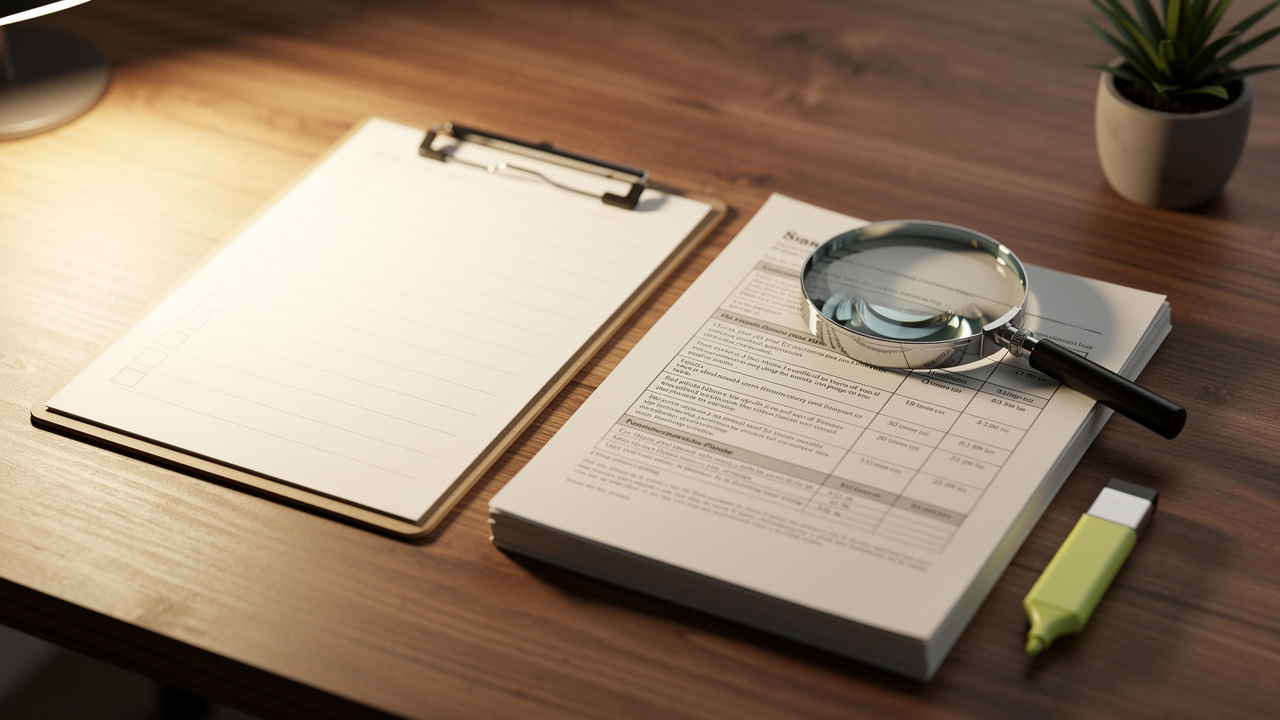
    Desk with checklist and magnifying glass reviewing formatted document

    No matter which method you choose, a few simple habits can save a lot of repair time. I think about the process in three stages: before conversion, during conversion, and after conversion. If you give each stage a small bit of attention, your Word files will look far closer to the original PDFs.

    Quick tip: Simpler PDFs convert more cleanly.

    These habits help the most:

    • Start with the best PDF you can. If you scan a paper file, choose a higher DPI so letters stay sharp. A clean source makes life easier for any converter and improves OCR accuracy.

    • Match your tool to the document type. For scanned PDFs, use a converter that supports OCR so text can be selected and edited. For digital PDFs where formatting matters, I reach for iLovePDFKit so the layout stays as close as possible.

    • Keep fonts simple and common. Choices such as Arial, Times New Roman, or Calibri usually survive the trip without changes. Unusual fonts can trigger substitutes, which stretch lines and push paragraphs around.

    • Remove decorations when you can. Big logos, background patterns, and random shapes make it harder for a converter to see where real content begins and ends. A cleaner layout almost always gives a cleaner Word file.

    • Always compare the new Word file with the original PDF. Scroll side by side and check headings, tables, pictures, and page breaks. Fix small issues right away, before you start editing or adding new content.

    • Work from a copy instead of your only file. Store the original PDF in cloud storage or on a second drive. If anything goes wrong with a conversion or edit, you can go back to that untouched version.

    “The cleaner your source file, the better your conversion.” That simple rule saves editors and students a surprising amount of time.

    Conclusion

    Person typing and editing converted Word document on laptop

    Formatting does not fall apart by chance. It breaks because a fixed PDF page and a flexible Word page speak different languages. Once you know that, it becomes easier to pick the right approach and avoid surprise shifts after conversion. Good tools and small habits take care of most issues.

    In this guide I walked through the free ways I rely on to convert PDF to Word without losing formatting. For work that needs clean, stable layout, my first choice is iLovePDFKit, since it runs in the browser, asks for no registration, and keeps the page structure close to the original. The next time you prepare an assignment, a contract, or a presentation, open iLovePDFKit and see how smooth the conversion can feel.

    FAQs

    Is It Safe To Use iLovePDFKit To Convert PDF To Word Online?

    I treat safety as a key check for any online tool, and iLovePDFKit scores well here. Files move through an encrypted connection, are processed for conversion, and then cleared instead of being used as long‑term storage. You also skip account creation, so no profile or payment data sits on the site.

    Will My Fonts, Tables, And Images Stay Intact After Conversion?

    Converters such as iLovePDFKit are built to keep the original layout as close as possible. In many files, fonts, table lines, and images show up in Word exactly where they were. You may see shifts when the PDF uses rare fonts, so it is wise to skim important pages.

    What Is OCR, And Do I Need It To Convert A Scanned PDF To Word?

    OCR means Optical Character Recognition, which lets software read letters from an image. A scanned PDF is only a picture of a page, so without OCR the converter cannot treat anything as text. If you want to copy, search, or edit words from a scan, you need a tool that offers OCR.

    Why Does My Converted Word File Still Look Different From The Original PDF?

    Even with a strong PDF to Word converter, a Word document will not be a perfect copy of a fixed PDF page. Word has to reflow paragraphs and rebuild tables inside its own rules. Complex designs may need manual cleanup, but using iLovePDFKit usually keeps those fixes small.

  • Free and Secure Online PDF Converter 2026 (No Signup)

    Free and Secure Online PDF Converter 2026 (No Signup)

    Introduction

    A last‑minute assignment is due, the professor wants a PDF, and the only tool on hand demands a signup form, a password, and a credit card screen. That is not what anyone expects when searching for a Free & Secure Online PDF Converter 2026 | No Signup Required. Most people just want to upload a file, click once, and get it back in the right format.

    In 2026, study, work, and freelance jobs often happen right inside the browser. People move between laptops, phones, and shared computers, and many cannot install new software. A fast, browser‑based PDF converter with no signup has become a basic tool that keeps homework, reports, and contracts on schedule.

    That is exactly why we built iLovePDFKit. The goal is simple: give anyone a completely free, registration‑free, secure PDF and document converter that runs in any modern browser. Conversions stay accurate, processing happens in real time, and files do not remain on our servers.

    In this guide, you will see how iLovePDFKit works, which file formats it supports, how it protects your privacy, and what “free” means for us. By the end, you will know how to go from upload to finished PDF or Office file in under a minute, without signups, downloads, or surprises.

    Try iLovePDFKit Free — No Signup Needed →

    Key Takeaways

    Before diving into the details, here is a quick overview of what this article covers and what iLovePDFKit offers.

    • iLovePDFKit gives free access to online PDF conversion with no account or registration. All core tools are open from the first visit, with no email wall, trial period, or credit card field between your upload and final download.

    • The platform supports common formats in both directions, including Word, Excel, PowerPoint, and images to and from PDF. Conversions keep fonts, layout, and spacing accurate, which matters for resumes, research papers, reports, and client documents.

    • Every conversion runs through secure processing with automatic file removal after completion. The service works on any modern browser and device, making it practical for students, office workers, freelancers, and small business owners in 2026.

    Why Use A Free Online PDF Converter With No Signup In 2026?

    Student using browser-based PDF converter on tablet in library

    Alt text: “Student using browser-based PDF converter on tablet in library”

    Alt text: “Student using browser-based PDF converter on tablet in library”

    Many people still picture PDF tools as heavy desktop programs that need admin rights, long installs, and constant updates. That approach does not match how classes and offices run now. Shared computers in classrooms, coworking spaces, and hot‑desk offices often block installs. Remote workers switch between personal devices and work laptops. An online converter that runs straight in the browser fits these real situations far better.

    The no signup part is just as important. When a teacher asks for a PDF or a client wants a signed contract back, nobody wants to stop and fill out forms. Creating yet another account means another password to track and more email in the inbox. For one‑off tasks, it feels like extra work for no real gain. Even for frequent use, many people prefer tools that simply open and work.

    There is also a big difference between a truly free converter and a freemium service that hides limits — tools like the Online PDF Converter demonstrate what a straightforward, no-nonsense experience can look like. Some tools let users convert one or two small files, then block more work behind paywalls. Others process a file but ask for an account before allowing the download. Some big names even require sign‑in just to save a converted document, turning a quick task into a small project.

    We built iLovePDFKit to avoid all of that. Every core conversion tool is open, free, and ready as soon as the site loads. There is no registration step before download and no “upgrade now” screen in the middle of a deadline. This helps students racing to submit assignments, office staff converting last‑minute Excel reports, and freelancers preparing invoices or contracts without extra cost.

    Privacy matters too. When people upload drafts of research papers, financial spreadsheets, or contracts, they want those files gone once the job is done. Our no‑file‑storage approach means documents do not sit on our servers after processing, which keeps risk low and peace of mind high.

    How To Convert A PDF Online In Seconds Using iLovePDFKit

    Using iLovePDFKit is designed to feel as simple as sending an email attachment. There is no account page, no software download, and no steep learning curve. If you can drag a file or tap a button on your phone, you can use it.

    Step 1 — Select Or Drag Your File

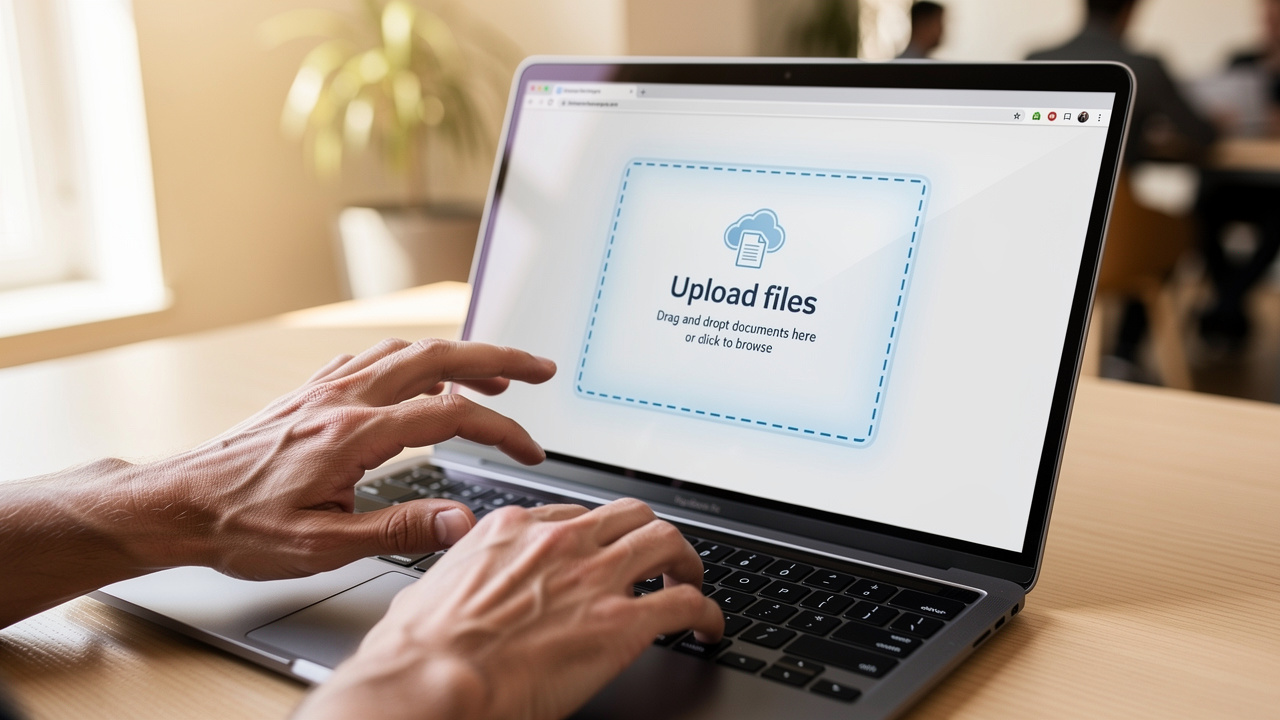
    Hands dragging a document file into browser upload area

    Alt text: “Hands dragging a document file into browser upload area”

    Alt text: “Hands dragging a document file into browser upload area”

    Open iLovePDFKit in a modern browser such as Chrome, Firefox, Safari, or Edge. The main page shows a clear upload area, so there is no hunting through menus. This same view appears whether you visit from a desktop, laptop, tablet, or smartphone.

    You can:

    • Click the button to choose a file, which opens your device’s standard file picker, or

    • Drag a document from a folder and drop it directly onto the upload area.

    Both actions send the file securely to our servers for processing.

    Because the platform is web‑based, you do not need to worry about operating system versions. A student on a school Chromebook and a manager on a Windows desktop can follow the same first step with the same simple interface.

    Step 2 — Choose Your Output Format And Convert

    Once your file is uploaded, choose what you want to do with it — similar to how an AI PDF Converter presents clear output options, iLovePDFKit keeps the format selection simple and intuitive. iLovePDFKit supports common paths such as Word to PDF, PDF to Word, PDF to Excel, and images to PDF. The format options are clear, so there is little room for confusion about which button to press.

    After picking the target format, start the conversion with a single click. The heavy lifting happens on our secure servers, not on your device. That means even older laptops and budget phones can handle large documents without slowing down or freezing. For most everyday files, the process finishes in just a few seconds.

    You do not need technical knowledge for this step. There are no settings that must be tuned, no pop‑up windows with confusing terms, and no need to understand file types in detail. The tool reads the original file, converts it to the format you asked for, and prepares it for download.

    Step 3 — Download Your Converted File

    Hand tapping download button on smartphone after PDF conversion

    Alt text: “Hand tapping download button on smartphone after PDF conversion”

    Alt text: “Hand tapping download button on smartphone after PDF conversion”

    As soon as the conversion ends, a clear download button appears on the screen. There is no login prompt and no demand for an email address to “send the result.” One click saves the new PDF or Office file directly to your device.

    From there, you can open the document, attach it to an email, upload it to a learning platform, or store it in a cloud drive. The file is ready to use right away. Behind the scenes, our system removes both the uploaded and converted versions from our servers shortly after processing.

    From start to finish, the flow stays the same across formats: visit the site, upload a file, select the output type, and download the result. For many everyday tasks, the whole process fits comfortably into a single minute, even on a busy network or mobile hotspot.

    What File Formats Does iLovePDFKit Support?

    Variety of document formats spread on white desk surface

    Alt text: “Variety of document formats spread on white desk surface”

    Alt text: “Variety of document formats spread on white desk surface”

    iLovePDFKit is built to be a central hub for everyday document work, not just a one‑trick converter. Many users jump between Word, Excel, PowerPoint, PDFs, and images in a single day. Supporting these formats in both directions keeps work smooth and avoids the need for several different tools.

    “PDF remains the standard way to share documents that must look the same everywhere.” — common view among document designers

    Converting To PDF

    PDF is still the standard when you want a file to look the same on every screen and printer, and a Free Online PDF Converter that handles multiple formats makes that standard accessible to everyone. With iLovePDFKit, you can turn common office formats into clean, shareable PDFs without losing style or structure.

    • Microsoft Office files like Word, Excel, and PowerPoint convert into PDFs that keep fonts, headings, tables, and charts in place. This is useful for assignments, reports, client decks, and any document that must keep a specific layout.

    • Image formats such as JPG and PNG also convert easily into PDF. You can turn scans or photos into a single document, which works well for receipts, hand‑written notes, or whiteboard photos that need to be stored or shared neatly.

    Converting From PDF

    Sometimes the PDF is not the end point but the starting point. You may need to edit text, fix numbers in a table, or reuse slides.

    • iLovePDFKit can turn PDFs back into editable Word, Excel, or PowerPoint files. This saves hours that would otherwise be spent retyping long sections of text or rebuilding complex tables and slide layouts from scratch.

    • For visual work, pages from a PDF can be converted to image files. This helps when a presentation needs a high‑quality graphic pulled from a report, or when a web designer wants a chart from a PDF in image form.

    Beyond Basic Conversion

    Conversion is only one part of document work. iLovePDFKit also includes browser‑based tools for managing PDF pages. You can reorder pages, remove ones you do not need, or split a long document into several smaller files.

    All of these features are available without downloads or installs. Whether you are compiling research sources, preparing monthly reports, or sending professional invoices, you can stay inside the browser and handle files end to end with iLovePDFKit.

    Is It Safe To Use iLovePDFKit? Our Security And Privacy Commitment

    Brass padlock on laptop keyboard representing secure file processing

    Alt text: “Brass padlock on laptop keyboard representing secure file processing”

    Alt text: “Brass padlock on laptop keyboard representing secure file processing”

    Uploading a contract, grade report, or financial sheet to a website can feel risky. That concern is reasonable, and we design iLovePDFKit with that in mind. Security and privacy are built into how the service works, not added later as an afterthought.

    “The safest data is the data you never store.” — common saying among security teams

    This idea guides how we handle your documents.

    Real‑Time Secure Processing

    When a file is uploaded, it moves through a protected connection from your browser to our servers. The conversion happens in real time, so documents are not left sitting around waiting for batch jobs or manual review. Our systems handle the content automatically, and no one on our team opens or reads user files during this process.

    No File Storage Policy

    Once the conversion finishes and you have had time to download the new file, our system removes both the original and the converted versions. We do not keep long‑term copies of user documents on our servers. This short lifetime sharply limits the chance that anyone could access an old file later.

    No Account Means Less Risk

    Because iLovePDFKit does not require signup, we do not collect personal profiles, email addresses, or payment data. There is no single database linking people to their documents. With less personal information gathered, there is less to protect and less that could be exposed, which keeps overall risk lower.

    Browser‑Based Processing Benefits

    You never install extra programs or add‑ons to make iLovePDFKit work. That removes a common path for malware that hides in fake installers or outdated software. Work stays inside trusted browsers, and our servers take on the heavy processing instead of asking your device to run new code.

    Compared with account‑based PDF services that store both user profiles and files, our approach leaves a smaller data trail. The aim is simple: you should be able to convert and manage your documents with confidence that both your content and your identity stay protected.

    Conclusion

    Fast, safe, and simple document conversion should not require a credit card or a signup form. iLovePDFKit delivers a Free & Secure Online PDF Converter 2026 | No Signup Required that works across Word, Excel, PowerPoint, images, and PDFs while keeping fonts, layout, and structure intact. Processing runs through secure connections, and files are removed from our servers after conversion.

    Whether you face a last‑minute assignment, a weekly report, or a client contract, the steps stay the same: visit the site, upload the file, pick the format, and download the result in seconds. There is no software to install and no account to manage.

    If a simple, reliable PDF tool has been missing from your daily work, this is a good time to try iLovePDFKit. Open it in any browser, on any device, and see how easy it can be to convert and manage documents without cost or friction.

    FAQs

    Do I need to create an account to use iLovePDFKit?
    No account is needed at any point. Visitors can open the site, upload a document, choose the output format, and download the converted file right away. There are no email forms, passwords, or profile pages between the upload and the final result.

    Is iLovePDFKit really free, or are there hidden costs?
    All core conversion tools on iLovePDFKit are free to use. You can convert common formats as often as you like for standard tasks without hitting a paywall. There are no surprise fees, and the service is designed to stay friendly for everyday personal, study, and small business work.

    Will my document’s formatting be preserved after conversion?
    Yes. iLovePDFKit aims for accurate conversions that keep fonts, headings, images, tables, and page layout in place. This matters for resumes, slide decks, research papers, and business reports that must look professional. The converted file is meant to match the original as closely as possible.

    What devices can I use iLovePDFKit on?
    iLovePDFKit runs in any modern web browser, so it works on desktops, laptops, tablets, and smartphones. It supports major operating systems including Windows, macOS, Linux, iOS, and Android. There is nothing to install, which makes it easy to use from home, school, or the office.

  • How to Convert PDF to Word Without Losing Formatting

    How to Convert PDF to Word Without Losing Formatting

    Introduction

    Converting a PDF to Word often leads to broken layouts, missing fonts, or misplaced images. This is frustrating, especially when you need to edit documents for work, school, or official use. If you’re searching for a way to convert PDF to Word without losing formatting, you’re in the right place.

    In this guide, you’ll learn why formatting issues happen, what methods work best, and how to convert PDF files accurately while keeping text, images, and layout intact. The steps are simple, require no technical knowledge, and work on any device.

    Why PDF Formatting Breaks During Conversion

    PDF files are designed to preserve layout, not to be edited. This makes conversion tricky.

    Common reasons formatting breaks include:

    • PDFs store text and layout differently than Word documents
    • Fonts may not be embedded in the PDF
    • Scanned PDFs are image-based, not text-based
    • Complex layouts with columns or tables are harder to convert

    Best Ways to Convert PDF to Word Accurately

    There are several ways to convert PDF to Word, but not all give good results.

    • Manual copy-paste often breaks spacing and removes formatting entirely.
    • Desktop software is accurate but usually paid.
    • Online PDF to Word converters are fast and simple.

    Step-by-Step Guide to Convert PDF to Word Online

    1. Open PDF to Word converter
    2. Upload your PDF file
    3. Start the conversion
    4. Download the Word file

    The tool requires no signup, adds no watermark, and is privacy-friendly.

    Common Mistakes That Ruin Formatting

    • Using low-quality converters
    • Converting scanned PDFs incorrectly
    • Editing before reviewing layout

    Tips to Keep Layout, Fonts, and Images Intact

    • Use text-based PDFs
    • Avoid re-saving PDFs
    • Review converted files

    Trust & Privacy

    Files are processed automatically and removed after conversion. Privacy-focused tools ensure security.

    FAQs

    Is it possible to convert PDF to Word without losing formatting?

    Yes, with a reliable converter like ilovepdfkit.com PDF to Word converter.

    Is converting PDF to Word online safe?

    Yes, when privacy-focused tools are used.

    Can I convert PDF to Word for free?

    Yes.

    Conclusion

    Converting PDF to Word without losing formatting is easy with the right approach and tool.