Author: Alisha Anjum

  • Summarize PDF with AI in Minutes (Step-by-Step Guide)

    Summarize PDF with AI in Minutes (Step-by-Step Guide)

    Long PDFs can swallow entire evenings, whether they are research papers, contracts, or 100-page business reports. That time cost drains focus fast.

    When deadlines stack up, reading every line feels almost impossible and very stressful.

    To summarize a long PDF with AI, you upload the file to an AI PDF summarizer, choose how short you want the output, and let the model pull the main points in seconds. With iLovePDFKit you first clean up the file, convert or merge pages, or run OCR on scans, then send that tidy PDF to any AI document summarizer for a fast, reliable overview.

    Keep reading to see this workflow step by step, with zero cost and no account needed.

    Key Takeaways

    These key points turn long PDF reading into a short, repeatable workflow. Scan them before going deeper.

    • AI tools summarize almost any PDF in seconds. You upload a file once and get a clear outline instead of walls of text, saving hours each week for students, office staff, and freelancers.

    • Scanned PDFs behave like photos, not text. Without OCR, AI models see only images and cannot pull sentences or ideas. Running OCR first with iLovePDFKit turns those images into readable text.

    • Free browser tools such as iLovePDFKit need no account or install. You open the site, drop a file, and download the result. That fits shared school computers and locked office laptops.

    • Clear prompts improve summary quality instantly. When you tell the AI which section matters and how short to be, the summary becomes sharper and more useful.

    Table of Contents

    What Does It Mean to Summarize a PDF with AI?

    Professional overwhelmed by stack of long PDF reports

    Summarizing a PDF with AI means using artificial intelligence to pull out core ideas and shorten long documents. The AI reads the full text, finds main arguments, and writes a shorter version in plain language — a process explored in detail in recent work on AI-Powered Document Summarizer Using generative models. You get the gist without reading every paragraph.

    Instead of skimming page after page, an AI PDF summarizer uses natural language processing and large language models, similar to ChatGPT or Microsoft Azure OpenAI Service. The tool looks for headings, topic shifts, keywords, and repeated themes. Then it condenses those parts into a brief overview, bullet list, or executive summary.

    Manual reading is slow and distraction-prone. According to a 2023 McKinsey survey, employees spend an average of 1.8 hours per day — roughly 9 hours per week — simply searching for and reading work documents, which adds up to more than 20% of a standard working week.

    Nielsen Norman Group estimates that most adults read about 200–250 words per minute, so a 30,000-word report can easily take more than two hours.

    AI can scan those same pages in seconds and present the highlights.

    This matters for students juggling weekly readings, analysts reviewing market reports, and small business owners dealing with contracts. Instead of guessing which sections matter, they can summarize PDFs with AI first, decide what deserves a deeper read, and only then return to the original document for details. Tools such as Adobe Acrobat AI Assistant and NoteGPT show how common this workflow has become.

    How Does AI Summarize a PDF? (The Process Explained)

    AI summarizes a PDF by turning the file into text, understanding the structure, picking key sentences, and writing a shorter version. Each step keeps the main meaning while trimming repeated or minor details, so you can trust the result and spot issues when input files are messy.

    Here is what usually happens behind the scenes:

    1. Text Extraction
      For normal PDFs, the tool reads the text layer directly. For scanned PDFs, it uses OCR to turn each line in the image into characters the model can read. Without that step, a scanned contract looks like one big picture. Research shows that approximately 30% of business documents in circulation are scanned images rather than digital text, making OCR an essential first step for reliable AI summarization.

    2. Structure Analysis
      The AI finds headings, subheadings, paragraphs, lists, and tables. It checks how often terms appear and where they sit in the document, which helps separate background notes from thesis statements, conclusions, or financial results.

    3. Sentence Scoring
      The model scores sentences for importance — a query-driven approach that has been studied extensively, as outlined in recent arxiv research 2508.20559 on real-time text summarization for large-scale documents. Out of thousands of sentences, only a small portion move into the summary.

    4. Rewriting the Summary
      The AI rewrites those key parts into a smooth output, leveraging long-context multimodal understanding as described in the Gemini V1 5 Report.Pdf, which demonstrates how modern large language models process millions of tokens across complex documents. According to Adobe, Adobe Acrobat AI tools have already produced more than 110 million summaries in under two years, which shows how often users rely on this step. Some tools, like Adobe Acrobat AI Assistant or NoteGPT, even add clickable references that jump back to the exact page in the original PDF.

    Why Scanned PDFs Need OCR First
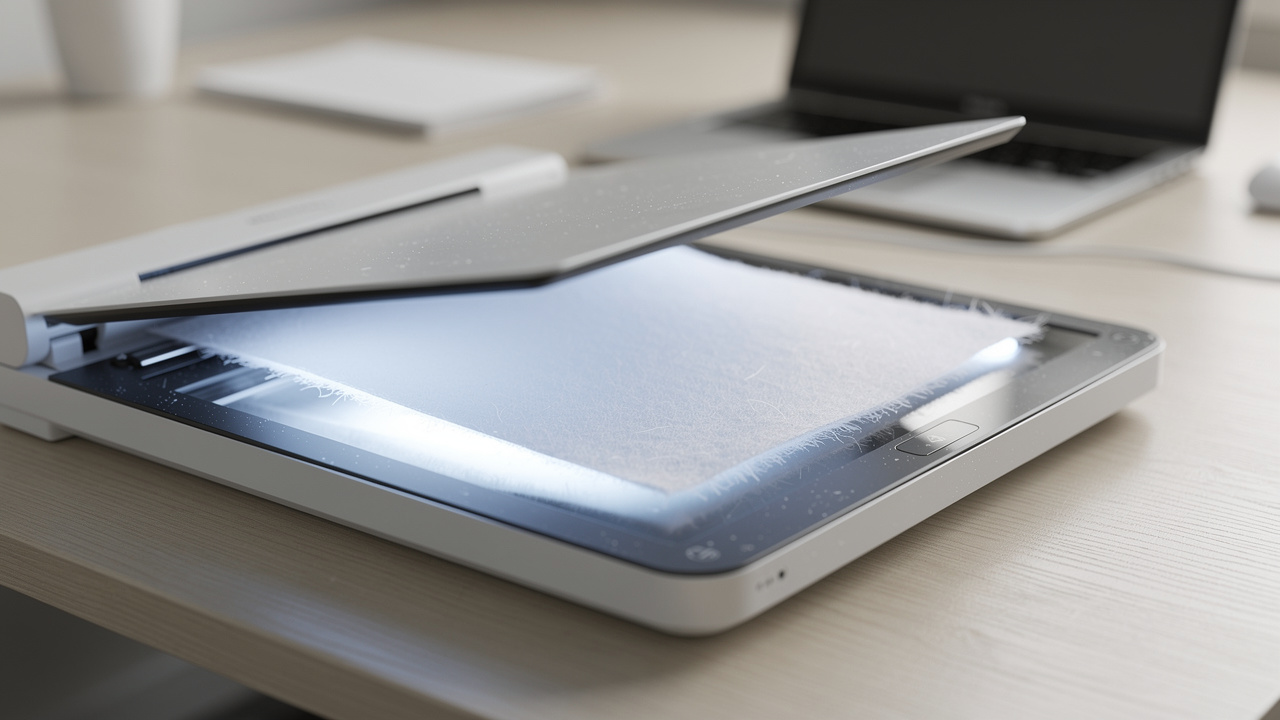
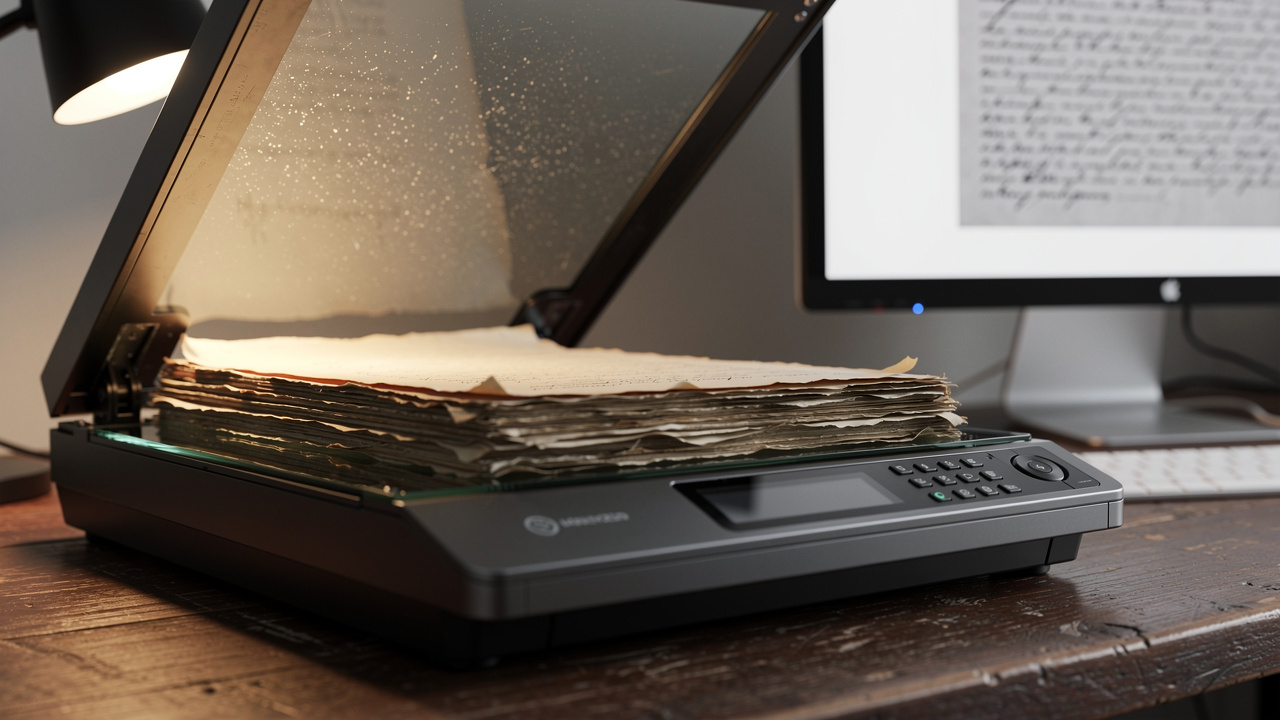
    Flatbed scanner converting printed document to digital text

    Scanned PDFs need OCR before any AI can summarize them because scans are image files, not text. When you scan lecture notes or a signed contract, the result is a picture of a page, even if it looks like text to your eyes.

    OCR software looks at each letter shape and turns it into a real character. After this pass, your PDF has a text layer that AI models can read, search, and summarize. Without OCR, an AI PDF summarizer cannot select sentences or detect headings. Modern OCR engines now achieve accuracy rates above 99% on clean printed text, according to industry benchmarks, meaning that virtually every word in a scanned page is correctly converted before AI processing begins.

    iLovePDFKit includes built-in OCR that handles this step with a few clicks. You upload the scan, pick the language, and download a clean, text-ready PDF that any AI document summarizer can understand. This bridge from paper to AI is essential for schools and offices that still rely on printed forms and marked-up copies.

    How to Summarize a PDF with AI Step-By-Step
    Organized digital workspace for PDF summarization workflow

    Summarizing a PDF with AI follows a repeatable path, from file prep to final summary. This section walks through that path so you can go from a messy document to clean key points in minutes, not hours.

    Start by planning your goal. Decide whether you want a short overview, study notes, or action items for a meeting. That choice will guide the prompt you use later. Then follow these steps with iLovePDFKit and your preferred AI PDF summarizer.

    • Step 1 Prepare Your PDF with iLovePDFKit
      Use iLovePDFKit to convert Word, Excel, or PowerPoint files into stable PDFs while keeping fonts, tables, and layouts intact. If the document is scanned, run OCR so the text becomes searchable. You can also merge several reports or extract only the chapters you care about, so the AI does not waste effort on extra pages.

    • Step 2 Upload the PDF and Set Preferences
      Open your chosen AI PDF summarizer, such as Adobe Acrobat AI Assistant, NoteGPT, or a ChatGPT-style reader that accepts file uploads. Drag and drop the prepared PDF, or pull it straight from Google Drive or Dropbox. Then set options like summary length, language, and whether you want bullet points, an outline, or a single paragraph.

    • Step 3 Write a Clear, Specific Prompt
      Generic prompts bring generic results, so tell the AI exactly what you need — a pattern consistent with how students most commonly interact with AI tools, as documented in How People Are Using ChatGPT across real-world use cases. For example, you might say, “Summarize the methodology and key findings in 5 short bullet points for exam revision,” or “Summarize only the payment and liability clauses for a non lawyer.” These details steer the model toward the right sections. Studies on prompt engineering show that well-structured, role-specific prompts can improve AI output relevance by up to 40% compared to vague one-line instructions.

    Tip: Mention who you are (for example, student, lawyer, manager) and what you need the summary for, so the AI can write at the right level of detail.

    • Step 4 Review, Refine, and Save Your Summary
      Read the summary and compare any important claims with the original pages, especially for legal or medical content. If something feels off or too long, send a follow-up prompt that asks for a shorter version or focuses on a different section. Then copy the text into notes, export it, or share it with teammates. NoteGPT reports more than 80 million users and over 12,000 school and team partners, according to NoteGPT, which shows how common this review loop already is in study and office workflows.

    Why iLovePDFKit Is the Best Free Tool to Prepare PDFs for AI Summarization

    Student using AI tools to summarize PDF study materials

    iLovePDFKit works as the ideal pre-step before any AI PDF summarizer, especially when you handle many files each week. It solves common problems such as paywalls, broken layouts, or risky file storage, yet stays simple enough for non technical users.

    According to PCWorld, users now expect strong PDF tools inside a browser instead of heavy desktop apps. iLovePDFKit matches that expectation with a clean interface that feels simple on school laptops or shared office computers. Here is why it fits so well into an AI summary workflow.

    • Truly Free with No Task Limits
      Many PDF services let you merge or convert only a few files per day before asking for a monthly fee — a frustration that reflects the broader need for accessible AI tools highlighted in the 2025 microsoft ai in Education Report, which calls for reducing cost barriers in AI-assisted workflows. The same report notes that 63% of educators identify high software costs as a primary barrier to adopting AI tools in classrooms. iLovePDFKit keeps its main tools free, so you can convert, compress, or split as many documents as needed. That helps during exam weeks, monthly reporting cycles, or busy client seasons when document counts spike.

    • Zero Sign Up and Fully Browser Based
      Some staff and students cannot install programs or create new accounts on managed devices. iLovePDFKit runs in any modern browser with no login screen and no password. You visit the site, drop files, and download results, which makes quick prep for AI summarization painless even on locked-down hardware.

    • Strict Privacy with No File Storage
      Uploading contracts, invoices, or graded assignments always raises privacy questions. iLovePDFKit processes files over encrypted connections and deletes them from servers as soon as the task finishes, so nothing sits in long-term storage. That policy matters when you later send those same files to AI tools from Adobe or Microsoft.

    • No Watermarks and Pixel-Perfect Output
      Free tools sometimes add logos or break tables, which confuses AI models that rely on clear structure. iLovePDFKit keeps fonts, headings, and table layouts in place, so an AI document summarizer reads the file as the author intended. When inputs look sharp, summaries tend to be clearer and closer to the original meaning.

    You can think of the workflow like this:

    Task TypeUse iLovePDFKit To…Then Use an AI Summarizer To…
    Scanned notesRun OCR and clean up pagesCreate concise study notes
    Long reportMerge sections and fix layoutGenerate an executive-style summary
    Multiple contractsCombine or extract key clausesHighlight payment, risk, and liability sections

    According to McKinsey, knowledge workers may spend more than a quarter of their time searching and reading information. A smooth pipeline from iLovePDFKit into AI summarizers cuts that time by turning messy source files into tidy, easy-to-process PDFs.

    Frequently Asked Questions

    Q1 Can I Summarize a PDF for Free Without Creating an Account?

    Yes. You can summarize a PDF for free without an account by using browser tools. iLovePDFKit lets you convert, merge, or run OCR on files with no login. After that, you can upload the cleaned PDF to a free AI summarizer and get a quick overview. This keeps the whole flow simple and low-friction.

    Q2 What Is the Best AI PDF Summarizer for Students?

    The best AI PDF summarizer for students is one that is free, fast, and easy to open on shared devices. Many students pair tools like Adobe Acrobat AI Assistant or NoteGPT with iLovePDFKit, which prepares chapters, extracts pages, and fixes scans before summarization. That mix turns heavy readings into study notes in a few minutes. A 2024 Educause survey found that 72% of college students reported using AI tools at least once per week to help process assigned readings, underlining just how central fast summarization has become to modern study habits.

    Q3 Can AI Summarize a Scanned PDF?

    AI cannot summarize a scanned PDF until OCR runs on it. A scan is only an image, so the model cannot read text directly. iLovePDFKit converts scans into text-searchable PDFs with built-in OCR, which makes the file ready for any AI document summarizer. After that, summaries work just like with normal digital PDFs.

    Q4 Is It Safe to Upload Confidential Documents to an AI PDF Summarizer?

    Safety depends on the platform policy and how it handles uploads. iLovePDFKit uses secure connections and deletes files once processing finishes, so documents do not stay on servers. When you send those PDFs to tools from Adobe or other vendors, always read their privacy pages and look for clear rules about storage and training use.

    Q5 How Long Does It Take to Summarize a PDF with AI?

    Most AI summarizers complete a standard report in a few seconds, even when it runs to dozens of pages. Longer, image-heavy files can take more time, but smart engines keep that delay short. Many free tools support uploads up to about fifty megabytes, according to Adobe, which covers most class readings and office reports.

    The Smarter Way to Handle PDFs Starts Here

    Clean modern home office optimized for productive PDF workflows

    The smarter way to handle PDFs starts by separating file prep from summarization. iLovePDFKit handles conversion, merging, page extraction, and OCR, then any AI PDF summarizer turns that clean file into quick insights. This split keeps each step simple while saving serious time.

    Think of the workflow as prepare, summarize, then study or act. Students prepare lecture notes and research papers with iLovePDFKit, send them to AI readers like NoteGPT or Adobe Acrobat AI Assistant, and turn the output into flashcards. Office teams fix layout issues or combine attachments before sharing summaries with managers who do not have time for full reports.

    Conclusion

    To summarize a long PDF with AI quickly, you only need a clean file, a clear prompt, and a trustworthy tool chain. iLovePDFKit gives you the free, secure preparation layer that turns messy scans and mixed formats into crisp PDFs. AI summarizers then handle the heavy reading work, compressing dense content into short, action-ready notes. Start with one document and build this simple pattern into your daily study or work routine.

  • Best AI PDF Tools to Read, Chat and Summarize in 2026

    Best AI PDF Tools to Read, Chat and Summarize in 2026

    Table of Contents

    Introduction

    Long PDFs can drain hours from study sessions and workdays when everything else moves faster than your reading speed, a challenge explored in depth in recent research on AI document processing systems. Scrolling, searching, and skimming still feel painfully slow.

    AI PDF tools use artificial intelligence to read, summarize, and answer questions about your documents so you do not have to read every page. Standout options for 2026 include iLovePDFKit, ChatPDF, Adobe Acrobat AI Assistant, Smallpdf AI, UPDF AI, Humata AI, Wondershare PDFelement AI, Foxit PDF Editor AI, Kofax Power PDF, and PDF.ai. iLovePDFKit acts as a free companion for clean conversions and file prep that feeds neatly into those AI readers.

    The next sections walk through the best options, how they differ, and how to pick the right mix for your workflow.

    Key Takeaways

    Student using AI PDF tool to study in university library

    Key ideas about AI PDF tools help frame the rest of this guide. The points below explain what these tools do, how pricing works, and what to consider around privacy.

    • AI PDF tools turn static files into interactive documents. You can ask questions in natural language and get answers tied to specific sections, or request short summaries to decide whether a file deserves deeper reading.

    • Different tools serve different roles and budgets. Some focus on free AI chat with page limits, while others bundle editing, OCR, and form tools in paid seats. Students may care most about citations and free access, while enterprises care more about control and compliance.

    • Free and paid options both matter. Free options like iLovePDFKit plus free tiers from ChatPDF, PDF.ai, and Smallpdf AI cover light study and quick reviews. Paid plans from Adobe, Foxit, UPDF, and Kofax add higher limits, offline apps, and priority support that teams depend on every week.

    • Security and privacy are key when you upload contracts or research. Leading platforms use encrypted connections and strong deletion policies so documents do not stay on servers longer than needed. Some providers, such as Adobe, also state that customer files do not train their AI models.

    • The right tool depends on your workflow, not marketing buzz. Many people use a mix, for example iLovePDFKit for conversion and compression, then ChatPDF or Humata AI for Q&A. Matching tools to real tasks brings more value than chasing the flashiest feature list.

    “Time is the scarcest resource and unless it is managed, nothing else can be managed.”
    — Peter F. Drucker

    Best AI PDF Tools To Read, Chat & Summarize In 2026

    Person using AI PDF reader on laptop at organized desk

    The best AI PDF tools in 2026 combine AI chat, summarization, translation, and editing so you can understand documents faster. The platforms below cover study help, business reporting, and secure workflows so readers can match a tool to their real needs. According to PCWorld, high‑quality PDF suites are now widely available without big software budgets.

    iLovePDFKit

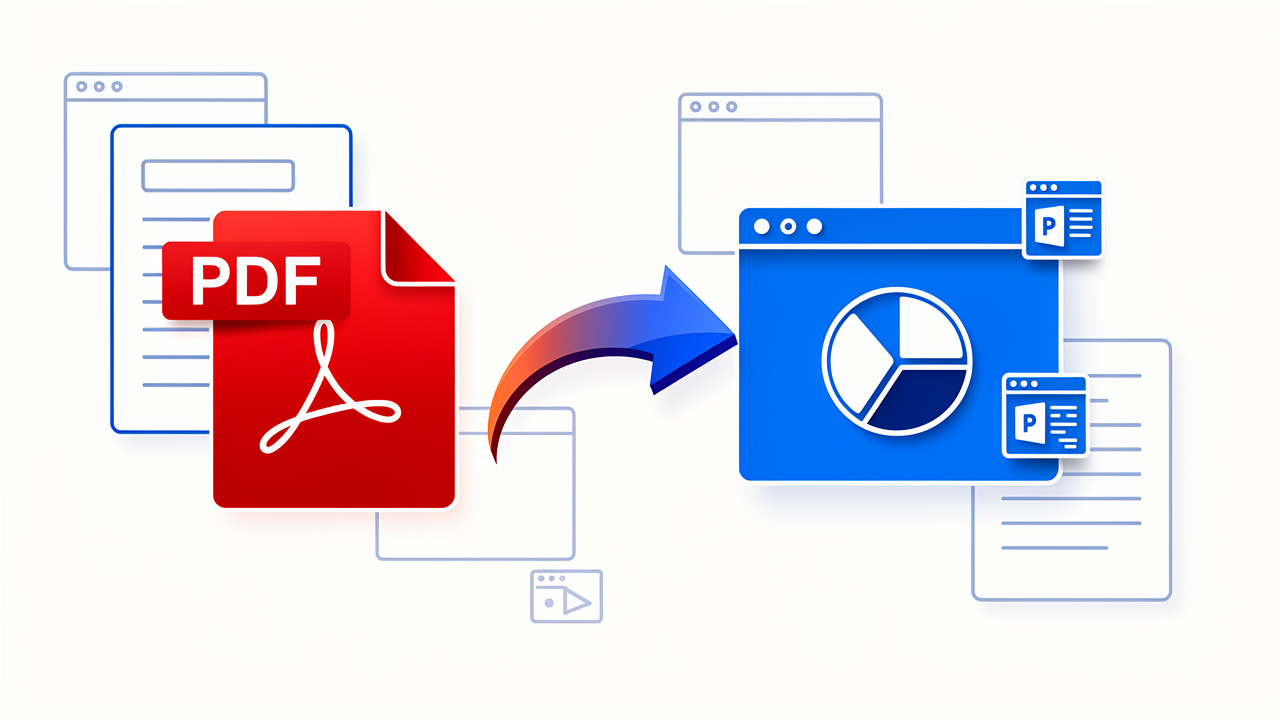
    iLovePDFKit is a free, browser‑based PDF toolkit built for fast, accurate conversion and file prep for AI workflows. It turns PDFs into Word, PowerPoint, or image files while keeping fonts, tables, and layout close to the original, and it converts Word, Excel, PowerPoint, and JPG files into clean PDFs ready for sharing or AI analysis.

    The platform also covers merging, compression, page extraction, and password protection in one simple interface. All processing runs over AES‑256 encrypted connections, and files are removed from servers soon after tasks finish, which helps protect contracts, grades, or invoices. According to the iLovePDFKit team, the service is completely free with no watermarks and no daily task caps — for a closer look at its full feature set, the PaperPerfect AI user manual offers a comparable reference for understanding AI-assisted PDF workflows. It suits students, freelancers, and office staff who want a zero‑cost PDF hub in any browser that pairs well with AI readers like ChatPDF or Humata AI.

    ChatPDF

    ChatPDF is an AI PDF reader that lets you chat with research papers, manuals, and reports. You upload one or more files, then ask questions in plain language and receive answers linked to the exact page or paragraph. It supports documents in any language and lets you ask questions in your own language, which helps with international research.

    The free tier lets you analyze two documents per day without creating an account, while ChatPDF Plus raises most limits. Research from ChatPDF notes that the service has more than ten million users and answers over one million questions per day, showing strong adoption among students. Dynamic routing between GPT‑4o and GPT‑4o mini balances speed and accuracy. ChatPDF fits students, academics, and independent researchers who want cited answers from complex texts without reading every line.
    Adobe Acrobat AI Assistant

    Adobe Acrobat AI Assistant brings AI chat and summarization into the classic Acrobat environment. You can ask questions about a PDF, request a summary, rewrite passages, or translate sections from a side panel next to the document. Responses include clickable citations that jump straight to the source lines, which helps with fact‑checking legal or academic work.

    PDF Spaces lets you work across up to ten PDFs at once, which is helpful for comparing contracts or bundling related reports. According to Adobe, the assistant handles files up to one hundred megabytes or six hundred pages in PDF, DOC, DOCX, and RTF formats. Adobe also states that it does not train models on customer documents. This tool suits enterprises, regulated industries, and professionals who already rely on Adobe Acrobat alternative for day‑to‑day work and want AI inside a trusted viewer.

    PDF.ai

    PDF.ai gives users an easy way to chat with PDFs while also offering helpful utilities in one place. You upload a file, ask questions, and receive answers grounded in the document content through a clean, simple interface that feels friendly for casual users.

    It also supports multiple document formats, so it can sit beside iLovePDFKit as part of a broader workflow. Many students and freelancers like having AI chat and basic conversions in one browser tab, so they can check a client brief, summarize a report, and share the PDF without switching tools. PDF.ai works best for users who want flexibility without committing to a large subscription.

    Smallpdf AI

    Smallpdf AI adds AI summarization and document chat on top of Smallpdf’s popular conversion and compression tools. You can drag a file into the browser, ask for a short overview, or request a bulleted summary of key sections, which is handy for quickly scanning contracts, slide decks, or course readings before a meeting or exam.

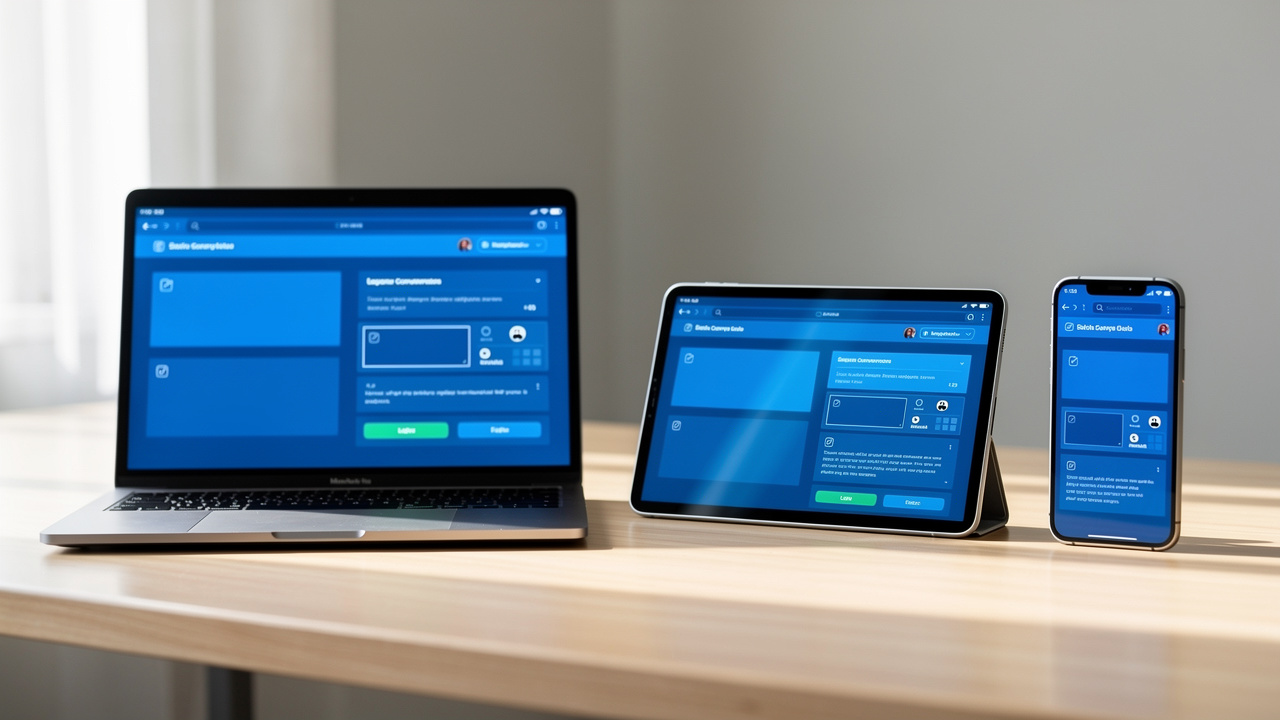
    The service runs in the cloud and syncs across devices once you sign in, so workers can start a task on a laptop and finish it on a tablet. A free tier supports light use, with paid plans adding more volume and features. Smallpdf AI suits office workers, teachers, and students who already use Smallpdf and now want an AI layer without switching platforms.

    Wondershare PDFelement AI

    Wondershare PDFelement AI combines a traditional desktop PDF editor with built‑in AI assistance. Inside the app, you can ask the AI to summarize a document, correct grammar, change tone, or rewrite a section for clarity. PDFelement also supports annotation, form filling, digital signatures, and OCR to turn scanned pages into searchable text.

    Because PDFelement runs on Windows and Mac with cloud sync options, it remains useful even when internet access is limited. Users who handle a lot of PDF editing, such as adding comments or designing forms, can keep everything inside one program. PDFelement AI suits professionals who want an all‑in‑one editor plus AI features instead of juggling separate tools.

    Kofax Power PDF (Tungsten Automation)

    Kofax Power PDF, now branded under Tungsten Automation, targets high‑volume, policy‑heavy document workflows. Its AI features support document review, batch operations, and improved OCR across large sets of files, mirroring capabilities documented in the olmOCR sample PDF overview for high-volume PDF parsing. Legal and finance teams use it to manage contracts, statements, and forms while following company compliance rules.

    The software supports redaction, document comparison, and access controls that matter in regulated spaces. According to Tungsten Automation product notes, organizations also value its security certifications and on‑premise deployment choices. Power PDF is a strong fit for enterprises, law firms, and healthcare organizations that need AI‑assisted review inside a strict governance model.

    Foxit PDF Editor AI

    Foxit PDF Editor AI builds AI summarization and rewriting into a lighter, often faster editor than some long‑standing rivals. Within Foxit, you can ask for a quick summary of a report, translate a section, or smooth the language in a draft contract. The editor itself supports commenting, digital signatures, and collaboration features that teams rely on to finish documents together.

    Foxit offers subscription plans that usually cost less than top‑tier enterprise suites, which appeals to small and midsize businesses. Cloud storage integrations let teams open files from services like OneDrive or Google Drive without extra steps. Foxit PDF Editor AI suits professionals who want modern AI help inside a full editor without moving to Adobe pricing.

    UPDF AI

    UPDF AI brings AI chat, summarization, and explanation features to a polished PDF editor that runs on Windows, Mac, iOS, and Android. You can ask the AI to clarify complex paragraphs, translate text, or create outlines from long reports, which helps students and managers understand technical language without waiting on subject experts.

    UPDF offers both subscription and one‑time purchase options, which makes budgeting easier for individuals and small teams. Offline desktop use also reduces dependence on a constant connection. UPDF AI is a solid option for people who want the same PDF and AI experience across laptop, tablet, and phone.
    Humata AI

    Humata AI focuses on research‑heavy document analysis. You upload one or more PDFs, then ask targeted questions about methods, results, or limitations. The AI responds with explanations and can generate summaries or draft reports based on the uploaded material, which many academics use for literature reviews and grant preparation.

    A free tier covers a smaller number of pages, with paid plans for heavier workloads. Humata fits well in study flows where you first clean or split files using a converter like iLovePDFKit, then upload only the relevant sections. Humata AI suits researchers, analysts, and knowledge workers who spend most days reading dense material and want structured, AI‑assisted insight.

    “The purpose of computing is insight, not numbers.”
    — Richard Hamming

    How To Choose The Right AI PDF Tool For Your Needs

    Hands holding tablet with AI document chat interface open

    Choosing the right AI PDF tool starts with your main task and your budget. Students may care most about free chat and clear citations, while offices care more about editing, security, and how well a tool fits existing workflows. The table below compares common factors so you can quickly narrow the list.

    FactorWhat To Look For
    BudgetFree options such as iLovePDFKit, ChatPDF’s free tier, and PDF.ai keep costs at zero for light work.
    AI Chat And Q&AChatPDF, Adobe Acrobat AI Assistant, and UPDF AI handle natural‑language questions about reports, manuals, and research papers.
    Multi‑File AnalysisChatPDF folders and Adobe PDF Spaces help compare multiple contracts or studies inside one chat thread.
    Document ConversioniLovePDFKit converts Word, Excel, PowerPoint, and JPG files to and from PDF without watermarks or sign‑ups.
    Enterprise SecurityAdobe Acrobat AI Assistant and Kofax Power PDF support stricter controls and compliance‑friendly setups.
    Desktop And Offline UseWondershare PDFelement and UPDF AI let you keep editing and summarizing even when you lose internet access.
    No Account RequirediLovePDFKit and ChatPDF’s free tier let you upload and work right away without creating an account.

    For many readers, the best path is combining tools:

    1. Use iLovePDFKit as your everyday PDF hub to convert messy scans, compress large decks, or extract single chapters.

    2. Send those smaller, cleaner files to an AI reader such as ChatPDF, Adobe Acrobat AI Assistant, or Humata AI for chat, summaries, and question answering.

    3. Test each pairing with real assignments, contracts, or reports, then keep the mix that feels fastest and most reliable.

    Frequently Asked Questions

    Team collaborating on PDF document review in modern office

    Question 1: What Is The Best Free AI PDF Tool?

    The best free option depends on whether you need conversion or AI chat. iLovePDFKit is fully free, with no watermarks, no task limits, and no registration for conversion and file prep. ChatPDF’s free tier adds AI Q&A for two documents per day, which is handy for quick research sessions.
    Question 2: Can AI PDF Tools Translate Documents?

    Yes. Several AI PDF tools support translation. ChatPDF works with documents in any language and answers in your chosen language. Adobe Acrobat AI Assistant supports English, French, German, Spanish, Italian, Brazilian Portuguese, and Japanese, which helps international teams and students work with foreign‑language sources.

    Question 3: Are AI PDF Tools Safe To Use For Sensitive Documents?

    Many leading tools take security seriously, but details differ. iLovePDFKit uses encrypted connections and removes files from servers after tasks finish. ChatPDF uses SSL encryption and SOC 2 Type II certified storage, while Adobe states that it does not train AI models on user data. Always review each provider’s privacy policy before uploading highly confidential files.

    Question 4: Do I Need To Create An Account To Use AI PDF Tools?

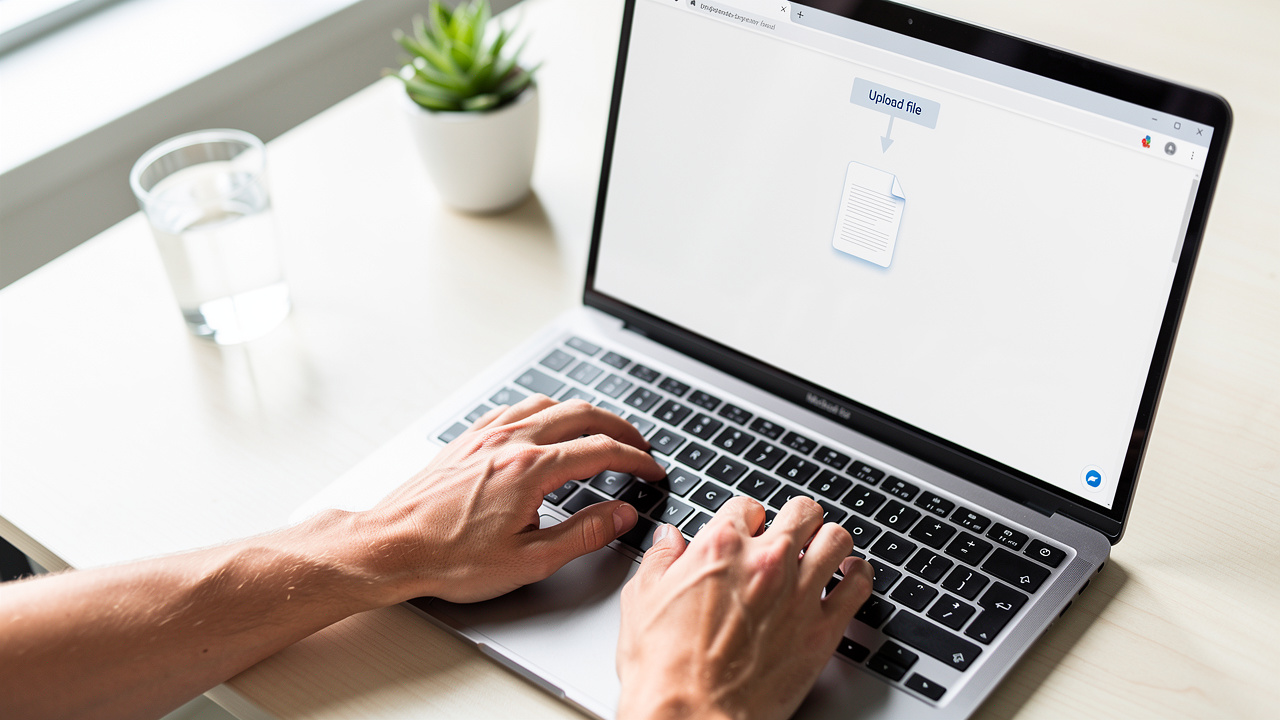
    Not always. iLovePDFKit works with zero registration, so you can upload and download immediately. ChatPDF also lets you use its free tier without an account for two documents daily. Tools such as Adobe Acrobat may require sign‑in for saving work, syncing, or advanced AI options.

    Question 5: What Is The Difference Between An AI PDF Reader And An AI PDF Summarizer?

    An AI PDF reader focuses on conversational Q&A, letting you ask questions and jump to the right spots in a document. An AI PDF summarizer concentrates on condensing long files into short overviews, outlines, or bullet points. Many platforms combine both roles, so you can chat with the file and also request a quick summary.

    The Right AI PDF Tool Makes Every Document Work Harder For You

    PDF tool synced across laptop tablet and smartphone devices

    The best AI PDF tool is the one that matches your main document problem, whether that is reading speed, conversion, or security. Students and researchers often start with iLovePDFKit to clean up files, then rely on ChatPDF or Humata AI for cited answers, while businesses may favor Adobe Acrobat AI Assistant, Foxit, or Kofax for editing and governance.

    Across all these options, iLovePDFKit stands out as a no‑cost, no‑login PDF hub that keeps conversions clean and secure. You can open any modern browser, fix or convert a file in seconds, then plug that file into your favorite AI reader. Try iLovePDFKit as your everyday PDF starting point, then layer in a chat‑focused tool when you need deeper analysis.

  • Best Free PDF Tools in 2026: Top 7 Trusted Picks

    Best Free PDF Tools in 2026: Top 7 Trusted Picks

    Students, office staff, and freelancers often search for the best free PDF tools in 2026 they can actually trust with private files. Many sites promise free access yet hide limits, watermarks, or weak security. That creates real stress when a deadline or client delivery depends on a clean, safe PDF.

    Real relief comes from a short list of proven tools that give strong features with clear rules. The standouts are iLovePDFKit, iLovePDF, Sejda, PDFescape, PDF24 Creator, Smallpdf, and Xodo. iLovePDFKit sits at the center as a no registration, no watermark, always free browser toolkit built for fast, accurate conversion and secure file handling.

    This guide explains how to judge any free free PDF editor online, then walks through each trusted option by use case. You will see which tool fits students, office professionals, and freelancers, how they compare, and when a paid upgrade finally makes sense.

    By the end, you will be ready to pick a stress‑free toolkit that just works every day without nasty surprises next week.

    Key Takeaways

    • iLovePDFKit stands out as a free online PDF editor with no registration, no watermarks, and no file size paywalls. It delivers fast, accurate conversion plus merging, compression, and page tools in any modern browser. That mix makes it a steady daily driver for students, office staff, and freelancers.

    • A trustworthy free PDF tool keeps output clean, protects files with SSL, deletes uploads soon after processing, and explains limits in simple language. When a site hides rules, adds watermarks, or forces sign‑up, it costs time and peace of mind. Clear policies matter more than flashy home pages.

    • Different tools fit different habits even inside the list of the best free PDF tools in 2026. iLovePDFKit works as an all‑in‑one hub, Sejda suits private quick edits, PDF24 Creator fits heavy Windows use, while Xodo shines for tablet notes. Pair a main hub with one or two helpers for edge cases.

    “Simplicity is the ultimate sophistication.” — Leonardo da Vinci
    Good PDF tools follow that idea: they stay out of your way so you can focus on the document, not the software.

    Table of Contents

    What Makes a Free PDF Tool Worth Using in 2026?

    Student using a free online PDF tool on a laptop

    A free PDF tool worth using in 2026 gives clean files, clear limits, and real protection without nagging paywalls. That idea translates into a handful of features that separate helpful tools from time wasters.

    When you compare sites, look for:

    • No forced sign‑up for basics
      You should be able to open the site, upload a file, run a free PDF converter, and download the result without handing over an email address. iLovePDFKit follows this pattern, which helps in computer labs or shared offices where accounts slow everyone down.

    • Clean output with no watermarks
      Many sites let you merge PDF files free, then stamp a logo across every page. A trustworthy platform acts as a PDF tool with no watermark, so final assignments, invoices, and forms look professional.

    • Accurate conversion
      The best PDF software 2026 entries keep fonts, tables, and images in place when you use a PDF to Word converter free or convert PDF to JPG free. Weak tools scramble layouts, which eats time while you fix alignment by hand.

    • Real security commitments
      You want HTTPS in the address bar, a privacy page that promises deletion after processing, and no long‑term storage of your uploads. According to IBM Security, the average data breach costs several million dollars, so even small teams care about careful handling of client files.

    • Reasonable limits and file caps
      Some tools cap daily tasks so tightly that regular users hit the wall by mid‑morning. A tool with strict limits works for rare jobs but quickly frustrates anyone who edits PDFs every day.

    If a site fails on one or more of these points, it may be fine for occasional use, but it should not be the center of your workflow.

    The Best Free PDF Tools in 2026

    The best free PDF tools in 2026 cover common jobs like conversion, compression, form filling, and signing while staying honest about limits. Each of the tools below fits a clear role, so most people can pick one main hub and one backup option — much like the roundups featured in guides such as 12 Best PDF Tools that survey the current landscape.

    iLovePDFKit works as that hub for many users. It bundles free online PDF tools with no watermark alongside fast, accurate conversion and strong security. Around it sit iLovePDF, Sejda, PDFescape, PDF24 Creator, Smallpdf, and Xodo, each tuned for a slightly different habit or device.

    Recent research from Pew Research Center shows that over nine out of ten adults in the United States use the internet, which means browser‑based PDF tools now reach almost everyone. With that reach comes more choice, so the list below focuses on tools that feel simple, honest, and safe.

    iLovePDFKit – Best Free All-In-One PDF Toolkit (No Registration, No Watermarks)

    Office professional managing PDF files on a desktop computer

    iLovePDFKit is a fully browser‑based toolkit that handles nearly every daily PDF task without accounts, downloads, or surprise fees. You can run a free PDF converter between PDF and Word, Excel, PowerPoint, JPG, or PNG while keeping fonts, tables, and images in the right place.

    The platform also lets you:

    Output files stay free of logos, which matters for grades, contracts, and client proposals. This makes iLovePDFKit a strong free alternative to Adobe Acrobat for people who just need reliable core tools.

    Security sits at the center of the service. All files move through SSL‑encrypted connections, and documents are processed in real time then removed from servers instead of being stored. For freelancers or small firms who promise confidentiality, that no‑storage policy matters as much as any button on the screen.

    iLovePDFKit fits students rushing to upload an assignment, office teams turning PowerPoint decks into PDFs, and solo workers who send signed agreements often. The main gap is deep in‑place text editing or OCR for scanned pages, which still call for more specialized tools.

    iLovePDF – Best for Breadth of Tools With Cloud Integration

    iLovePDF gives a broad set of more than twenty tools for people who live in Google Drive or Dropbox. It covers a free PDF editor online, conversions, compression, page rearranging, watermark tools, and a free PDF sign feature in one place.

    The free tier links directly with major cloud storage, which saves download and upload steps for larger teams. Daily task limits and light ads appear, and text edits work as overlays instead of true in‑place changes. Even with those limits, it still ranks among the best PDF tools 2026 for cloud‑focused users who want everything tied to shared drives.

    Sejda PDF Editor – Best for Editing Existing PDF Text Privately

    Sejda PDF Editor stands out because it lets you change existing words in a PDF rather than only adding text boxes on top. That detail matters when an invoice shows the wrong date or a report has a small typo that keeps bothering you.

    The web app runs as an online PDF editor with no sign‑up needed for basic use, and it deletes uploaded files after a short window. The free tier sets limits of three tasks each hour and caps page counts and file sizes, so heavy users hit walls fast. It works best as a private, quick‑fix tool rather than a daily home base.

    PDFescape – Best Free Browser-Based Form Filler

    PDFescape helps when you need a PDF form filler free on a shared or locked‑down device. The tool runs in the browser, lets you type into fields, add check marks, draw simple shapes, and arrange pages without any install.

    There is a limit on file size and page count, and no OCR for scanned forms, so it suits standard digital paperwork. For office staff completing HR packets or students filling campus forms, PDFescape offers a straightforward way to edit a form and save or print it.

    PDF24 Creator – Best Unlimited Free Desktop Tool for Windows

    PDF24 Creator is a Windows desktop program that feels like a small studio of PDF editing software free for people who prefer offline work. It handles convert PDF to JPG free, merging, splitting, compression, and printing to PDF from almost any app on the system.

    The program has no daily limits and no watermark on output, so it fits anyone who needs the best free PDF editor for Windows without network access. The interface looks basic next to newer browser apps, yet power users value its steady offline focus.

    Smallpdf – Best for Fast, Simple Occasional Edits Online

    Smallpdf aims at users who only need a free PDF compressor or quick converter once or twice a day. The site offers more than twenty tools with a clean layout, and it includes basic signing functions on the free tier.

    The catch sits with the two‑task daily cap, which blocks more serious workflows. People who want a Smallpdf alternative without strict limits often pick iLovePDFKit for that reason. Smallpdf still works nicely for rare jobs like shrinking a final essay or turning a résumé into PDF format.

    Xodo PDF Editor – Best Free Mobile PDF Tool

    Xodo PDF Editor focuses on phones and tablets where fingers replace a mouse. Its iOS and Android apps feel smooth for actions such as highlighting notes, drawing on slides, or signing with a finger or stylus.

    The tool covers free PDF reader and editor needs on mobile, plus real‑time sharing so classmates or coworkers can mark the same file. Heavy text edits still feel slow on a small touch screen, yet for reading and annotation Xodo works very well, especially for long bus rides or time between meetings.

    How Do These Tools Compare?

    Minimalist workspace for comparing free PDF tools online

    The way these free PDF tools compare in 2026 comes down to trust, limits, and where you work most of the day — a point echoed by expert evaluations covering the 15 best PDF editors currently available across browsers and desktop platforms. The table below gives a quick view of their strongest fits.

    ToolBest UseSign Up NeededWatermark on Free OutputMain PlatformNotable Limits
    iLovePDFKitAll‑in‑one browser toolkitNoNoBrowserNo daily limits
    iLovePDFBroad tool mix with cloud linkNo for basicsNo on standard toolsBrowserDaily task caps
    SejdaPrivate text fixesNoNo on most editsBrowser and desktopThree tasks each hour
    PDFescapeForm filling on shared devicesNo for basicsNoBrowserTen megabyte file cap
    PDF24 CreatorHeavy Windows desktop useNoNoWindows appWindows only
    SmallpdfRare quick web jobsYes for some flowsNoBrowser and desktopTwo tasks each day
    XodoMobile notes and signingOptionalNoiOS, Android, webMobile text edits feel slow

    For most people who want several tools in one spot with no watermark and no login, iLovePDFKit makes the best starting point. You can then add a desktop helper like PDF24 Creator or a mobile helper like Xodo if your habits call for them.

    Is Your Data Safe With Free PDF Tools?

    Secure data handling while uploading PDF files online

    Data safety with free PDF tools depends on encryption, deletion rules, and how the company treats storage, and recent Pdf research published in Frontiers in Artificial Intelligence highlights how document handling pipelines introduce privacy considerations that users should understand. A safe platform protects files during upload, avoids long‑term storage, and explains privacy steps in clear language.

    Before you upload, look for HTTPS in the address bar, since that shows SSL encryption in place. A short privacy section should promise removal of files within a set time window. iLovePDFKit processes documents in real time over SSL and removes them from servers after conversion, which reduces risk for grades, contracts, and personal records.

    Sejda also notes automatic deletion after a short period, which many privacy‑minded users like for client files. When even a small leak can hurt trust and, for larger firms, lead to large costs listed in reports like the IBM Security data breach study, careful choices matter.

    For health, legal, or financial records, fully offline tools help most. PDF24 Creator and LibreOffice Draw keep everything on the local machine, so nothing reaches a remote server at all.

    “Security is a process, not a product.” — Bruce Schneier
    As a practical rule, treat PDF tools as one small part of that process and pick services that explain clearly how they handle your documents.

    Frequently Asked Questions

    Question: What is the best free PDF tool with no watermark in 2026?
    The best free PDF tool with no watermark in 2026 is iLovePDFKit, thanks to clean output, no registration, and wide format support. For offline use, PDF24 Creator also gives watermark‑free files on Windows. Both options suit professional and academic documents.

    Question: Can I edit a PDF online without signing up?
    Yes, you can edit PDFs online without sign‑up by using iLovePDFKit, Sejda, or PDFescape. These sites let you add text, fill forms, and run basic changes straight in the browser. Most free tiers limit deep in‑place edits but still cover many daily tasks.

    Question: Is there a free PDF to Word converter that preserves formatting?
    iLovePDFKit offers a how to convert PDF to Word without losing formatting that keeps fonts, tables, and layout very close to the original file. That accuracy saves time compared with low‑quality tools that scramble headings and spacing. It works well for research papers, reports, and client proposals.

    Question: Are free PDF tools safe for sensitive documents?
    Reputable free PDF tools use SSL and clear deletion rules, which protects many ordinary files. Before uploading sensitive contracts or ID copies, always read the privacy policy and avoid unknown brands. For the highest privacy, pick iLovePDFKit with real‑time deletion or PDF24 Creator with fully offline processing.

    Question: What is the best free PDF tool for students?
    For students, iLovePDFKit stands out because it runs in any browser, needs no account, and keeps output free of watermarks. It converts between Word, PowerPoint, and PDF, which suits essays and slides. Xodo adds a strong option for tablet‑based reading and annotation during study sessions.

    Locking In Your PDF Workflow Starts With the Right Free Tool

    Freelancer editing PDF documents on a tablet at home

    Locking in a smooth PDF workflow starts with choosing one trusted free toolkit as your daily base. For many students, office teams, and freelancers, iLovePDFKit plays that role by offering free online PDF tools with no watermark, no registration, and accurate conversion in any modern browser.

    From there, you can keep Sejda for rare private text fixes or PDF24 Creator for heavy Windows work. Most people never need a paid plan unless daily limits or missing OCR slow real projects. The fastest next step is simple: open iLovePDFKit in your browser and run your next conversion without friction.

  • Best Adobe Acrobat Online Alternatives in 2026

    Best Adobe Acrobat Online Alternatives in 2026

    Introduction

    Paying for Adobe Acrobat when you mostly convert files often feels wasteful. Many people search for an Adobe Acrobat online alternative instead, especially when school or small‑business budgets are tight.

    The frustration grows when a simple Word to PDF task needs a login, a download, and a monthly fee. Extra menus, confusing buttons, and slow updates get in the way. Quick document jobs start to feel like heavy projects.

    An Adobe Acrobat online alternative is any web tool that lets you convert, edit, or manage PDFs without expensive software. This guide walks through the best free and low-cost options in 2026, compares their strengths, and explains where iLovePDFKit fits as a top pick. It focuses on real tasks for students, office staff, office staff, freelancers, and small teams.

    Ready to see which tools match your daily work and save real money? Keep reading for clear options.

    Key Takeaways

    Key points from this guide help you pick a smarter PDF tool. These notes highlight cost, features, and access style. Use them as a quick reference.

    • Adobe Acrobat subscriptions add steady monthly costs. Even light users feel that strain over time. Many pay for features they rarely touch, while free or cheaper PDF services often cover everyday needs.

    • A strong free option covers file conversion, merge, split, and compression. It keeps output clean and professional and avoids hidden limits that stop you mid-task.

    • iLovePDFKit stands out as a zero-cost online toolkit. It works without sign-up or watermarks and supports common formats for school, office, and client work.

    • Browser-based tools run on almost any device. They avoid installs and updates, which matters on locked school PCs, shared office machines, and phones.

    • Matching the tool to your workflow saves time. Students, office teams, and freelancers each benefit from slightly different feature sets.

    Why Adobe Acrobat Falls Short for Everyday Users

    Frustrated office worker overwhelmed by expensive software subscriptions and complex menus

    Adobe Acrobat often feels heavy for everyday users because its price, setup, and interface do not match simple tasks. Many people then look for an Adobe Acrobat online alternative that feels lighter. The gap between what they pay for and what they use stays wide.

    According to Adobe, Acrobat Standard starts at $12.99 per month and Acrobat Pro runs from $19.99 to $23.99 per month for each user. Those numbers add up quickly for students printing research papers or freelancers sending a few contracts. Office assistants who mostly convert or combine documents rarely touch the advanced tools they are paying for.

    Cost is not the only friction. Acrobat often asks for sign-ups, linked Adobe IDs, and downloads before you can finish a simple conversion. The desktop-first design brings regular updates and features that differ from the web version, which confuses casual users. Menus feel dense, and learning the interface takes time that busy staff and students simply do not have.

    “Perfection is achieved, not when there is nothing more to add, but when there is nothing left to take away.”
    — Antoine de Saint‑Exupéry

    For many people, Acrobat feels like the opposite of that quote: too many panels and options for simple day-to-day work. That mix of high subscription fees, forced accounts, and extra complexity pushes people toward simpler, browser-based options that solve the same problems faster.

    The Best Adobe Acrobat Online Alternatives in 2026

    The best Adobe Acrobat online alternative choices in 2026 focus on speed, price, and access from any browser. These tools trade heavy desktop installs for clean web interfaces that handle the most common PDF jobs.

    This section highlights five strong options and who they fit best. It starts with iLovePDFKit for free, no-login workflows, then covers pdfFiller, WPS Office, Soda PDF, and ABBYY FineReader. Each option is judged on how you access it, which features you get, and how much you actually pay. Recent data from Pew Research Center shows that more than 85 percent of US adults own a smartphone, so browser tools that work across phones, tablets, and laptops now matter more than ever.

    Together, these picks cover quick conversions, full editing, strong security, and high-end OCR, so you can match a tool to your real tasks instead of forcing your work into one product.

    Quick Comparison Table

    ToolBest ForAccess TypePricing Snapshot*
    iLovePDFKitFree, no-login browser tasksWeb (desktop & mobile)Free online tools
    pdfFillerForms, templates, and eSignature workflowsWeb (desktop & mobile)From $8/month per user (Basic plan)
    WPS OfficeOffline editing with office suiteDesktop & mobile appsFree tier; paid upgrades available
    Soda PDFSecurity-focused editing and permissionsWeb & desktopPaid plans; free 7-day trial
    ABBYY FineReader PDFHigh-accuracy OCR and document scanningDesktopPaid license; free 7-day trial

    *Pricing based on vendor information at the time of writing and may change.

    iLovePDFKit — Best Free All-in-One PDF Toolkit

    Clean home office with laptop running a browser-based PDF conversion tool

    iLovePDFKit is one of the strongest free Adobe Acrobat online alternatives for anyone who wants fast PDF tasks in the browser with zero friction. You open the site, drop in a file, choose an action, and download the result. No account, no card, and no trial clock.

    The platform runs entirely online in Chrome, Firefox, Safari, and Edge on desktop and mobile. It covers the most common PDF conversions, including:

    • Convert Word, Excel, PowerPoint, JPG, and PNG to PDF

    • Convert PDF back to editable Office formats

    • Keep fonts, tables, and images aligned so documents retain their layout

    That layout accuracy means term papers, budgets, and slide decks look the same after conversion, so you do not spend extra time fixing spacing or broken tables.

    iLovePDFKit also covers daily document management tasks, such as:

    There are no hidden file-size caps, no watermarks on output, and no sudden upgrade prompts after a few tasks. Internal data shared by iLovePDFKit shows that thousands of users run these tools every day across school, office, and freelance workflows.

    Security is designed around privacy. All transfers use SSL encryption, files are processed in real time, and both original and converted documents are deleted from servers right after download. Nothing stays stored on the platform. That policy makes iLovePDFKit especially appealing for contracts, grades, invoices, and research drafts that should not live on third-party servers.

    Small business team collaborating on digital forms and eSignature workflows

    pdfFiller is a strong choice for people who want a cloud service that rivals Acrobat’s range of tools while staying more affordable. It is fully web based, with the same interface on Windows, macOS, and mobile browsers, so teams do not have to learn different layouts.

    According to pdfFiller, more than 64 million users rely on the platform, and research from G2 shows a 4.6 out of 5 rating compared with Adobe Acrobat’s 4.5. The Basic plan starts at $8 per month, while the Premium plan at $15 per month adds powerful eSignature workflows, team controls, and custom branding. Many companies switching from Acrobat report savings above 35 percent on licensing.

    pdfFiller suits HR, legal, and compliance teams that need reusable templates, signing sequences, and clear audit trails. It connects with Google Drive, Dropbox, OneDrive, and Box, so existing storage stays in place and staff can send documents for signing with just a few clicks.

    WPS Office — Best Free Option for Full Editing Control

    WPS Office works well for users who want a free desktop suite with strong PDF editing. Its free tier supports annotations, highlights, comments, and conversions between PDF and Word, Excel, or PowerPoint. Direct saving back to PDF often uses a quick format-convert step, but that extra click costs only a few seconds.

    A 7-day premium trial without a credit card unlocks direct editing, OCR, merge, split, and compression. That short window can cover intense bursts of work, such as thesis formatting or a contract-heavy project. The tabbed interface combines word processing, spreadsheets, and presentations in one place, so you can switch documents without juggling separate apps.

    WPS Office fits students and freelancers who prefer offline tools and are comfortable managing installations on their own devices. It is especially handy on laptops that may spend long stretches without a reliable internet connection.

    Soda PDF — Best for Security-Conscious Users

    Soda PDF focuses on secure handling of sensitive files while still covering everyday editing and conversion needs. It offers strong encryption and password controls, along with detailed permission settings so different teammates see only what they should. For example, some people can edit, some can comment, and others only view.

    Its OCR handles small embedded text well and can even read words inside logos or low-resolution scans. Soda PDF also lets you create PDFs from websites by entering a URL, then merge Word, PowerPoint, JPEG, and other formats into a single file. A free 7-day trial runs with no card required, making it easy to test security features on real documents.

    Security-aware roles in law, finance, and healthcare like that Soda PDF supports 256-bit AES encryption, a standard described by NIST as suitable for very sensitive information.

    Tip: If you work with regulated data, ask your IT or compliance team to review any new PDF tool before putting it into everyday use. A quick review now can prevent policy problems later.

    ABBYY FineReader PDF — Best for Digitizing Paper Documents

    High-accuracy document scanner digitizing paper records into searchable PDF files

    ABBYY FineReader PDF stands out for high-accuracy OCR and document digitization. If your main task is turning stacks of paper or image-based PDFs into searchable, editable text, this is the specialist you consider.

    The software connects directly to scanners, then shows the original page beside the editable version so you can spot and fix recognition errors. It handles complex layouts, such as multi-column research articles or low-quality photocopies, far better than many general tools. According to ABBYY, its OCR engine is trained on hundreds of languages and varied document types.

    FineReader also includes basic PDF editing, digital signatures, fillable forms, and image cleanup tools like straightening and color balance. A 7-day free trial with no payment details lets you test large scanning projects before buying and see how much time automated OCR can save.

    What to Look for in Any Adobe Acrobat Alternative

    Choosing an Adobe Acrobat online alternative works best when you judge tools against everyday tasks, not long feature lists. The right pick should handle your real document flow with as few steps as possible. Students, office staff, and freelancers share many needs, but a few details differ.

    At a base level, you want smooth conversion between PDF and Word, Excel, PowerPoint, JPG, and PNG, plus reliable merge, split, and compression. Those functions cover most assignment submissions, report packages, and client packets. Services like iLovePDFKit add helpful extras such as page numbers and password control in the same place.

    Trust signals matter too. A strong privacy model means no forced registration, no watermarks, and no long-term file storage. Browser tools that delete files after processing give peace of mind when you upload contracts, grades, or financial records. iLovePDFKit builds this idea into its core design rather than hiding it in a small-print setting.

    When comparing tools, keep these checks in mind:

    • Look at how well the converter keeps layout intact. Tables, charts, headings, and fonts should stay stable. Poor results create extra editing work later, which defeats the point of automation.

    • Check whether OCR is available if you handle scans or images. Good OCR turns printed pages into searchable text. This feature supports researchers, legal teams, and anyone cleaning up paper archives.

    • For contract-heavy work, review eSignature features and access controls. You may need signer order, reminders, and clear audit trails. Lighter tools such as iLovePDFKit can prepare documents before signing, while platforms like pdfFiller handle the signing workflow itself.

    • Confirm security basics. Look for SSL encryption, 256-bit AES, and clear deletion policies. When in doubt, read each vendor’s privacy policy and security page carefully.

    Tip: Make a short list of the three PDF tasks you do most often and test each tool only on those jobs. That keeps comparisons focused and makes it easier to see which service actually helps you day to day.

    Cloud-first tools that run in a browser avoid installs, version conflicts, and device limits, making them easier to roll out across classrooms, offices, and side-hustle setups.

    The Bottom Line: Choosing the Right PDF Tool for Your Needs

    College student using a free online PDF tool on a laptop in a dorm room

    Picking the right Adobe Acrobat online alternative comes down to matching your tasks and budget with the right mix of features. No single product fits every case, but this group covers nearly all common workflows.

    iLovePDFKit is the natural starting point for most people. It handles daily work such as converting, merging, splitting, compressing, and securing PDFs at zero cost, with no sign-up and no stored files. Students racing to submit assignments, assistants preparing reports, and freelancers sending proposals all benefit from that speed.

    pdfFiller fits teams that live inside forms and signatures. WPS Office suits users who want offline editing. Soda PDF shines when document security is central, and ABBYY FineReader helps anyone serious about scanning and archiving paper. Try iLovePDFKit in your browser for your next document task, then layer paid tools only if your workflow clearly needs more.

    Frequently Asked Questions

    Question 1: Is there a completely free Adobe Acrobat alternative with no watermarks?

    Yes, iLovePDFKit is completely free and does not add watermarks. All tools are available without registration, task limits, or hidden fees. Many “free” converters reduce quality or stamp branding on pages until you pay, but iLovePDFKit keeps every output clean and ready to share.

    Question 2: Can I convert a Word document to PDF online without creating an account?

    Yes, iLovePDFKit lets you convert Word to PDF directly from the browser with no account. You open the site, upload the .docx file, choose the convert option, wait a few seconds, then download the finished PDF. The whole process usually finishes in under a minute.

    Question 3: Are online PDF tools safe for sensitive documents?

    Many online PDF tools are safe when they use SSL encryption, strict deletion policies, and strong server security. iLovePDFKit processes files in real time, then deletes originals and outputs right after download, so nothing remains stored. For legal, medical, or finance files, always read each tool’s privacy and security pages first.

    Question 4: What is the best free alternative to Adobe Acrobat for students?

    For most students, iLovePDFKit is the best free choice because it needs no installation, works on shared campus computers, and never asks for registration. It converts, merges, and compresses documents for class quickly. WPS Office is a helpful extra when offline editing on a personal laptop matters.

    Question 5: Do free PDF tools work on mobile devices?

    Yes, browser-based tools such as iLovePDFKit work on phones and tablets through any modern browser. You do not need to install an app, which helps on devices with limited storage. Just open the site, upload the file, run the tool you need, and download the result.

  • Free Online JPG to PDF Converter by iLovePDFKit

    Free Online JPG to PDF Converter by iLovePDFKit

    Introduction

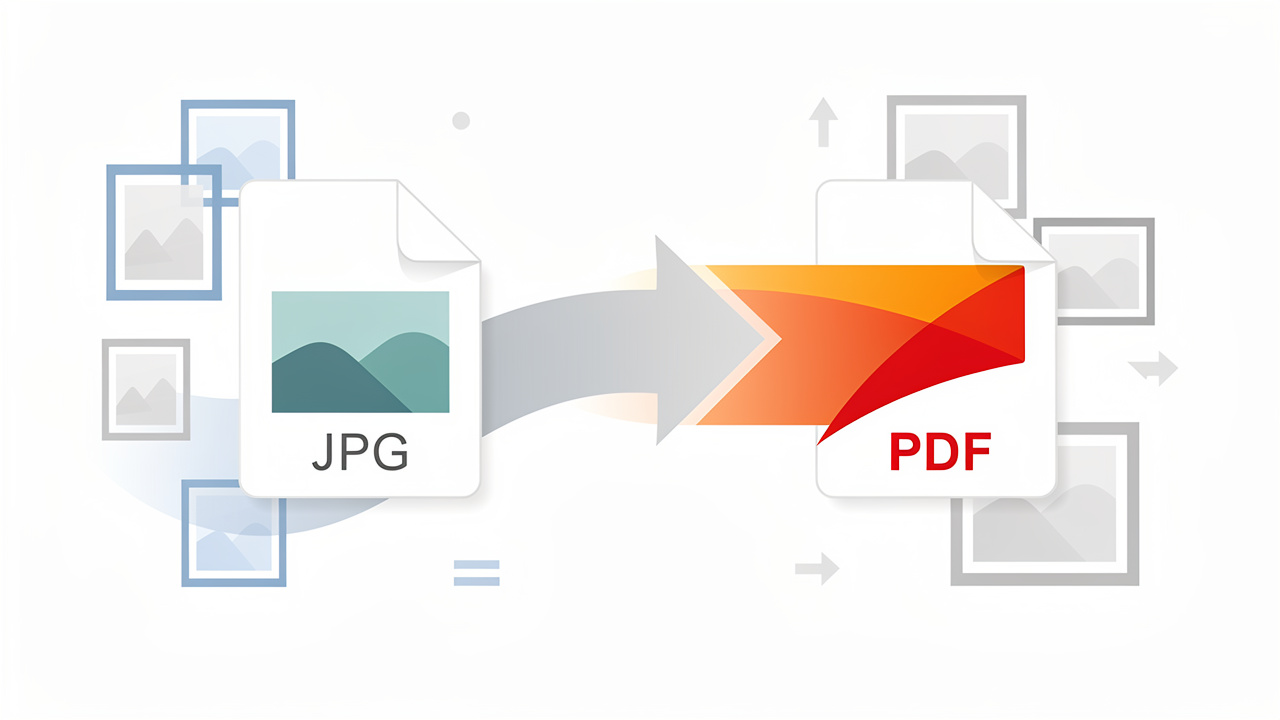
    A free online JPG to PDF converter gives you a fast way to tidy scattered images into one clean document. Sending ten separate JPG files feels messy, and important pages can hide inside long email threads. On phones and laptops, the same image can also show up at strange sizes or in the wrong order.

    iLovePDFKit fixes those headaches in a browser tab. It turns single photos or whole folders of JPGs into a polished PDF that looks the same on Windows, macOS, Android, and iOS. No software install, no sign-up, and no watermarks stand in your way.

    In this guide you will see why PDF is the standard, how to use iLovePDFKit step by step, and how students, office staff, and freelancers fold it into daily work. Keep reading to see how fast your files can calm down and how simple your document sharing can feel.

    Key Takeaways

    • iLovePDFKit’s free online JPG to PDF converter stays free for everyone. You see no watermarks on your pages. You never meet surprise fees or credit limits.

    • You convert images in four clear steps that feel simple. There is no account wall or email gate. You only need a browser and an internet connection.

    • You can combine many JPG files into one multi page PDF. That keeps notes, receipts, or project images in order. It also makes sharing and submitting much easier.

    • Files travel through encrypted connections and leave the servers shortly after processing. You do not need to worry about long term storage. That helps protect private study, work, or client data.

    Why Convert JPG to PDF in the First Place?

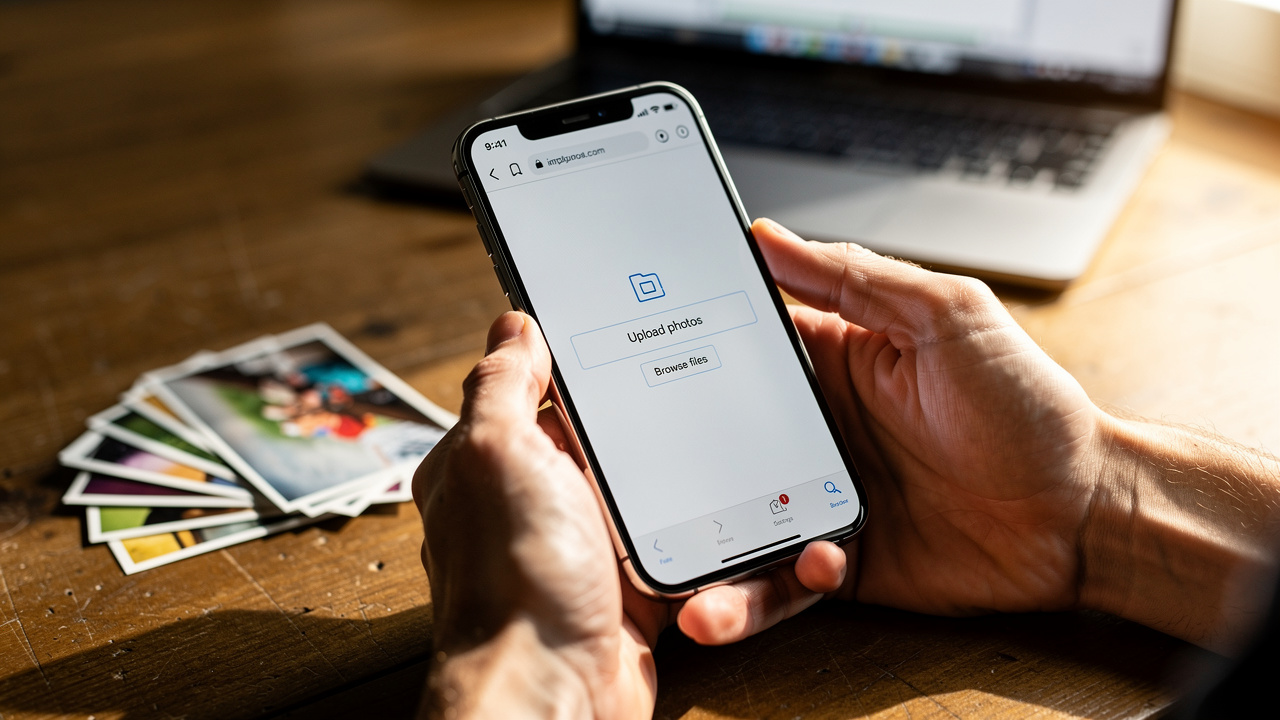
    Person uploading JPG photos on smartphone browser

    Converting JPG images to PDF gives you a stable file that looks the same everywhere and keeps pages together. A free online JPG to PDF converter turns loose images into one document that teachers, managers, and clients can open without confusion. That simple change has a big impact on how professional your work feels.

    JPG works well for photos, but it has clear limits in school and office settings. Common pain points include:

    • Inconsistent display size from one screen to another

    • Separate files that clutter inboxes or chat threads

    • Pages that open in the wrong order, or go missing entirely

    • Submission portals that accept only PDF

    PDF fixes those problems by locking layout in place. According to Adobe, people open more than 2.5 trillion PDF files in Adobe products each year, which shows how standard this format has become. A PDF keeps page size, fonts, and image position fixed, so your document looks identical on a Windows laptop, a MacBook, or a Chromebook.

    Think about a student submitting a lab report made from lab photos, or an office assistant sending scanned signatures and charts to a manager. If those files stay as JPGs, the teacher or manager must click through many images and may miss key pages. With a PDF created through a free online JPG to PDF converter like iLovePDFKit, everything arrives in one ordered file that opens cleanly in Adobe Acrobat, Preview on macOS, or any browser. That reduces mistakes and saves time for everyone.

    Antoine de Saint-Exupéry once wrote, “Perfection is achieved, not when there is nothing more to add, but when there is nothing left to take away.” Turning a pile of JPGs into one clear PDF follows the same idea: less clutter, more clarity.

    How to Convert JPG to PDF Free With iLovePDFKit

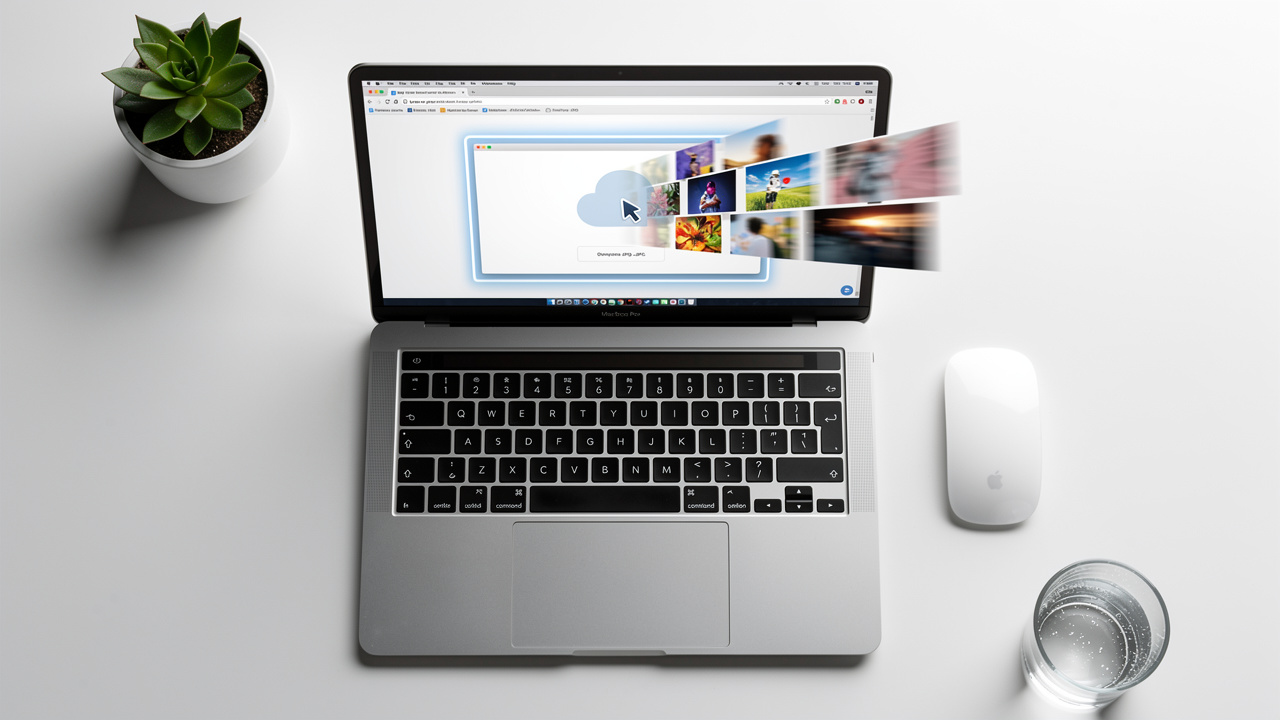
    Laptop showing drag and drop JPG file upload interface

    Converting JPG files to PDF with iLovePDFKit takes only a few clicks and no special skills. The whole process happens inside your browser, so you never touch installers or add-ons. Whether you sit at a work PC or hold a phone in class, this free online JPG to PDF converter follows the same steps.

    According to Pew Research Center, about 97 percent of adults in the United States own a cellphone and 85 percent own a smartphone. That means almost everyone can reach iLovePDFKit from a pocket device whenever images need to become a clean PDF. Here is how the four steps look.

    1. Open The JPG To PDF Tool
      Visit iLovePDFKit in any modern browser such as Google Chrome, Microsoft Edge, Safari, or Firefox. From the home page, choose the free online JPG to PDF converter tool. The site works on Windows, macOS, Linux, ChromeOS, Android, and iOS. You do not need to log in or enter any personal details before you start.

    2. Upload Your JPG Images
      Drag and drop your JPG files into the upload area, or click to browse your folders. You can select one image or many at once, which is perfect for multi page notes or receipt stacks. iLovePDFKit also accepts PNG and other common image formats in the same place. If your pictures live in Google Drive or Dropbox, you can pull them into the page just as easily.

    3. Arrange And Let iLovePDFKit Convert Everything
      After upload, you can arrange page order if needed, so page 1 really looks like page 1. As soon as you are happy with the order, iLovePDFKit’s engine starts the conversion on its cloud servers. There are no waiting queues for normal work and no tricky settings for a standard job. The service keeps the original resolution, colors, and sharpness of your images. It does all that without placing logos or marks over your content.

    4. Download And Share The PDF
      When the conversion ends, a clear download button appears on the page. Click once to save the new PDF to your laptop, tablet, or phone. You can also store the file back to Google Drive or Dropbox or attach it to Gmail or Outlook straight away. Your images now sit in one neat PDF that is ready for upload, print, or sharing with classmates, teammates, or clients.

    UX author Steve Krug has a simple rule for good tools: “Don’t make me think.” A JPG to PDF converter should feel that way too—clear steps, no surprises, and one obvious button to click next.

    For even smoother results with iLovePDFKit:

    • Group related images into one folder before uploading

    • Give your files short names so you can spot them quickly in the list

    • Rotate sideways photos on your phone or scanner first, or rotate inside the tool before converting

    These quick habits keep your final PDF tidy and easy to read.

    What Makes iLovePDFKit’s Free Online JPG to PDF Converter Stand Out?

    Many sites claim to convert JPG to PDF for free, yet they hide limits behind sign-ups, watermarks, and small print. iLovePDFKit’s free online JPG to PDF converter stands out because it does what people expect from a simple tool and does it without tricks. You open a tab, convert your images, download the PDF, and move on.

    Here is a quick side by side view.

    FeatureiLovePDFKitMany “Free” Converters
    CostFree for regular use with no creditsFree trial with caps or credits
    WatermarksNo watermarks on any pageLogo on every page
    Account NeedNo account or card requiredEmail or card up front
    Extra ToolsExtra PDF tools available in the same workspaceOften locked behind paywall

    Three areas matter most when you compare converters:

    • Pricing clarity: no tokens, credit packs, or limits that reset each day

    • Output quality: your scans and photos stay sharp, even for charts and fine text

    • Security and privacy: short retention windows and encrypted transfer

    First, the pricing model stays simple. You do not face page limits that reset each day, or tokens that vanish faster than you expect. iLovePDFKit lets students, teachers, freelancers, and small teams use the core converter without paying and without a sign-up wall. That is especially helpful on shared school computers or locked-down office machines.

    Second, output quality stays high. Some free converters compress your JPGs so hard that charts blur and small text becomes hard to read. iLovePDFKit aims for pixel level accuracy, so a high resolution scan or product photo in Microsoft Word or PowerPoint still looks sharp inside the final PDF.

    Security also plays a big role. File transfers use Transport Layer Security (TLS), the same protection used by banks and major services such as Google Drive and Dropbox. Documents leave iLovePDFKit’s servers shortly after processing, which lowers the risk of long term exposure for pay stubs, contracts, or exam papers.

    Security specialist Bruce Schneier often notes that “security is a process, not a product.” Short file lifetimes, encryption, and clear policies are part of that process for online tools.

    Strong privacy and clarity help real work. Research from McKinsey shows that employees spend about 1.8 hours each day just searching for information. Cleaner PDFs, made through a trusted free online JPG to PDF converter, make it easier to find what matters in a single file instead of a tangle of images. On top of that, iLovePDFKit links to other tools to merge, split, compress, and convert PDFs with Word, Excel, and PowerPoint, so your whole document workflow can live in one browser tab.

    Who Benefits Most From a Free Online JPG to PDF Converter?

    Student converting lab photos to PDF at library

    A free online JPG to PDF converter helps anyone who sends images in a school, office, or client setting. iLovePDFKit works best for people who care about neat, shareable files but do not want to manage software or budgets for basic tasks. When the tool lives in a browser, it fits into many routines without friction.

    Students, teachers, office pros, and freelancers all face stacks of photos, scans, and screenshots. They may take pictures of whiteboards on an iPhone, scan invoices into a network folder, or capture product mockups as PNG files on a design laptop. With iLovePDFKit, each of these groups can turn those raw images into one reliable PDF in less time than one trip to a printer.

    People who benefit most include:

    • Students and academics who must submit homework or lab work as PDF only

    • Office professionals and admin staff who collect scans, phone photos, and logos from many sources

    • Freelancers and small business owners who want tidy files for clients and accounting

    • Home users managing insurance photos, appliance receipts, or school forms

    Real-World Use Cases by User Type

    Office professional organizing scanned invoices into PDF
    • Students And Academics
      Students and academics handle strict submission rules that often call for PDF only uploads. A biology student might snap lab notes on an Android phone across a full semester. With iLovePDFKit, that student can select a week of JPGs, arrange them in the right order, and convert them to one study guide PDF from a library PC or home Chromebook. Professors then open a single file that matches their grade book instead of chasing loose photos.

    • Office Professionals And Admin Staff
      Office professionals and admin staff live inside tools like Microsoft Excel, Word, and Outlook. A project coordinator may receive photographed invoices, a PNG logo, and scanned signature pages for a report. Company IT rules might block new app installs on Windows or macOS devices. In that case, a browser based free online JPG to PDF converter such as iLovePDFKit lets the coordinator combine all those images into a single PDF report that passes through email and archiving systems without trouble.

    • Freelancers And Small Business Owners
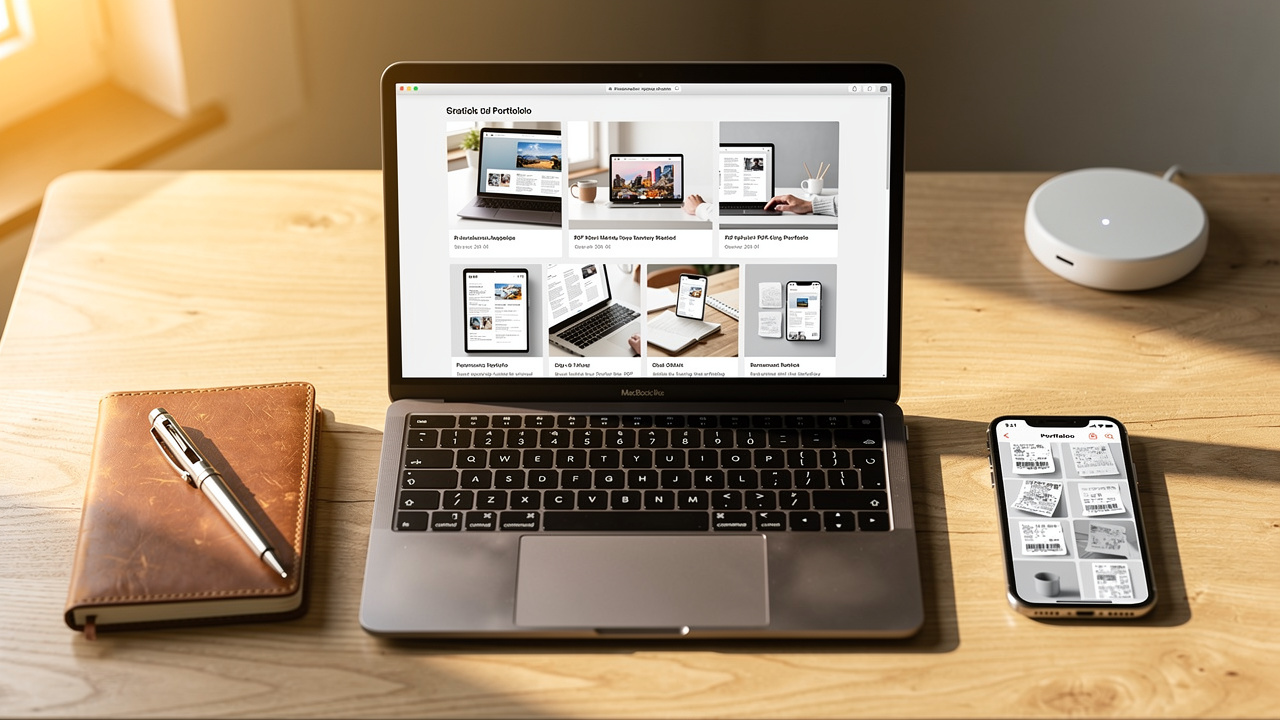
      Freelancers and small business owners care about both time and image. A designer might export high resolution mockups from Adobe Photoshop as JPG or PNG files, then use iLovePDFKit to create a polished PDF portfolio for a client review. A consultant on a trip can photograph receipts on an iPhone, convert them into one expense PDF from Safari, and send it straight to accounting. Dropbox reports over 700 million registered users worldwide (Dropbox), and many of those users can route these PDFs into shared folders without extra steps. Across all three groups, iLovePDFKit gives the same mix of free access, clean quality, and strong privacy.

    Wrapping Up: Start Converting JPG to PDF for Free Today

    Freelancer creating PDF portfolio from JPG mockups on MacBook

    iLovePDFKit gives you a fast, safe, and simple way to turn loose images into polished documents. With this free online JPG to PDF converter, you avoid installs, logins, and surprise charges, while your pages keep their original clarity and color. Files travel over encrypted connections and leave the servers shortly after processing, which protects class notes, office paperwork, and client work.

    The best part is how easy it feels. Open iLovePDFKit in your browser, drop in one or many JPGs, and download a clean PDF a few seconds later. No training and no credit card stand between you and a better file. Try your next set of photos, scans, or screenshots with iLovePDFKit and see how calm your document workflow can become.

    Frequently Asked Questions

    Question: Is there a file size limit when using iLovePDFKit’s free JPG to PDF converter?
    There is generous room for everyday images, so most homework photos, scans, and receipt snapshots convert without issues. Very large batches of high resolution files may take a bit longer to upload. If that happens, you can split the job into two smaller PDFs and merge them later with iLovePDFKit’s PDF tools.

    Question: Can I convert PNG files to PDF using iLovePDFKit, or is it only for JPG?
    You can convert PNG files to PDF with the same tool, not just JPG. iLovePDFKit also accepts other standard formats such as BMP, GIF, and TIFF. You simply upload the images together, arrange them if needed, and download one combined PDF.

    Question: Will my converted PDF look the same on all devices?
    Yes, your converted PDF keeps a fixed layout and displays the same way on phones, tablets, and computers. PDF preserves page size and image placement, and iLovePDFKit keeps the original resolution and colors. That way, the file looks consistent in Chrome, Safari, Edge, or Acrobat Reader.

    Question: Do I need to create an account to download my converted PDF?
    No account is needed to convert or download files with iLovePDFKit. You open the free online JPG to PDF converter, upload your images, and save the finished PDF right away. This applies equally to students, office workers, and freelancers.

    Question: How long does iLovePDFKit keep my files after conversion?
    iLovePDFKit removes both the uploaded images and the resulting PDFs from its servers shortly after processing. The system holds them only long enough to let you download the file or send it to a cloud service. This short window helps protect your privacy and sensitive documents.

  • How to Convert Excel to PDF (Free Methods)

    How to Convert Excel to PDF (Free Methods)

    Introduction

    Spreadsheets often look perfect on your screen, then fall apart when someone else opens them. Columns slip onto new pages, charts shift position, and formulas are easy to overwrite by accident. That is why so many people search for how to convert Excel to PDF before sending important files.

    Converting to PDF freezes your layout, protects formulas from casual edits, and makes the file easy to open on almost any device. In this guide, you will learn simple ways to convert Excel to PDF for free, including a fast browser method with iLovePDFKit. You will also see how a few quick page setup tweaks keep your exports clean and readable.

    By the end, you will know which method fits your device, your privacy needs, and your deadline.

    Key Takeaways

    This quick snapshot shows what you will get from the rest of the guide.

    • You can convert online with iLovePDFKit. It is free and needs no sign up. Desktop Excel also saves directly as PDF.

    • Smart page setup avoids cut‑offs. Print Area, scaling, and page direction settings keep wide sheets tidy.

    • Online work needs strong privacy. Secure upload, fast deletion, and no accounts help protect your data. Different roles favor different methods.

    How To Convert Excel To PDF Using iLovePDFKit (Free & No Registration)

    Person uploading Excel file in a web browser on laptop

    This section explains how to convert Excel to PDF with iLovePDFKit using a simple online tool. iLovePDFKit runs in any modern browser, so you skip installs, logins, and watermarks.

    To start, open your browser on Windows, macOS, Linux, Chromebook, Android, or iOS. Go to the iLovePDFKit website and look for the clear Excel to PDF tool. You will see a large upload area that accepts drag and drop. You can also click to pick an XLS or XLSX file from your computer, Google Drive, or Dropbox.

    A quick step‑by‑step flow looks like this:

    1. Open your browser and visit the iLovePDFKit Excel to PDF tool.

    2. Drag your Excel file into the upload box, or click to choose it from local storage or the cloud.

    3. Wait a few seconds while the site processes your workbook.

    4. Click Download to save the finished PDF to your device.

    Once you upload the file, iLovePDFKit begins processing it in real time. The converter reads your Microsoft Excel workbook structure, including fonts, merged cells, charts, and images. According to Microsoft, Excel stores modern workbooks in an XML‑based format, which makes this kind of structured reading very reliable. Within a few seconds, the site shows a ready‑to‑download PDF.

    Next, click the download button to save the PDF to your device. There are no watermarks, no locked features, and no credit card walls. The layout you see in Adobe Acrobat Reader, Apple Preview, or your browser’s PDF viewer matches your original sheet, so grades, prices, or report totals stay clear and stable.

    “When you are rushing to send a report, the best tool is the one that lets you finish the job with as few clicks as possible.”
    — Common productivity advice

    iLovePDFKit keeps things free and simple in three key ways:

    • It does not ask for an email address or account, which cuts friction for students sharing assignments or freelancers racing to invoice a client.

    • It avoids tight task or size caps, so you can convert a one‑page grade sheet or a large monthly report.

    • It uses a strict no‑file‑storage approach, deleting both the Excel upload and the final PDF from its servers right after processing, which helps protect your data even when you work on shared Wi‑Fi.

    If you often wonder how to convert Excel to PDF five minutes before a deadline, bookmarking iLovePDFKit can remove a lot of stress.

    How To Convert Excel To PDF Using Built‑In Desktop Methods

    Desktop computer showing Excel workbook ready for PDF export

    This section explains how to convert Excel to PDF using the tools already built into Microsoft Excel on your computer. These methods are ideal when you prefer to keep data offline or must follow strict company rules.

    The first option is the Save As method, which feels very natural. Open your workbook in Excel on Windows or macOS, then go to File and choose Save As. Pick a folder, open the file type list, and select PDF. Before you click Save, you can open Options to choose the active sheet, a page range, or the entire workbook. This is a good fit when you want a quick snapshot of one sheet or a predictable section of a report.

    The second option is the Export method, often used for polished reports. Go to File, then choose Export, then Create PDF/XPS. A new window lets you pick where to save the file and how to optimize it. You can select a smaller file size for email, choose specific pages, or fine‑tune other publish settings. According to Microsoft, these export controls are designed for sharing workbooks beyond Excel, for example on the web or in print.

    The third option is the Print To PDF method, which many office workers use daily. Press Ctrl + P on Windows or Cmd + P on Mac to open the Print screen. In the Printer list, choose Microsoft Print to PDF or another virtual PDF printer, then pick Active Sheet, Entire Workbook, or Selection. If you highlight a small data block before pressing Ctrl + P, the Selection option exports only that range, which is perfect for tight client summaries or status snippets.

    “If a spreadsheet contains sensitive salary data or contracts, keep every step of the process on hardware you trust.”
    — Common IT security guidance

    All three desktop methods keep every step on your own machine, which matters when you handle payroll records or internal budgets. If you already know how to convert Excel to PDF with these tools, adding iLovePDFKit simply gives you a fast backup when you switch devices or do not have Excel installed.

    When To Choose Online vs. Desktop Conversion

    Choosing between iLovePDFKit and desktop Excel depends on your device, your data, and your time.

    • Pick iLovePDFKit when you are on a Chromebook, tablet, or borrowed computer. You just open a browser, upload, and download within seconds. There is no learning curve, no installer, and no account.

    • Stay with desktop Excel when files should never leave secure company hardware. You work offline, follow internal rules, and keep full control over page range and print settings.

    • Many people use both paths during the week. Online tools cover study sessions, travel, or quick client replies. Desktop exports handle locked‑down reports at the office or under strict compliance rules.

    Preparing Your Spreadsheet Before Converting: Page Setup Tips That Actually Matter

    Printed spreadsheet with margin and page setup adjustments

    This section explains how to prepare your worksheet so the PDF looks clean, readable, and professional. Good page setup turns any method of conversion, online or desktop, into a smoother experience.

    Start with the Print Area. In Excel for Microsoft 365 or Excel 2021, select only the cells you want in the final PDF. Go to the Page Layout tab, open the Print Area menu, and choose Set Print Area. Everything outside that box, such as scratch math, hidden helper columns, or draft charts, stays out of the export.

    Next, control how the sheet fits on the page by using Scale To Fit. On the Page Layout tab, look for Width, Height, and Scale. If your table runs just a bit wide, set Width to 1 page and leave Height on Automatic. Excel shrinks the columns just enough so that nothing spills onto a second page. According to Nielsen Norman Group, cramped or broken layouts make PDFs much harder to read, so a small scale change can help readers a lot.

    You also need to match the page direction to your data shape. For many columns, switch Orientation to a horizontal direction so the sheet spreads across the page instead of stacking into too many pages. You can pair this with Narrow margins to reclaim a little extra space at the top, bottom, and sides. Always check Print Preview in Excel or open a quick test PDF in Adobe Acrobat or your browser before sending a final copy.

    “PDF files are great for printing, but they are not good for on‑screen reading and navigation.”
    — Jakob Nielsen, Nielsen Norman Group

    Before converting, a quick checklist can help:

    • Confirm the Print Area includes only what your recipient needs to see.

    • Use Scale To Fit so key columns sit on the same page where possible.

    • Set orientation and margins to match your most important tables and charts.

    These setup steps matter even when you plan to use iLovePDFKit. The online tool respects whatever Print Area, scaling, and page direction you set inside Excel. Once you learn these controls, you set them once, then every export, online or desktop, looks like a polished report rather than a rough dump.

    Is It Safe To Convert Excel Files Online? Security and Privacy Explained

    Steel padlock on laptop keyboard symbolizing online file security

    This section explains how online Excel to PDF tools handle your files and why iLovePDFKit focuses heavily on privacy. For many people, security is the main reason they hesitate to use web converters at first.

    When you upload a spreadsheet to a trusted site, the file travels over an encrypted connection. Services use TLS, the same kind of protection used by online banking, so people on the same Wi‑Fi network cannot read the data in transit. According to Pew Research Center, most American adults now access the internet daily, often on shared or public networks, which makes this type of encryption vital.

    iLovePDFKit adds another key layer, a strict no‑file‑storage policy. Your Excel file is processed in memory on the server, turned into a PDF, then both versions are removed as soon as the conversion finishes and you download the result. There is no long‑term archive, no manual clean up, and no marketing profile built from your documents.

    You also do not create an account to use iLovePDFKit. That means no email address in a database and no password to protect. For many students, freelancers, and office staff, this anonymous flow adds peace of mind on top of fast performance. According to Adobe, PDF remains one of the most common formats for sharing business documents, so having a safe way to create it online is very helpful.

    “Treat every spreadsheet as if it might be forwarded outside your organization.”
    — Common data‑protection advice

    If you handle very sensitive records under strict policy, local desktop exports in Excel may still be the better path. For everything else, especially when you need to convert on a phone or home laptop, iLovePDFKit gives you a secure, clean, and fast way to move from Excel to PDF without adding extra risk.

    Final Thoughts: Pick the Method That Works Best for You

    Person reviewing a converted PDF spreadsheet on a tablet

    You now know two clear paths for turning spreadsheets into stable PDFs. iLovePDFKit gives you fast, free, no‑registration conversion from any modern browser, which is ideal for school work, travel days, or quick client replies.

    Desktop Excel exports help when you must stay offline or control every detail of the output. In both cases, careful Print Area and Scale To Fit settings keep your pages tidy. The next time you wonder how to convert Excel to PDF before a deadline, open iLovePDFKit first and keep desktop methods as a handy backup.

    Frequently Asked Questions

    These common questions cover details that often come up when people start converting spreadsheets to PDF.

    Question 1: Can I Convert Only One Sheet From an Excel Workbook to PDF?

    Yes, you can export a single sheet. In desktop Excel, choose File, then Save As or Print, and pick Active Sheet or a Selection. With iLovePDFKit, set the active sheet in Excel before saving, then upload the file and the tool focuses on that sheet layout. You can also adjust the Print Area if you want to send only part of that sheet.

    Question 2: Will My Excel Charts and Graphs Appear Correctly in the PDF?

    Yes, good converters keep charts and graphs clear. Desktop methods flatten them into high‑quality images. iLovePDFKit reads Excel formatting, colors, and fonts carefully, so your charts, conditional formatting, and images look the same in Adobe Acrobat or any standard PDF viewer. For the best results, check Print Preview to confirm chart sizes before converting.

    Question 3: Is There a File Size Limit When Using Free Online Converters?

    Many free tools cap file size or the number of daily tasks. iLovePDFKit avoids tight limits, so you can convert long reports and multiple sheets in one go. Very large workbooks may take a little longer to process, but they still complete without extra payment. If performance slows, you can remove unused sheets or archive tabs you no longer need.

    Question 4: Can I Convert PDF Back to Excel After Converting?

    Yes, you can move from PDF back to an editable sheet. iLovePDFKit offers a PDF to Excel tool that reconstructs tables into real cells. This helps when someone sends only a PDF copy or when the original workbook gets lost on an old device. You may still want to review the converted sheet for small alignment tweaks before sharing it again.

    Question 5: Do I Need To Create an Account To Use iLovePDFKit?

    No, iLovePDFKit works without any registration. You visit the site, upload your Excel file, convert it, and download the clean PDF. The service deletes files from its servers right after processing, which keeps the whole flow fast, anonymous, and secure. This makes it convenient for one‑off tasks as well as frequent everyday use.

  • How to Convert PDF to JPG Online in 4 Easy Steps

    How to Convert PDF to JPG Online in 4 Easy Steps

    Table of Contents

    Introduction

    iLovePDFKit gives you one of the fastest free ways to convert a PDF to JPG online — directly in your browser, with no software to install. According to Statista, over 2.5 trillion PDF files are opened globally each year, yet countless platforms still refuse PDF uploads and demand image files instead.

    This guide covers the full PDF-to-JPG process in four clear steps, explains how to pick the right image format, and shows how to stay safe while you work. You get a clean, high‑quality image you can use anywhere without installing software.

    Keep reading to see where PDF to JPG conversion helps most, then try the tool yourself in just a few clicks.

    Key Takeaways

    Here is what you will learn before you start converting files.

    • A simple meaning of PDF to JPG conversion and why it matters for sharing, printing, and editing. You will see how a PDF page becomes a flat image that keeps the same look everywhere. This makes it easy to drop into slides, documents, or chats.

    • A four‑step walkthrough using iLovePDFKit that you can follow even on a shared computer at school or work. Each step uses plain language, so you never wonder what to click next. You go from upload to download in seconds without any signup.

    • A quick explanation of the difference between full‑page conversion and image extraction. You will know when to turn whole pages into pictures and when to pull just a chart or photo. This saves you from manual cropping and low‑quality screenshots.

    • Clear guidance on when to choose JPG, PNG, or TIFF as your output format. You will see which type keeps text sharp, which one keeps email attachments light, and which one print shops prefer. This helps you avoid sending the wrong file to a teacher, client, or colleague.

    • A short overview of how iLovePDFKit keeps your documents private and secure while you convert. You will see how encrypted connections and fast deletion protect invoices, contracts, and research papers, so you can use the tool with confidence on personal and work files.

    Why Convert PDF To JPG – And When Does It Matter?

    Person uploading a PDF document on a laptop browser

    Converting a PDF to JPG matters whenever you need a document to behave like a picture that opens instantly everywhere. Images slide smoothly into Microsoft Word, PowerPoint, Google Slides, social feeds, and many email apps, while PDFs often hit limits. So learning to convert PDF to JPG makes daily school and office tasks easier. According to Adobe, people open billions of PDFs every year in Acrobat and Reader, yet many sites still block direct PDF uploads — one survey found that more than 60 percent of web forms accept only image file types.

    Many web forms only accept JPG or PNG for profile photos, receipts, or ID snapshots. Social networks such as Instagram and LinkedIn display image files in the feed but hide PDFs behind extra taps. When your content lives inside a document, quick conversion to an image clears that roadblock.

    “A picture is worth a thousand words.” — Common proverb

    Here are a few everyday situations where converting PDF to image files helps a lot:

    • Students and researchers often need to reuse figures from long PDF articles. Turning one page into a JPG lets you paste a clean chart into Google Docs or Microsoft Word without messing up spacing. You keep the citation visible, and your slide deck looks neat on every projector. Once you know this process, grabbing pages from long readings becomes almost automatic.

    • Office professionals share flyers, schedules, and internal memos through tools like Outlook, Gmail, and Microsoft Teams. Converting those PDFs into JPG images makes them appear right inside the email body or chat window. People can scan the message at a glance without opening a separate viewer. Mastering this conversion means every message can show the flyer right away instead of hiding it in an attachment.

    • Freelancers and small business owners send invoices, mockups, and quick proofs to clients who may only check mail on a phone. A light JPG loads faster than a multi‑page PDF and is easier to preview in apps such as WhatsApp or Slack. That means fewer support messages asking how to open the file.

    How To Convert PDF To JPG Using iLovePDFKit (Step-By-Step)

    Person converting a PDF file on a smartphone

    You can convert PDF to JPG with iLovePDFKit in just four simple steps, all inside your regular web browser. The entire process — from upload to finished image download — typically takes under 30 seconds, even for multi-page documents. Everything happens on iLovePDFKit servers, so even older computers stay fast while the work is done online.

    1. Open the iLovePDFKit PDF to JPG tool. Type the site address into Chrome, Safari, Firefox, or Edge, then pick the PDF to JPG option from the home screen. The page loads cleanly on Windows, macOS, Linux, and Chromebooks. You see a clear upload area in the center.

    2. Upload your PDF from your computer or cloud storage. You can click the button to browse files, or simply drag and drop the document into the box. If your work lives in Google Drive or Dropbox, use the cloud icons and pick the right file there. Large research papers and multi‑page reports usually upload in just a moment on most connections.

    3. Let iLovePDFKit run the conversion for you. As soon as the upload finishes, the PDF to JPG converter engine starts turning each page into a high‑quality image. There is nothing for you to tweak, so beginners feel comfortable right away. Server‑side processing keeps fonts, colors, and layout sharp while finishing the job quickly.

    4. Download your new JPG files to finish. For single‑page documents, you get one ready‑to‑use image that you can drop into Word, PowerPoint, or a learning portal. For longer PDFs, iLovePDFKit groups all the pages into a ZIP file so you save everything with one click. The output comes watermark‑free, so you can share it directly with teachers, clients, or coworkers.

    After you run through these four steps once, the process becomes second nature whenever a site asks for an image. The interface on iLovePDFKit stays the same across devices, so your muscle memory carries over. Many users keep a browser tab pinned with the tool so conversions are always one click away.

    What Happens To Your File After Conversion?

    Laptop with padlock symbolizing secure PDF file conversion

    After conversion, iLovePDFKit keeps your PDFs and JPGs on its servers only for a short, temporary window. Files travel over encrypted HTTPS connections, so outside parties cannot read your content while it moves between your device and the site.

    Once you download your images, automatic cleanup removes both the original document and the converted files from storage after a brief period. Guest users do not need an account and still receive the same protections as registered users. This makes the tool a good choice for pay stubs, invoices, school records, and other private paperwork.

    “Data is a precious thing and will last longer than the systems themselves.” — Tim Berners‑Lee

    Data protection matters because file leaks are expensive. According to IBM, the average global data breach now costs companies more than $4.45 million — a figure that rose 15 percent over three years. Choosing a secure PDF to image converter like iLovePDFKit lowers the chance that sensitive files sit around longer than needed.

    JPG, PNG, Or TIFF – Which Output Format Should You Choose?

    Three image format samples showing JPG PNG and TIFF quality differences

    JPG is the right default for most tasks, PNG is better when you need pixel-perfect sharpness, and TIFF is reserved for professional print work. Each format suits different situations, so choosing well keeps your work easy to share and read. According to W3Techs, JPEG and PNG appear in well over 70 percent of images on websites, which shows how common they are for daily use — while TIFF accounts for fewer than 1 percent of web images due to its large file size.

    Once you understand the PDF-to-image conversion process, you can also explore tools that let you convert PDF to JPG, PNG to compare output quality before committing to a format. Think of JPG as the lean, ready‑to‑send option, PNG as the sharp choice for diagrams, and TIFF as the heavy‑duty format for printing. iLovePDFKit lets you pick the one that matches your task at download time. If you are not sure, start with JPG, then move to PNG or TIFF only when you truly need extra quality.

    FormatBest ForTrade Off
    JPGEmail attachments, online forms, social media posts, class slidesSmall file size, but some detail is compressed and may soften if edited many times
    PNGScreenshots, charts, line art, pages with small text or iconsLarger files than JPG, yet text and edges stay crisp and reuse does not lower quality
    TIFFPrint shop files, archival copies, high‑end photography proofsVery large files that are slow to send, and many web tools and phones will not open them

    For students turning workbook pages into study images or adding pages to Google Slides, JPG almost always makes the most sense. Office staff who share manuals inside SharePoint or Slack also stay safe with JPG because it loads fast for everyone. Academic authors preparing figures for journals, or designers sending posters to a print house, should move up to PNG or TIFF when reviewers demand maximum clarity. If you need to convert PDF pages with tight text and charts, choose PNG instead and keep every pixel.

    Convert PDF To JPG On Any Device – Windows, Mac, And Mobile

    Laptop tablet and smartphone showing same PDF conversion workflow

    Converting PDF to JPG with iLovePDFKit works the same on Windows, Mac, Linux, Chromebooks, iPhones, and Android phones. You only need a modern browser and internet, so even locked office machines and school lab computers can use it without help from IT. According to Pew Research Center, about 85 percent of US adults own a smartphone, which means mobile‑friendly tools are no longer optional. No matter which computer lab or phone you use, the steps for this conversion stay identical across every platform.

    iLovePDFKit runs smoothly in Google Chrome, Microsoft Edge, Mozilla Firefox, and Apple Safari. Because the heavy lifting happens on remote servers in the cloud, your device just handles the upload and download. That keeps laptops cooler and saves battery on phones and tablets.

    Here is how a simple cross‑platform workflow usually looks in practice:

    • On a desktop or laptop computer, you open the site, drag in a PDF from the Downloads folder, and wait a moment while it converts. When the ZIP finishes, you save it and unzip the JPG pages. Those images drop right into Microsoft Word, PowerPoint, Google Docs, or your email program. You can even copy them straight into Microsoft Teams or Slack chats.

    • On a phone or tablet, you visit the same page in Safari or Chrome and tap the upload button. You pick the PDF from the iOS Files app, Google Drive, or your Android file manager. After iLovePDFKit finishes, you save the JPGs directly into your photo gallery. From there, sharing into Messages, WhatsApp, or classroom apps like Canvas is one tap.

    • If you rely on cloud storage, you can stay fully online. Start the conversion on one device using a file from Google Drive or Dropbox, then download the images on another device with the same account. This helps when moving material between a home laptop and a school computer lab. You never need a USB stick or email attachment to bridge the gap.

    Conclusion

    You can start converting PDF to JPG in seconds with iLovePDFKit and skip heavy desktop programs. The tool is completely free, works on every major browser, and delivers watermark-free images — making it one of the most practical options available today. If you ever need to save specific pages as image files, this guide on how to save a PDF as JPEG offers additional methods worth bookmarking. For most homework, office updates, and client previews, pick JPG for easy sharing, then move to PNG for very crisp diagrams or TIFF when a print shop asks for it. Ready to try it now? Just open the free PDF to JPG converter in your browser and turn your next document into a share‑ready image right away.

    Frequently Asked Questions

    These quick answers cover the most common questions about PDF to JPG conversion with iLovePDFKit. Each one stands on its own, so you can scroll straight to whatever matches your problem. Use them as a handy reminder the next time you need to change a PDF into an image fast. If you ever forget the steps, this section gives you a fast refresher.

    Question 1: Can I Convert Only One Specific Page Of A Multi-Page PDF To JPG?

    Yes, every page you upload becomes its own JPG, and you choose what to keep. After conversion, the results screen in iLovePDFKit shows all pages, and you can download only the images you need. That saves storage space and avoids zipping extra files.

    Question 2: Will My PDF’s Formatting And Fonts Look The Same In The JPG?

    Yes, a full‑page conversion works like a screenshot with much higher quality. iLovePDFKit preserves text placement, fonts, colors, and margins exactly as they appear in the original PDF. That means no strange line breaks or missing icons when you share the image.

    Question 3: Is iLovePDFKit Really Free – Are There Hidden Fees Or Watermarks?

    The iLovePDFKit PDF to JPG converter is completely free for students, teachers, freelancers, and small teams. There are no credits, trials, or premium tiers hiding behind the tool. Your images download clean with no watermarks, and you never have to create an account to use the service.

    Question 4: How Do I Convert A PDF To JPG On My iPhone Or Android Phone?

    You convert a PDF to JPG on mobile the same way you do on a computer. Open iLovePDFKit in Safari or Chrome, tap the upload button, and pick your PDF from the Files app or file manager. Then tap convert and save the JPGs into your photo gallery.

    Question 5: What Is The Difference Between Converting A Full PDF Page Vs. Extracting An Image From A PDF?

    Full‑page conversion turns everything on the page into one JPG, which is perfect for sharing a flyer, invoice, or reading page as a picture. Image extraction pulls out only the photos or graphics inside the PDF. For example, a freelancer can grab product photos from a catalog without any surrounding text.

  • Free Online PDF to PowerPoint Converter (No Sign-Up)

    Free Online PDF to PowerPoint Converter (No Sign-Up)

    Introduction

    The clock is ticking before a class presentation or client meeting, and the only version of the content is a PDF. Copying text box by text box into PowerPoint feels endless, and there is no time to rebuild every chart and image from scratch. This is where a free online PDF to PowerPoint converter changes things for the better.

    PDF files are great for sharing, but they freeze the layout. Editing, rearranging, or turning those pages into clean slides becomes hard without the right tool. Manually recreating a deck eats up hours that could go into research, design, or actually preparing what to say.

    iLovePDFKit steps in exactly at this point. It offers a fast, browser-based PDF to PowerPoint converter that works without downloads, sign-ups, or fees. In this guide, you’ll see what a free online converter does, how to convert a PDF to PowerPoint step by step with iLovePDFKit, why the formatting stays pixel perfect, who benefits most, and how the service stays free and secure.

    Key Takeaways

    • iLovePDFKit gives you a free PDF to PowerPoint converter that runs in any modern browser. You can use it on a computer, tablet, or phone. There is no need to install software — just open the page and start.

    • The converter keeps fonts, images, colors, and layout in place. Each page from the PDF turns into a matching slide, so you move straight to editing instead of fixing broken designs. This saves a lot of time.

    • Every file moves through SSL encryption while it uploads and converts. iLovePDFKit removes both the original and converted files right after the process. Your content does not stay on their servers, which keeps sensitive documents safer.

    • The converted file is a standard PPTX presentation that you can edit in Microsoft PowerPoint or any compatible tool. Students, office staff, freelancers, and small business owners all gain a fast way to reuse PDF content for free.

    “The key to great presentations is spending more time on your message than on your tools.” — Garr Reynolds

    A reliable PDF to PPT converter helps you do exactly that.

    What Is a Free Online PDF to PowerPoint Converter — and Why Do You Need One?

    Student using laptop to convert PDF into presentation slides

    A free online PDF to PowerPoint converter is a web tool that turns a static PDF document into a fully editable PPTX file. It runs inside a browser, so there is no program to install and no license to pay for. You visit the page, upload a PDF, wait a few seconds, then download a ready-to-edit PowerPoint deck.

    This type of tool solves a common problem. PDFs are built for viewing and sharing. They lock text, images, and layout into place so that everyone sees the same thing. That is helpful when you want to keep a file consistent, but it creates trouble when you need to reuse the content in a presentation or change numbers, charts, and notes.

    Here are a few everyday situations where an online converter makes a big difference:

    • Students and researchers receive articles, lab reports, and study notes as PDFs but need to present the key ideas in class. With a free converter, those pages become slides that already carry the headings, quotes, and images in the right order. A few edits and design tweaks, and the deck is ready. No late-night copy-and-paste session.

    • Office professionals deal with annual reports, status updates, and client summaries that arrive as PDFs. Instead of rebuilding graphs and tables by hand, they can convert the PDF, clean up a few details, and share a polished slideshow in far less time.

    • Freelancers and small business owners often turn PDF proposals or service overviews into pitch decks. A browser-based converter gives them a quick way to reuse what they already wrote, without extra software costs or setup.

    The old manual method of retyping and rebuilding every slide is slow and full of mistakes. An online converter removes that work. Because it runs in the browser, there are no compatibility issues across Windows, macOS, or mobile devices. PDFs stop being dead ends and start to act as flexible starting points for new, editable presentations.

    How to Convert PDF to PowerPoint Online With iLovePDFKit (Step-by-Step)

    Person uploading a PDF file in a browser converter tool

    iLovePDFKit keeps the conversion process simple, even for someone who rarely edits documents. There is no account to create, no payment screen, and no extra setup. You only need an internet connection and a modern browser such as Chrome, Firefox, Safari, or Edge.

    1. Open the iLovePDFKit PDF to PowerPoint converter page.
      On a desktop, laptop, tablet, or phone, type the iLovePDFKit address into your browser and go to the PDF to PPT tool. The interface is clean and easy to read. You see a clear upload area and a short description of what the converter does.

    2. Upload your PDF from your device.
      Click the upload button or drag the PDF file into the marked area. The tool accepts standard PDF files that come from scans, exported reports, or downloaded articles. You do not need to connect cloud storage or change any settings.

    3. Start the conversion with one click.
      As soon as the upload finishes, iLovePDFKit starts to process the file. Its conversion engine reads each page, finds text blocks, images, and shapes, and then rebuilds them as real PowerPoint objects. Each PDF page becomes one slide, so the order of your content stays the same. Fonts, colors, and alignment stay close to the original layout.

    4. Download your editable PPTX file.
      Within a few seconds for most documents, the tool shows a clear download button. Click it to save the PPTX file back to your device. You can then open it in Microsoft PowerPoint, PowerPoint Online, Google Slides, or any compatible software to start editing, presenting, or sharing.

    Behind these four steps, iLovePDFKit uses SSL encryption from upload to download, so your file moves through a secure connection. Both the original PDF and the new PPTX leave the servers right after the process ends. There are no watermarks, no limits hidden behind a sign-up form, and no learning curve. It works like a true free online PDF to PowerPoint converter that you can rely on when time is short.

    Key Benefits of Using iLovePDFKit’s Free PDF to PPT Converter

    Now that the steps are clear, it helps to see why iLovePDFKit stands out among other web tools. Many converters promise quick results, but they can break layouts, add watermarks, or store files longer than needed — as explored in comparisons of AI PDF to PPT tools that highlight these common shortcomings. iLovePDFKit focuses on two things that matter most for students and professionals: it keeps the formatting accurate and treats security and cost with serious care.

    Format Preservation and Pixel-Perfect Output

    Office professional editing a converted PDF PowerPoint presentation

    The biggest worry with any converter is a messy slide deck full of shifted text and missing images. iLovePDFKit uses an optimized engine that pays close attention to fonts, spacing, and layout. It does not simply take screenshots of pages. Instead, it recreates each element as a native PowerPoint object so that the file looks right and stays editable.

    “Design is not just what it looks like and feels like. Design is how it works.” — Steve Jobs

    Good PDF to PPT conversion follows the same idea: the slides should both look correct and work as real slides you can edit.

    Every PDF page turns into a matching slide. Headings remain in the same place, images sit where they should, and charts keep their relative positions. Fonts and colors stay close to the source, which keeps the overall design consistent. This matters a lot if the original PDF follows a brand guide or academic style rules.

    Because the output stays clean, there is little or no need to spend time fixing broken lines, moving images around, or rebuilding entire sections. Students can focus on polishing their story instead of wrestling with layouts. Office staff can move straight to updating numbers or adding speaker notes. A free online PDF to PowerPoint converter that produces this level of detail can save hours with every project.

    To put this in context, here is how iLovePDFKit compares with many basic web converters:

    FeatureiLovePDFKit PDF to PPTMany Basic Converters
    Layout and font accuracyKeeps layout very close to the original PDFText and images often shift or overlap
    Editable objects in PowerPointText boxes, images, and shapes remain editableContent may be flattened as images
    WatermarksNo watermarks on converted slidesWatermarks sometimes added to each slide
    Ease of useClear steps, runs in any modern browserInterfaces can be cluttered or confusing

    Security, Privacy, and Zero Cost

    Padlock and shield symbolizing secure document encryption privacy

    Uploading important files to a website can feel risky, especially for contracts, grades, or client data. iLovePDFKit treats this concern as a core part of its design. All uploads use SSL-encrypted connections from the browser to the server. That stops outsiders from reading the files as they move across the internet.

    Just as important, iLovePDFKit does not keep files longer than it must. Once the PDF changes to PPTX and the download finishes, both versions leave the servers. No staff member opens user documents, so private information inside reports, agreements, or medical papers stays private. The safest data is the data that leaves no trace.

    On top of that, the service stays one hundred percent free. There is no email wall, trial period, watermark, or paid upgrade needed for basic conversions. You visit the site, use the tool, and leave with a clean presentation.

    For a quick recap, think about security and cost in three points:

    • Secure transfer: Every upload and download uses SSL encryption.

    • Short-lived storage: Files are removed from the servers soon after conversion finishes.

    • No usage fees: The core PDF to PPT tool is free, with no subscription required.

    For students on tight budgets, small businesses that watch every expense, and freelancers who handle many clients, that model makes a real difference.

    Who Benefits Most From a Free Online PDF to PPT Converter?

    Students professionals and freelancers using PDF to PowerPoint converter

    Anyone who works with documents can gain value from a free online PDF to PowerPoint converter, but some groups see extra benefits. Their daily tasks often involve turning written content into slides, usually under time pressure. iLovePDFKit fits right into those workflows.

    • Students and academics often receive lecture notes, research papers, and study guides as PDF files. When a professor assigns a presentation, those same files have to turn into slides fast. With iLovePDFKit, a student can convert the PDF, keep the original headings and citations in place, and then add comments or diagrams on top. That cuts prep time and helps keep focus on understanding the subject instead of fighting with formatting.

    • Office professionals and administrative staff handle reports, meeting packets, and client updates every week. These often arrive as PDFs that need to become boardroom or Zoom presentations. iLovePDFKit helps them turn those static pages into decks in seconds. The layout stays close to the original file, so they only need to adjust small pieces. This speeds up work for team briefings, sales meetings, and training sessions across the company.

    • Freelancers and small business owners depend on clear, fast communication with clients. Proposals, pricing sheets, and contracts often go out as PDFs but need to come back as slide decks for pitch meetings. A free web converter means they can change any PDF into a branded presentation whenever needed, without new software or monthly fees. That keeps the focus on closing deals and serving clients, not on tools.

    Across these groups, iLovePDFKit supports more than just PDF to PowerPoint. The same platform can change PDFs into Word or Excel, and it can turn Office files or images into PDFs as well. That makes it a practical home base for everyday document work, all inside the browser.

    Conclusion

    Turning a PDF into a polished PowerPoint no longer has to feel like a late-night chore. With iLovePDFKit, the process takes just a few clicks. The converter runs online, stays free, and keeps the look of the original file so that the slides are ready for edits and presentation in minutes.

    You do not need to install software, create an account, or worry about watermarks or hidden limits. Files move through SSL encryption and leave the servers right after conversion, which keeps sensitive data safer. The result is an editable PPTX file that matches the original PDF layout as closely as possible.

    Whether the task is a school project, a client pitch, or a weekly status report, a free online PDF to PowerPoint converter like iLovePDFKit removes friction from the process. Visit iLovePDFKit, open the PDF to PPT tool, upload a file, and see how fast it turns into a clean slide deck. From there, the rest of the presentation is up to you.

    FAQs

    Is iLovePDFKit’s PDF to PowerPoint converter really free?
    Yes, the converter is completely free to use. There are no hidden fees, watermarks, or subscription requirements. You do not need to create an account or share an email address. Just upload your PDF, convert it, and download the PPTX file at no cost.

    Will my PDF’s formatting be preserved after conversion?
    iLovePDFKit aims for pixel-perfect output, so fonts, images, colors, and layout stay very close to the original file. Each PDF page becomes one matching slide with elements in the same positions. In most cases, you can use the deck right away without extra formatting work.

    Is it safe to upload my PDF files to iLovePDFKit?
    Yes, the service uses SSL-encrypted connections for every upload and download. Both the original PDF and the converted PPTX leave the servers soon after the process ends. No team member reads or opens user files. This design keeps confidential information inside your documents private.

    Can I use iLovePDFKit on my phone or tablet?
    You can use the converter on any modern device with a browser. It works on desktops, laptops, tablets, and smartphones through Chrome, Firefox, Safari, or Edge. There is no app to install, so you simply open the site on your device and convert PDFs to PowerPoint in a few seconds.

  • Best Free Alternatives to Adobe Acrobat (2026)

    Best Free Alternatives to Adobe Acrobat (2026)

    Introduction

    Picture this. A professor just emailed an updated rubric, a client sent a contract in PDF, or the office wants a report combined and signed before the end of the day. The tool everyone mentions is Adobe Acrobat Pro, then the subscription price pops up on the screen. That pause, right before clicking buy, is when many people start searching for the Best Free Alternatives to Adobe Acrobat.

    Adobe still sets the standard for PDF features, and years of habits keep it at the top of most lists. Yet the reality in 2026 is simple. A lot of students, office staff, and small business owners only need to convert, rearrange, or lightly edit files. Paying every month for features they barely touch makes less and less sense when a strong Adobe Acrobat replacement free option is only a tab away.

    Cost is not the only reason people look for a free alternative to Acrobat Pro. Common motivations include:

    • Wanting a lighter tool that feels less crowded and easier to learn

    • Concerns about data privacy, AI training on documents, or long subscriptions

    • Preferring quick, browser‑based tasks over installing heavy software

    The good news is that 2026 brings a wide range of Best Free Alternatives to Adobe Acrobat, from quick browser tools to open source apps that never touch the cloud. Along the way, you will see how iLovePDFKit fits as a fast, no‑account starting point for everyday conversions.

    Read on to learn what to look for in a free PDF editor, how the top tools compare, and how to pick the option that matches the way you work.

    “The best tool is the one that actually gets used.” — common productivity advice

    Key Takeaways

    • Adobe Acrobat Pro can cost more than many people need to pay. Several free alternatives to Adobe Acrobat handle viewing, conversion, and common edits without a subscription. Many users never hit the limits of these free tools in daily work.

    • The strongest options avoid watermarks, logins, and surprise paywalls. Browser tools such as iLovePDFKit focus on fast conversion, and open source programs like LibreOffice or Stirling‑PDF fit privacy‑first workflows. Freemium tools add heavier editing through short trials.

    • Security still matters when the price is zero. Good free PDF editors use encrypted connections, clear delete policies, and safe desktop installs. Choosing tools with a no‑file‑storage promise keeps even sensitive homework, reports, and contracts safer.

    What To Look For In A Free Adobe Acrobat Alternative

    Person using a browser-based PDF converter on a laptop

    Before picking from the Best Free Alternatives to Adobe Acrobat, it helps to know what really matters. Not every reader needs advanced redaction or form design, but almost everyone needs clean conversions and simple, honest pricing.

    When comparing options, focus on these core areas:

    • File Conversion Quality
      A good free PDF editor no watermark option should move smoothly between PDF and Word, Excel, PowerPoint, JPG, or PNG without breaking layouts. If tables shift, fonts change, or images wander across the page, the time saved on conversion disappears as soon as manual fixes start.

    • Editing And Creation Tools
      For many people, basic tools are enough: adding or changing text, dropping in a logo, or inserting pages from another file. Power users might also care about OCR (optical character recognition). This turns scans into searchable text so that printed readings, contracts, or receipts stop living as static images and start acting like normal documents.

    • Security And Privacy
      Security deserves real attention, especially with browser tools. Look for encrypted transfers and a clear promise that files leave the server soon after processing. Password protection, digital signatures, and redaction options matter when handling anything client‑related or personal.

    • Ease Of Use
      A clean interface helps someone who only edits PDFs once a week just as much as it helps a busy manager. Browser tools feel light because they skip installs, while desktop apps win when offline access matters. The best Adobe Acrobat alternative free tools avoid forced account creation and long setup steps.

    Free models also differ. Some tools are fully free, while others hide important actions behind paywalls. This quick table helps sort them out.

    Model TypeHow It WorksGood Match
    Fully freeNo time limits and no paywall featuresStudents and individuals on tight budgets
    FreemiumCore features free, heavy editing in paid tier or trialOffices that sometimes need advanced tasks
    Open sourceCommunity built, free download with optional supportPrivacy‑focused and tech‑comfortable users

    A simple rule of thumb is to test with a real file. If a tool adds watermarks, changes layouts, or demands a sign‑up too fast, move on to another free Adobe Acrobat equivalent instead of fighting with it.

    The Best Free Alternatives To Adobe Acrobat In 2026

    With those basics in mind, it is time to look at the Best Free Alternatives to Adobe Acrobat available right now. This mix covers quick browser tools, full office suites, and focused open source apps — drawing on the same hands-on methodology used when I tested the 6 best AI tools for research — so that you can match the tool to your habits instead of bending your habits around the tool.

    1. iLovePDFKit — Best Free Browser-Based PDF Conversion Suite

    Overhead view of a professional workspace with PDF editing tools

    iLovePDFKit sits at the top of this list because it fits how most people actually work with PDFs. It runs in any modern browser and needs no install, no account, and no learning curve. That makes it a strong free alternative to Acrobat Pro for anyone who mostly converts files.

    The core toolkit covers PDF to Word, Word to PDF, PDF to Excel, PDF to PowerPoint, and the reverse for each format. It also handles Image to PDF and PDF to Image for quick batches of receipts, notes, or slides. Conversions keep fonts, tables, and layouts steady, so a report does not look “off” when it turns into a PDF, and a client contract stays ready to sign after export.

    Speed and privacy stand out. Files move through encrypted connections and leave the server after processing, which helps people who feel nervous about online converters. There are no watermarks and no hidden fees, so iLovePDFKit works well as a free PDF editor pick for students, office staff, and freelancers. For many readers, opening ilovepdfkit.com, dropping in a file, and downloading the result is all they need from the Best Free Alternatives to Adobe Acrobat.

    2. LibreOffice — Best Open-Source Desktop Editor

    Dual monitor desktop setup for open-source PDF editing

    LibreOffice offers a full office suite that costs nothing and runs on Windows, macOS, and Linux. It serves as a strong open source alternative to Adobe Acrobat for anyone who prefers offline work and more direct control. Its Writer and Draw apps open PDFs and turn them into editable documents.

    Inside LibreOffice, you can change text, move or replace images, insert or delete pages, and add links before exporting back to PDF. It feels more like a classic word processor than a light online converter, which makes it a good pick for long research papers, manuals, and text‑heavy reports.

    There is a bit of a learning curve, especially if someone is new to office suites. Still, once set up, LibreOffice gives a dependable Adobe Acrobat equivalent free of charge, with no trials or feature locks.

    3. WPS Office — Best Freemium Suite With A Free Tier

    WPS Office blends a word processor, spreadsheet tool, presentation app, and PDF features in one interface. The free tier lets you view PDFs, add highlights, and leave comments. For many readers, that already covers daily review tasks.

    For deeper editing, WPS follows a simple path. You can convert a PDF to Word, make your changes, then export back to PDF. A short, credit‑card‑free trial adds direct text editing and more powerful conversion tools. The tabbed layout keeps Word files, spreadsheets, and PDFs in a single window, which helps office workers move between reports and slides faster.

    WPS Office also includes a small amount of cloud storage for sharing files. It works as a flexible free PDF reader and editor, with a paid layer ready for periods when your team needs heavier work without a long Adobe subscription.

    4. Stirling-PDF — Best Open-Source All-In-One Toolkit

    Stirling‑PDF takes a different road from most Best Free Alternatives to Adobe Acrobat. It is a self‑hosted, web‑style app that runs on your own server or machine. Once set up, it offers more than sixty PDF tools in one place.

    Those tools cover conversion, OCR, watermarking, redaction, page rearranging, image extraction, and more. In other words, Stirling‑PDF can replace much of what a paid editor does, while staying an Acrobat alternative open source fans can trust. Because files never leave your hardware, privacy stays under your control.

    Setup takes more effort, so this option fits best for developers, IT‑minded users, or small offices with someone comfortable running open source services. For that crowd, it acts as a deep Adobe Acrobat substitute free of subscription strings.

    5. PDFsam Basic — Best Free Tool For Splitting And Merging

    PDFsam Basic focuses on one slice of PDF work and does it well. It is a desktop app that helps people split, merge, and rotate pages. If someone lives inside multi‑chapter reports or long e‑books, this kind of free PDF editing software can save a lot of time.

    You can combine several PDFs into one, break a large file into smaller parts, or pull out a set of pages for a student handout or client summary. It does not edit text or images, so it pairs well with another free Adobe Pro alternative that handles content changes.

    Because PDFsam Basic is open source, there is no trial clock and no watermark risk. A separate paid version adds features, but many readers never need to move beyond the free build for everyday structural edits.

    Online vs. Desktop PDF Editors Which Is Right For You?

    Office worker comparing online and desktop PDF editor options

    When picking from the Best Free Alternatives to Adobe Acrobat, one big choice is where the tool runs. Some options live in the browser, while others live on your computer. Each path helps a different type of user.

    This quick table summarizes the trade‑offs.

    FactorOnline Or Browser BasedDesktop Software
    Installation neededNoYes
    Works with no internetNoYes
    File locationOn provider servers for a short timeOn your device
    Best useQuick, simple tasks from any deviceFrequent, heavier editing and private work
    Example toolsiLovePDFKit, Stirling‑PDF web viewLibreOffice, WPS Office, PDFsam Basic

    Online tools shine when speed and access matter most. If you sit at a campus computer, a borrowed laptop, or a locked‑down office machine, you might not even have rights to install apps. A browser‑based free Adobe Pro alternative, especially one that skips sign‑ups, lets you convert and download files in minutes. iLovePDFKit fits this case very well thanks to its no‑account design and clear no‑file‑storage policy.

    Desktop tools win when documents should never leave your machine or when you handle long files every day. An Acrobat alternative Mac free install such as LibreOffice gives full editing and conversion even on a plane, in a library basement, or during a spotty home connection. Heavy OCR tasks and complex form work also tend to run smoother on local apps.

    Before you decide, ask yourself:

    • How often do you edit or convert PDFs each week?

    • Do any of your files contain sensitive client, student, or financial data?

    • Do you work mostly from one computer, or switch devices all the time?

    No matter which side you choose, read the privacy notes. For online tools, look for language about encrypted connections and automatic file deletion. That is one reason many people treat iLovePDFKit as a safe free alternative to Adobe PDF rather than just a fast one.

    Conclusion

    Handshake over a secure document signing in an office

    The Best Free Alternatives to Adobe Acrobat in 2026 cover almost every common task, from simple conversions to deep edits and page surgery. For many readers, there is no longer a strong reason to keep paying a monthly fee just to turn Word, Excel, or PowerPoint files into clean PDFs.

    Browser tools such as iLovePDFKit help students, freelancers, and busy staff move between formats in a few clicks with no sign‑up. Open source editors like LibreOffice or Stirling‑PDF suit people who want more control, while freemium suites such as WPS Office help teams that sometimes need heavier editing. The smart move is to start with the simplest tool that meets real needs and skip subscriptions until there is a clear reason to upgrade.

    For fast, accurate conversion that respects privacy and budget, opening iLovePDFKit in a browser is an easy first step.

    FAQs

    Is There A Completely Free Alternative To Adobe Acrobat With No Watermark?

    Yes, there are several options that stay free and do not stamp your pages. iLovePDFKit is one strong pick for anyone who needs a browser‑based Adobe Acrobat replacement free of watermarks, accounts, or time limits. LibreOffice works as a fully open source desktop option with the same clean output. Freemium editors may mark pages or hide key tools on their free tiers, so always test with a sample file first.

    What Is The Best Free PDF Editor For Mac In 2026?

    Mac users can mix online and desktop tools to replace Acrobat. A browser option such as iLovePDFKit works on any Mac with a current browser and gives quick conversion without a download. For a full offline free PDF editor no watermark, LibreOffice stands out as a powerful choice. WPS Office also offers a Mac version, which can act as a best non Adobe PDF editor when someone wants an office suite and light PDF work in one place.

    Are Free Online PDF Editors Safe To Use?

    Free online tools can be safe when they treat data with care. Look for signs such as HTTPS in the address bar, clear notes about encrypted transfers, and a promise to delete files soon after processing. A strong free alternative to Acrobat Pro should not keep your documents longer than needed or force you to create an account. iLovePDFKit follows this approach by using secure connections and removing both original and converted files after the task, which helps keep even sensitive documents safer.

  • How to Convert Word to PDF Quickly and Safely

    How to Convert Word to PDF Quickly and Safely

    Introduction

    The same file can look perfect on one screen and messy on another. Margins shift, fonts change, and a neat table suddenly breaks across pages. Many people learn the hard way that a shared Word file does not always stay the way they designed it.

    That is where knowing how to convert Word to PDF makes life easier. A PDF freezes the layout, fonts, images, and spacing so the document looks the same on any computer or phone. Teachers, clients, and teammates can open it in a browser without installing Word, and it feels more like a finished document than a draft.

    This guide walks through several simple ways to handle how to convert Word to PDF in seconds. It covers iLovePDFKit for fast, free, browser-based conversion, plus the built-in tools in Microsoft Word on Windows and Mac. By the end, anyone can turn a Word file into a clean, shareable PDF without tech stress or extra software.

    Key Takeaways

    Person viewing converted PDF document on smartphone screen
    • Converting Word to PDF preserves layout. Fonts, images, and spacing stay locked in place, so there are no surprise line breaks when someone opens the file on another device. The document looks like a snapshot of the original.

    • iLovePDFKit shows how to convert Word to PDF online for free. It runs in any modern browser without downloads or signups. Files convert in seconds with no watermarks.

    • Microsoft Word can also convert Word to PDF on its own. Save As, Export, and Print to PDF all create clean PDFs offline. These options help when working with sensitive files.

    • Good tools protect both quality and privacy. Look for HTTPS in the address bar and a clear no-file-storage policy. With the right method, the whole process usually takes under half a minute.

    Why Convert Word To PDF?

    Before focusing on how to convert Word to PDF, it helps to know why it matters. A Word document is great while writing and editing, but it is not always stable when shared. Different versions of Word, missing fonts, or changes in page size can shift everything.

    A PDF acts more like a printed page on a screen. It keeps margins, headings, lists, and images exactly where they belong. This matters a lot for resumes, academic papers, invoices, and contracts, where small changes can cause confusion or look unprofessional.

    As many office trainers like to say, “If the layout matters, send a PDF, not a Word file.”

    PDFs also open almost anywhere. Modern browsers and phones can display a PDF with a simple tap. The person on the other end does not need Microsoft Office, which removes one more small hassle during busy days.

    Here are five quick reasons many people choose PDF over Word when sharing a final file:

    • Formatting stays frozen. A PDF works like a visual snapshot of the document. Everyone sees the same layout from first page to last page.

    • PDFs feel more professional. Sending a PDF tells people the file is ready to read, not a rough draft. That can make a better impression on teachers, managers, or clients.

    • Accidental edits are less likely. Most people read PDFs rather than edit them. That protects prices, grades, dates, and signatures from being changed by mistake.

    • Security options are stronger. PDFs can use passwords and limit printing or copying. These controls help when sharing contracts, exam papers, or private reports.

    • Compatibility problems almost disappear. A PDF does not care which font pack or operating system the reader has. If they can open a browser, they can open the file.

    How To Convert Word To PDF Using iLovePDFKit

    Person uploading Word document in browser on laptop

    When someone just wants a fast way to handle how to convert Word to PDF, iLovePDFKit is often the easiest choice. There is nothing to install, nothing to register, and no trial that ends later. Open the site in any modern browser on a laptop, tablet, or phone and start right away.

    The interface keeps things simple. A clear upload area sits in the middle of the screen, with support for drag and drop or manual file selection — similar to other popular DOCX to PDF–Convert Word tools available online today. The Word to PDF converter accepts DOC and DOCX files, along with other common formats, and turns them into clean PDFs without extra steps.

    Here is the basic process from start to finish:

    1. Open iLovePDFKit in a browser. Go to iLovePDFKit and choose the Word to PDF tool. The page loads in a few seconds. This works in Chrome, Edge, Firefox, Safari, and other modern browsers on both desktop and mobile.

    2. Add the Word file. Click the upload button and pick the document from the device, or drag the file from a folder into the upload area. This works on Windows PCs, Macs, tablets, and phones.

    3. Let the automatic conversion run. As soon as the file finishes uploading, the engine starts to convert it to PDF. There is no need to change settings first, which saves time for people who only want a standard PDF.

    4. Download the finished PDF. When the process ends, a download button appears. One click saves the new PDF to the device, ready to email, upload, or print.

    A few things make iLovePDFKit stand out for people who care about speed and accuracy:

    • The service focuses on pixel-perfect output, which means fonts, tables, images, and page breaks match the original Word file.

    • Longer reports or image-heavy documents keep their layout, so there is no need to fix anything later.

    • Conversion is fast even with larger files because the engine is tuned for quick processing.

    • Every feature needed to learn how to convert Word to PDF is free to use, and the site does not add watermarks or ask for payment after a few files.

    • There is no account step, which means no extra passwords to remember.

    Security is a core part of the design. All uploads use HTTPS, the same type of encrypted connection that banks use for their sites. Files are processed in real time and removed from the server right after conversion, so documents do not sit in storage.

    iLovePDFKit also helps beyond Word to PDF. It can convert PDFs back to Word, Excel, PowerPoint, or image formats, and turn many file types into PDFs. That makes it handy for anyone who often switches between document types.

    Here are a few quick examples of how different people use it:

    User TypeTypical FileHow iLovePDFKit Helps
    Student or academicEssays, lab reports, thesesTurns drafts into stable PDFs for online submission without layout changes
    Freelancer or small business ownerInvoices, quotes, brochuresCreates polished PDFs that look good for clients and stay consistent with branding
    Office professionalContracts, meeting reports, manualsConverts working files to shareable PDFs in seconds before mailing or archiving

    Anyone who prefers to work offline can still do that. The next section shows how to convert Word to PDF inside Microsoft Word itself, with no web browser at all.

    How To Convert Word To PDF Directly In Microsoft Word

    Microsoft Word file menu open showing Save As option

    Some people feel more comfortable keeping files on their own computer. If Word is already installed, there is no need to visit a site to figure out how to convert Word to PDF — though resources like 4 Ways to Convert a Word document to PDF outline the full range of available approaches for those who want to compare options. The program includes several built-in options that create a PDF in just a few clicks.

    Method 1: Save As

    This is the most common method for many users. Open the document in Word, then click the File tab and choose Save As. Pick the folder, open the file type menu, and choose PDF. Give the file a name and click the button to save. Word creates a PDF copy while leaving the original Word file unchanged.

    Method 2: Export

    Newer versions of Word include a clear Export choice in the menu. With the document open, click File, then pick Export, and select the option to create a PDF or XPS file. A window appears with PDF already chosen as the file type. Select the folder, change the file name if needed, and click the publish button. This method is helpful when someone wants to treat the PDF as the final published version.

    Method 3: Print To PDF On Windows

    Windows includes a virtual printer named Microsoft Print to PDF. To use it, open the Word document and click File, then Print. In the printer list, choose Microsoft Print to PDF. Adjust options such as page range or orientation if needed, then click the print button. Instead of sending paper to a real printer, Windows asks where to save the PDF file. This method also works from other apps that support printing.

    Method 4: Save As PDF On Mac

    Mac users have a similar system feature. Open the Word file on a Mac, click File, then Print, or press Command plus P. In the print window, look for the PDF menu at the bottom and choose Save as PDF. Type a file name, pick a folder, and, if desired, fill in the title and author fields. Mac users can even set a password at this stage. After clicking save, macOS creates a PDF that looks just like the print preview.

    For best results, switch Word to Print Layout view and scan through each page before using any of these methods. That small check helps catch odd page breaks or images that sit in the wrong place.

    How To Ensure Quality And Security During Conversion

    Laptop with secure document conversion and padlock on desk

    Good tools make it simple to handle how to convert Word to PDF, but people still care about two things — and using a Free Online Document Converter that clearly communicates its quality and privacy standards goes a long way toward addressing both concerns. They want the PDF to look perfect, and they want their files to stay safe. A few quick habits and the right tools cover both points.

    For quality, start by checking the document in Print Layout view in Word. This view shows pages the way a PDF will show them. To keep the final file clean:

    • Fix any text that spills over onto a new line.

    • Move images that sit in strange spots.

    • Use clear, readable fonts and make sure they are installed properly on the system.

    If the document uses rare or custom fonts, consider embedding them before conversion. In Word on Windows, this setting sits in the Save options menu. Embedded fonts travel with the file, which helps match the PDF to the original. Also, give images enough resolution so they do not look blurry when printed or zoomed in. A clean Word file leads to a clean PDF.

    For security, online tools should respect privacy. iLovePDFKit uses HTTPS for all traffic and removes files right after conversion, so documents do not stay on the server.

    A common guideline in IT security is, “The safest data is the data you do not keep longer than you need.”

    That idea fits document conversion perfectly. For very sensitive contracts or reports, using the offline methods inside Word can add extra peace of mind.

    Here is a simple checklist for anyone who wants to use an online converter with confidence:

    • Check for HTTPS. The address bar shows a small lock next to the web address. That lock means the site uses HTTPS, which protects files and data during upload and download. Never send private documents through a site that does not show this lock.

    • Look for automatic file deletion. Good services state that documents are removed automatically once the process finishes. This habit reduces the chance of someone reaching old uploads later.

    • Prefer tools that work without an account. A tool that works without creating a login collects less personal data. That makes the whole process lighter and safer for quick one-time tasks.

    • Read the privacy policy. The privacy policy should be easy to find and read. Clear language about data handling shows that the service takes user trust seriously. If the policy is missing or confusing, it is better to use a different method.

    Conclusion

    Learning how to convert Word to PDF does not need to be complicated. There are simple online methods and built-in tools that cover almost every situation, from last-minute homework to formal contracts.

    iLovePDFKit offers one of the fastest ways to handle this task. It runs in the browser, costs nothing, uses strong encryption, and removes files right after conversion. The output matches the original document with pixel-perfect accuracy and no watermark.

    For people who like to stay offline, Microsoft Word on Windows and Mac can also create PDFs in just a few clicks. Whether someone prefers iLovePDFKit or Word itself, the key idea is the same: a clean PDF is only seconds away, and it makes sharing documents smoother for everyone. Try iLovePDFKit on the next Word file and see how easy a polished PDF can be.

    FAQs

    Is It Free To Convert Word To PDF Online With iLovePDFKit?

    Yes, iLovePDFKit is completely free for Word to PDF conversion. There are no hidden fees or trial periods to worry about. The tool does not add watermarks to the output files. Anyone can open the site, upload a file, and download the PDF right away.

    Will My Formatting Be Preserved When I Convert Word To PDF?

    With a high quality converter such as iLovePDFKit, formatting stays extremely close to the original file. Fonts, images, tables, and page breaks all carry over to the PDF. Problems mainly appear when the Word file uses very low resolution images or rare fonts that are not embedded.

    Is It Safe To Upload My Documents To An Online Converter?

    Uploading to iLovePDFKit is designed to be safe for everyday use. The site uses HTTPS, which keeps data encrypted between the browser and the server. Files are processed as soon as they arrive, then removed from the server. It is still a good habit to check any tool you use for a clear privacy policy.

    Can I Convert Word To PDF On My Phone?

    Yes, the same steps work on a phone or tablet. Open a mobile browser, visit iLovePDFKit, and pick the Word to PDF tool. Upload the document from the device or cloud storage, then download the finished PDF. There is no need to install a separate app.