Table of Contents
- Introduction
- What Is A Password-Protected PDF And Why Might It Need Password Removal?
- How To Remove A PDF Password Online Using iLovePDFKit (Free, No Software Needed)
- How To Remove Password Security From A PDF Using Adobe Acrobat
- Is It Safe To Upload A PDF To An Online Password-Removal Tool?
- Locking It All Up: Your Fastest Path To A PDF Without A Password
- Frequently Asked Questions
Introduction
Getting stuck outside a password-protected PDF right before a deadline is stressful.
Many online tools look confusing, paid, or unsafe.
The simplest answer to how to remove a password from a PDF is to use a secure web tool that runs in your browser. Services such as iLovePDFKit clear the password after you type the current code, then give you an unprotected copy in seconds. This guide explains:
The two main kinds of PDF protection
Step-by-step online password removal with iLovePDFKit
Adobe Acrobat as an offline option
Safety and privacy when you upload a file
How to lock your PDFs again
Keep reading to go from blocked PDFs to clean, editable documents fast.
Key Takeaways
Here is a quick cheat sheet. It covers the main ideas in this guide. You can scan it now and come back later.
PDFs use open passwords and permission passwords. One stops anyone from opening the file. The other blocks edits, copies, or prints.
iLovePDFKit removes passwords inside your browser for free. No account or extra software is needed. You only need the current password.
Online tools use encryption and delete files after work ends. You can remove protection, edit, and then protect the PDF again to keep control of your content.
What Is A Password-Protected PDF And Why Might It Need Password Removal?

A password-protected PDF is a file that needs a code to open or that blocks editing, printing, or copying. Removing password protection means clearing that code or those limits so the file behaves like any normal document. Many people search how to remove a password from PDF because they simply need to read, quote, or update their own content.
There are two main kinds of protection that matter here. Knowing the difference helps you pick the right method and the right tool, and it keeps you on the safe side of legal and ethical rules.
Document open password stops anyone from opening the file until the correct password is entered. Every time someone tries to view the PDF, the prompt appears first. If the real password is lost, tools such as iLovePDFKit, Adobe Acrobat, or Smallpdf cannot just guess it, since modern encryption is very strong.
Permissions password allows the file to open but limits actions such as printing, copying text, filling forms, or editing pages. These rules sit on top of the visible content. Some older or weaker permission setups can be removed more easily, but you should only change them when you have the right to do so.
You are likely to meet protected PDFs in everyday work:
Students download readings from a learning portal and then cannot copy a quote into a paper.
Office staff receive vendor contracts or policy manuals that need small edits.
Freelancers get locked briefs or invoices from clients and need to adjust amounts or dates.
Blocked files also slow work down.
Research from McKinsey shows that knowledge workers spend about 1.8 hours each day just searching for information, and extra friction from restricted PDFs only adds to that waste.
Removing protection, when you are allowed to, gives you faster access to your own material and keeps projects moving.
How To Remove A PDF Password Online Using iLovePDFKit (Free, No Software Needed)
Using an online tool such as iLovePDFKit is the simplest way to remove a PDF password when you already know the code. You open a page in your browser, upload the file, type the password once, and download a clean copy without limits. This fits the common need for a free online way to open a locked PDF without installing software.
Because iLovePDFKit runs fully in the browser, it works on Windows, macOS, Linux, Chromebooks, iOS, and Android. You do not create an account, and there are no daily caps or file size paywalls. Many people compare tools such as iLovePDFKit, Smallpdf, or iLovePDF, but iLovePDFKit focuses on being fully free and registration-free.
All transfers use encrypted connections, so your PDF and password travel securely between your device and the service. Files stay on the server only while the task runs, then they are removed.
According to PCWorld, modern free web PDF tools can now handle many everyday jobs that once required paid desktop apps, which makes this kind of service a smart default for most users.
After you remove a password from a PDF with iLovePDFKit, you can send it straight into other tools on the same site. You might:
That way, one visit solves several document tasks at once.
Step-By-Step: Remove PDF Password With iLovePDFKit

The exact steps for how to remove a password from PDF files with iLovePDFKit are simple and quick. You can follow them from any modern browser on a laptop, tablet, or phone. Start with a stable internet connection and the current password for the file.
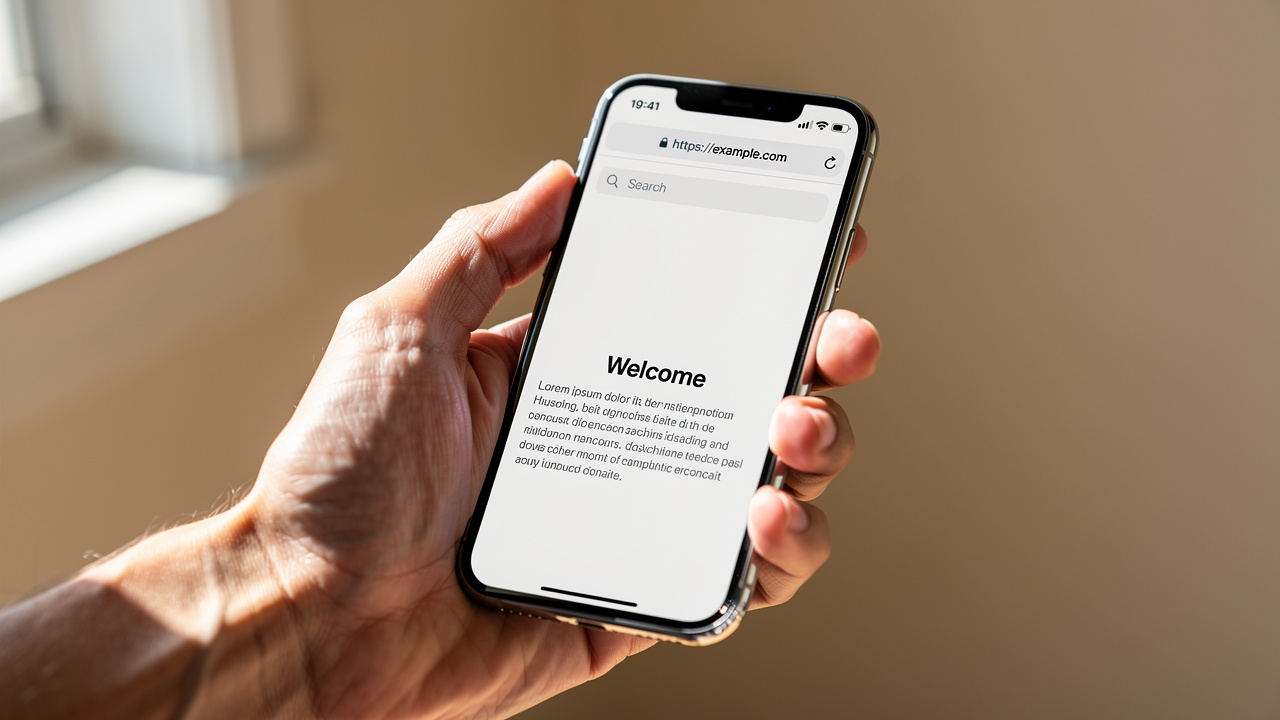
Open The iLovePDFKit Website In Your Browser
Type the address into Chrome, Firefox, Safari, or Edge and load the home page. Look for the tool that removes passwords from PDF files. The same clean layout appears on desktops and mobile devices, so you do not need to learn a new interface. iLovePDFKit keeps the number of buttons low so the next step always feels obvious.Upload Your Locked PDF From Your Device Or Cloud Storage
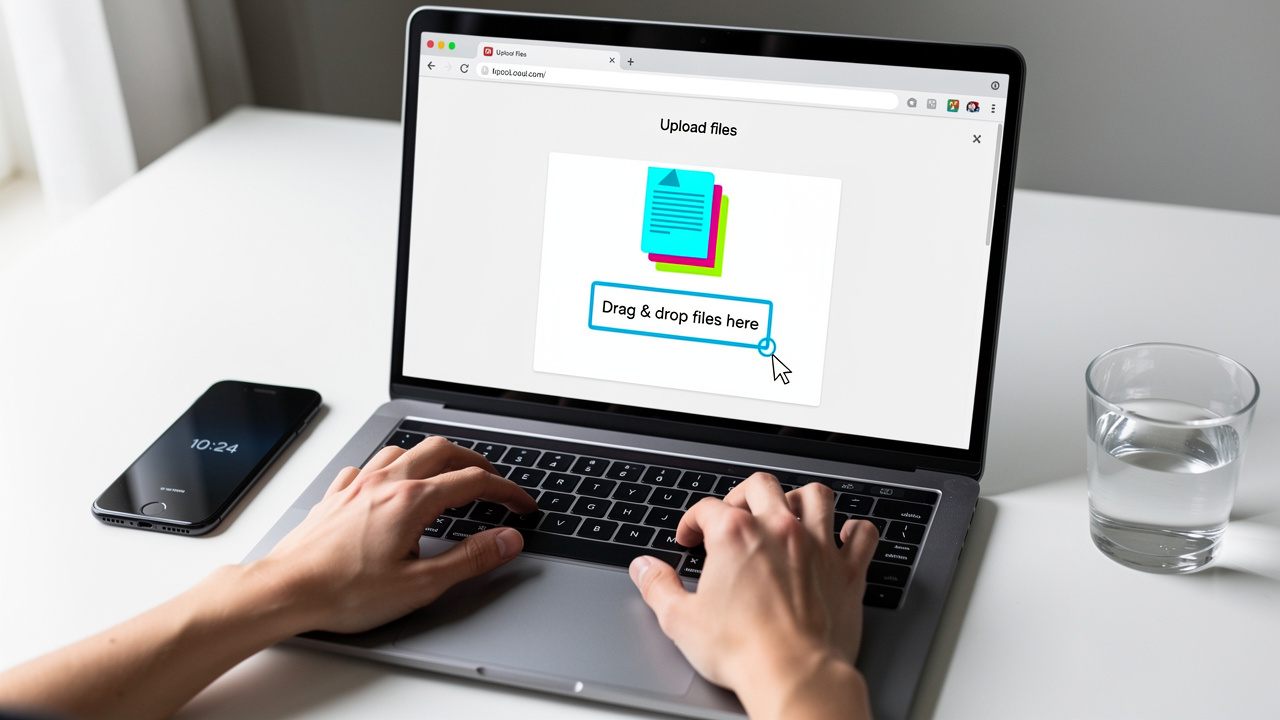
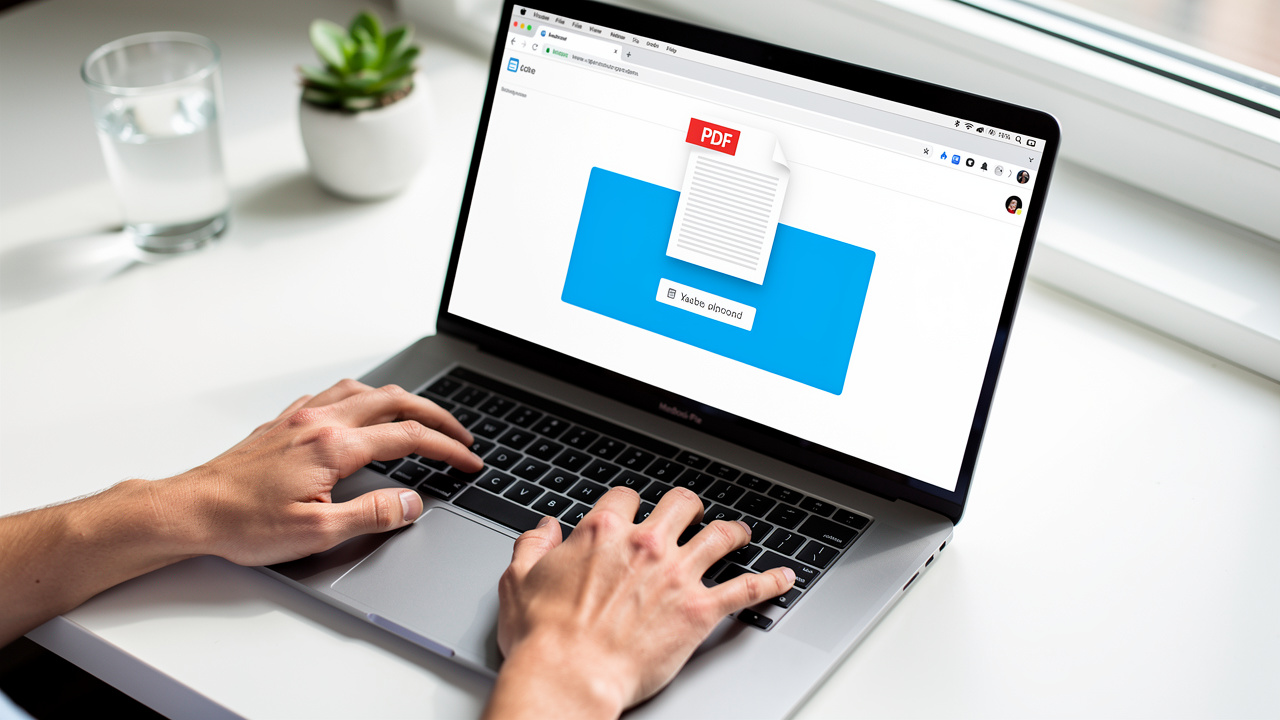
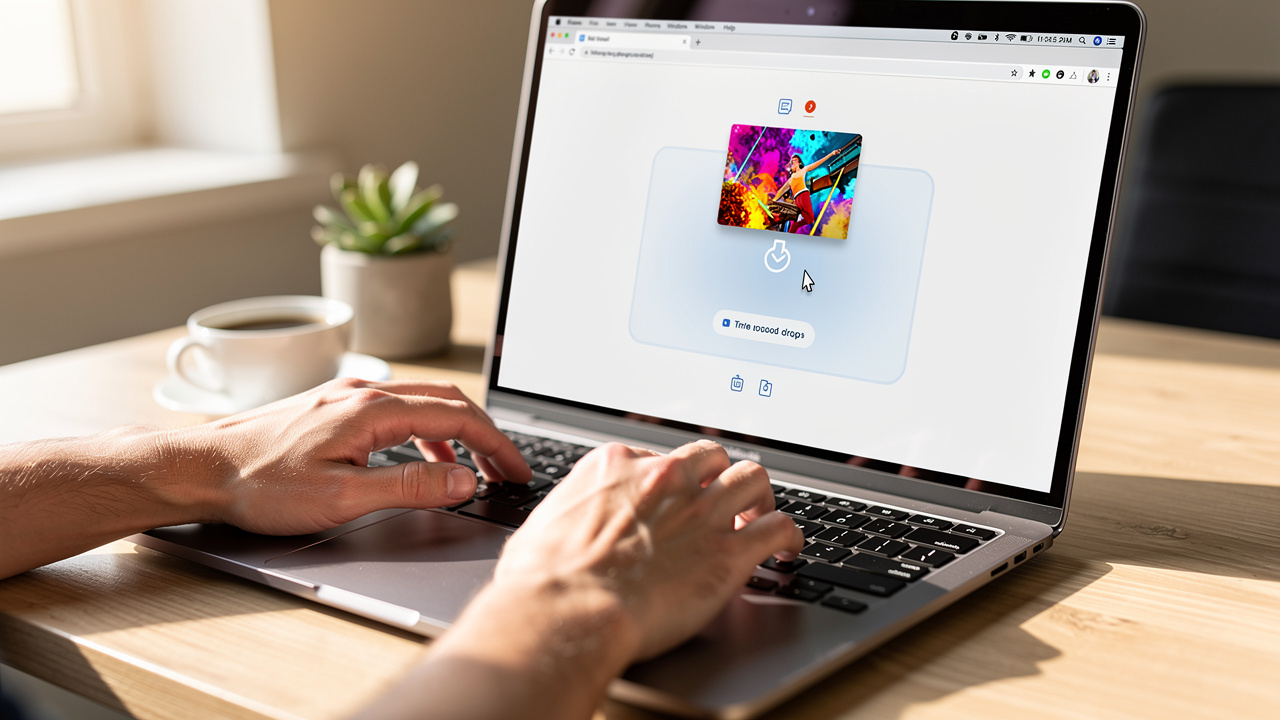
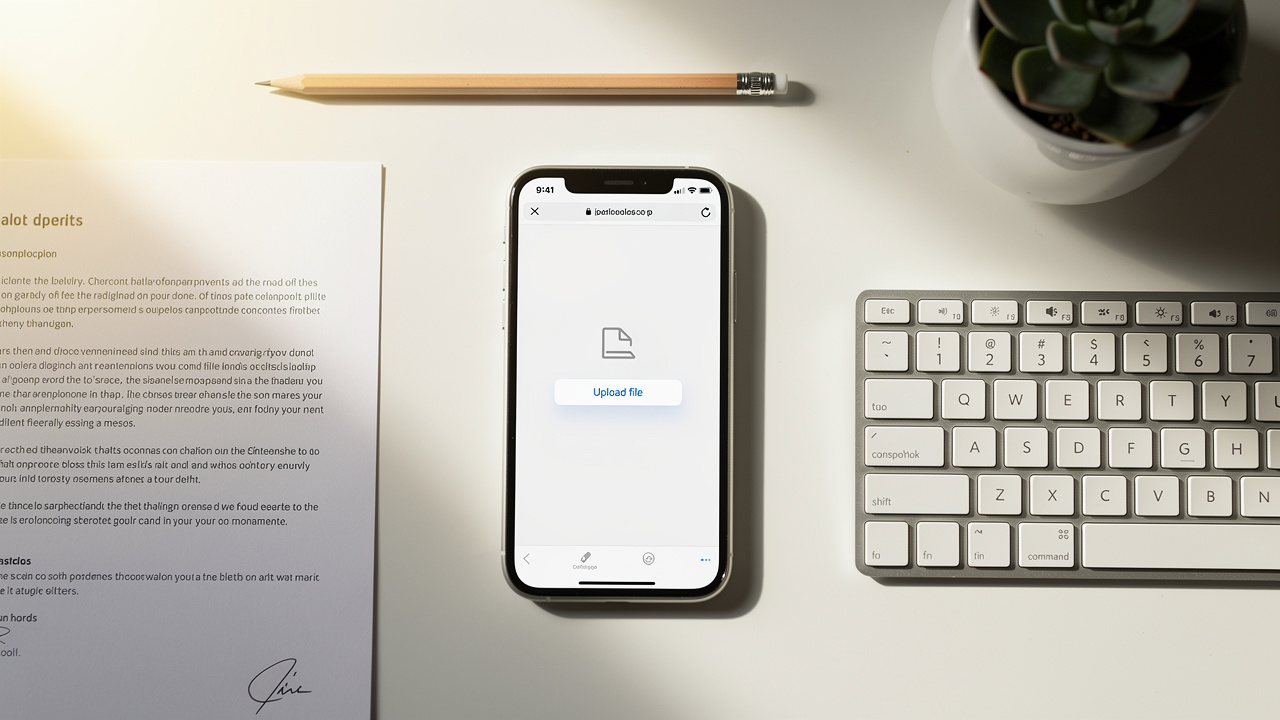
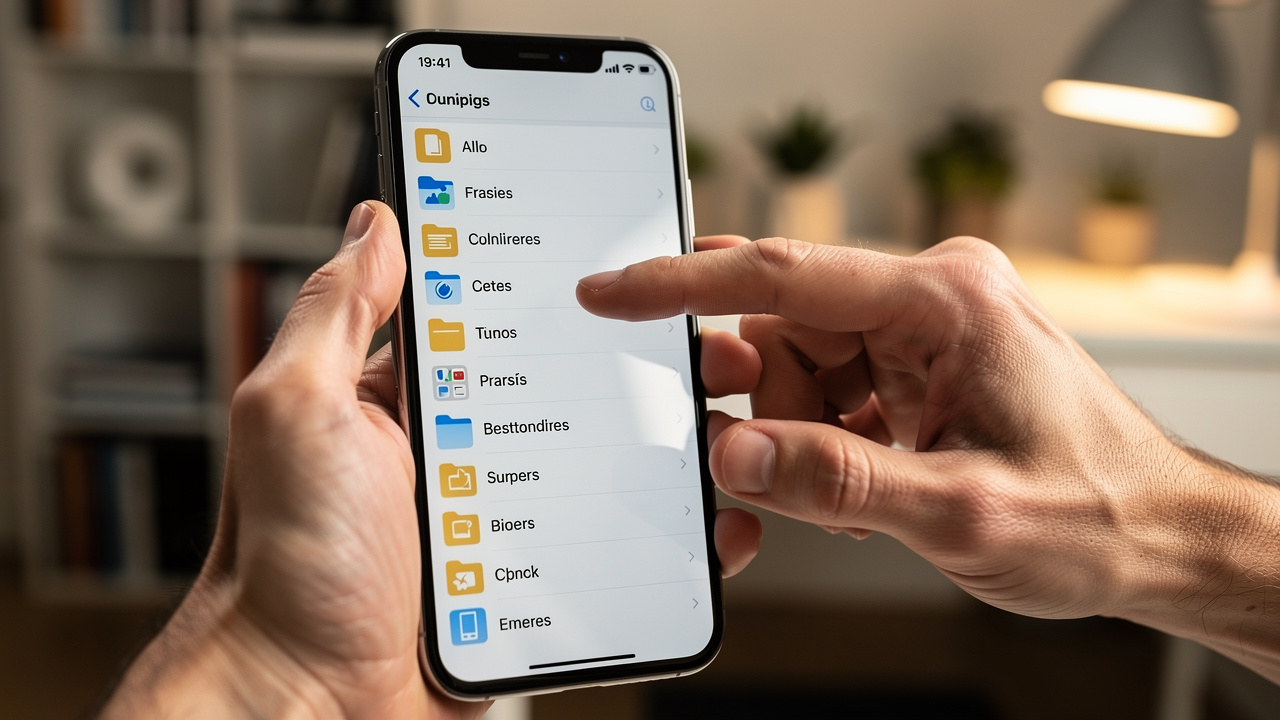
Click the main upload area or drag the file into the window. You can also choose to import directly from Google Drive or Dropbox, which helps if you keep school or office work in the cloud. Every upload uses SSL-encrypted transfer between your device and iLovePDFKit servers. During this step, you see a clear progress bar so you always know what is happening.Enter The Current Password When The Prompt Appears
Once the file is in place, the tool checks its security and asks for the existing password. Type the full password and confirm it, just as you would in Adobe Acrobat or other viewers. iLovePDFKit does not break, guess, or bypass passwords, which protects owners of sensitive documents. The password you enter is only used for this one task and is not stored after work finishes.Process The File And Download The PDF Without Protection
After the password is accepted, click the button to start the password-removal task. The server removes the security layer in real time, which usually takes only a few seconds, even for longer reports. You then see a button to download the new file and can save it back to your device or cloud drive. iLovePDFKit deletes the uploaded and processed files automatically right after the task, and you can move on to compressing, converting, merging, or signing that same document in the same visit.
How To Remove Password Security From A PDF Using Adobe Acrobat
You can also remove password security from a PDF using Adobe Acrobat if you have a license and know the password. This method keeps everything on your own computer and fits users who already run Acrobat for other work. It is especially common in larger companies and public agencies.
According to Adobe, Acrobat Standard starts at 14.99 dollars per month and Acrobat Pro at 19.99 dollars per month on annual plans. Those prices include editing, e‑signing, and protection tools, so many offices already pay for it. In contrast, iLovePDFKit gives casual users a free alternatives to Adobe Acrobat the same password-removal step without any subscription.
Here is how the Acrobat method works when you need more than an online PDF password-removal tool. Remember that you still must have the current password if the file blocks opening.
Open The Protected PDF Inside Adobe Acrobat On Your Computer
Start Acrobat, then use the File menu to open the protected PDF. If the file has an open password, a dialog box will appear before you see any content. Type the right password and click to continue. Once the document loads, you can change its security settings.Go To The Protect And Encrypt Controls In The Toolbar
In the top area, choose Tools, then pick the Protect section, and find the option related to encryption. Look for the button that removes security from the file. Adobe groups these controls so that users can apply or clear passwords in the same place, which keeps the steps easier to remember.Confirm Password Removal Based On The Type Of Protection
If the file only had an open password, Acrobat may just ask you to confirm that you want to clear it. For a permissions password, the app will request that password again before any change happens. You then agree to remove the restrictions, which restores printing, copying, and editing for later users. This flow stops unauthorized people from changing office policies or contracts.Save The New Unprotected Copy To Preserve The Change
After security is removed, use Save or Save As to create a new version of the file. The next time anyone opens this copy, Acrobat and other PDF readers will not ask for a password, and normal tasks will work. For highly sensitive documents, you can then add a fresh password or new permissions right away. People who do not want to pay for Acrobat can use iLovePDFKit instead whenever an online workflow is fine.
To compare the two methods at a glance:
| Feature | iLovePDFKit (Our Tool) | Adobe Acrobat |
|---|---|---|
| Cost | Free web tool | Paid subscription (per Adobe pricing) |
| Installation Required | No | Yes |
| Works Offline | No | Yes |
| Extra PDF Features | Convert, merge, compress, sign | Full editing and advanced PDF features |
Use Acrobat when you already pay for it and need offline control; use iLovePDFKit when you want a fast, free browser-based option.
Is It Safe To Upload A PDF To An Online Password-Removal Tool?

Uploading a file to an online PDF password-removal tool is safe for most school, freelance, and office documents when the service uses strong security. A well-designed tool such as iLovePDFKit treats every file as sensitive and protects it during upload, processing, and deletion. That lets you focus on how to remove passwords from PDF files instead of worrying about leaks.
Good online tools follow the same basic safety ideas that banks and large cloud services use, and resources like Secured PDF Unlock Online detail how reputable services handle file protection throughout the process. They protect data in transit and at rest, limit how long it stays on their servers, and avoid storing passwords. Many also meet formal standards for information security and privacy.
Encrypted Connections Hide Files During Transfer Between Your Device And The Service
iLovePDFKit uses SSL or TLS-based connections so that outsiders cannot read your PDFs or passwords while they move. This is the same class of protection used on banking and shopping sites. Anyone who tries to listen on the line sees scrambled data instead of your contract or assignment. Encryption of this kind follows guidance from groups such as NIST.Automatic File Deletion Stops Documents From Staying On Servers After Work
When the password-removal task ends and you download the new file, iLovePDFKit removes both the original and the result from its servers. Files are stored only long enough to finish your request. That means there is no archive of customer documents waiting on some hard drive in the background. This approach cuts the risk of later access by anyone else.No Password Storage Protects Your Account Security And Your Clients
The password you type into iLovePDFKit is used only to open the PDF during that single task. It is not saved into a profile, not logged in plain text, and not reused for any other purpose. If you later return with the same file, you will need to type the password again. That habit respects owners of the content and stops misuse of passwords across different systems.Compliance With Modern Standards Gives Extra Peace Of Mind
Leading document services work toward frameworks such as ISO 27001, which sets rules for security management, and they align with privacy laws such as GDPR in Europe. Information from ISO shows that these standards focus on access control, risk review, and incident response. When a PDF password-removal site explains its policy clearly and matches these ideas, you can feel more comfortable using it for normal work.
Tip: Before uploading sensitive files, skim the tool’s privacy policy and security page so you know how long your documents stay on the servers and how they are protected.
For very sensitive items, such as medical records or internal legal files, many teams still keep everything on a closed network. In those cases, a desktop app such as Adobe Acrobat may be a better choice than any web page. For everyday homework, invoices, reports, and presentations, iLovePDFKit gives a fast, safe balance between privacy and convenience.
Locking It All Up: Your Fastest Path To A PDF Without A Password

Password-protected PDFs do not have to slow school projects, client work, or office tasks. When you know the current password, iLovePDFKit gives you one of the fastest free ways to remove a PDF password online, right inside your browser, with no signup or software to install.
If you already pay for Adobe Acrobat, its built‑in tools also remove open and permissions passwords on your own computer. For everyone else, iLovePDFKit covers the full path in a few steps—remove the password, edit, convert, then protect again with strong AES‑256 encryption. Open your browser, load iLovePDFKit, and clear that blocked PDF in seconds.
Frequently Asked Questions
Question: Can I open a password-protected PDF if I’ve forgotten the password?
Answer: No, you cannot safely remove protection from a PDF if you no longer know the password. Ethical tools such as iLovePDFKit, Adobe Acrobat, and Smallpdf all require the current password before they remove security. Your best option is to contact the document owner, your teacher, or your IT team for help.
Question: What’s the difference between removing a PDF password and removing PDF restrictions?
Answer: Removing an open password means anyone can open the file without typing a code. Removing restrictions clears limits on printing, copying text, editing pages, or filling forms. iLovePDFKit handles both steps in the same password-removal flow, as long as you provide the correct password when asked.
Question: Can I re-lock a PDF after removing its password?
Answer: Yes, you can protect a PDF again after you finish your edits. iLovePDFKit includes a separate protect tool that adds AES‑256 password security in the browser. You can follow a simple loop: clear the password with the first tool, change the content, then protect again before sharing the file.
Question: Does removing a PDF password damage or alter the file content?
Answer: No, a proper PDF password remover only changes the security layer, not the content. Fonts, images, links, and layout stay the same before and after the task. iLovePDFKit focuses on pixel‑perfect output so research papers, invoices, and contracts still look exactly as the sender intended.
Question: Is it legal to remove a password from a PDF?
Answer: Yes, it is legal to remove a password from a PDF that you own or that you have clear permission to modify. Problems arise only when someone tries to bypass security on files they do not control, such as paid ebooks or stolen documents. iLovePDFKit asks for the existing password to reinforce this boundary and support lawful use.