Category: Guides

  • How to Digitally Sign a PDF in Your Browser

    How to Digitally Sign a PDF in Your Browser

    Introduction

    The last time a contract landed in an inbox, did it turn into a mini office project with printing, signing, scanning, and renaming files? Learning how to digitally sign a PDF turns that whole mess into a quick two‑minute task inside a browser. No printer, no scanner, and no running around looking for ink.

    A digital signature is simply an electronic version of a handwritten signature placed directly on a PDF file. Instead of writing on paper, the signer clicks, types, or draws a name on screen. Thanks to the Electronic Signatures in Global and National Commerce Act (ESIGN Act) in the US, these electronic signatures are legally valid for most everyday documents, from contracts and HR forms to school paperwork. Many other countries have similar laws that recognize electronic signing.

    The best part is that learning how to digitally sign a PDF does not require technical skills. With the right tools, someone can upload a file, create a signature, click once to place it, and download a finished, signed PDF in minutes. Before that, a quick pass through a browser-based toolkit such as iLovePDFKit helps make sure the document is clean, correctly formatted, and ready to sign.

    By the end of this guide, students, freelancers, office staff, and small business owners will know exactly how to digitally sign a PDF, how to prepare files first, and how to keep signed documents safe. The process is simple, repeatable, and fits neatly into everyday work.

    Key Takeaways

    This quick summary highlights the main ideas before diving into the full step-by-step guide.

    • Digitally signing a PDF replaces printing and scanning with a short online process. A browser, an internet connection, and a clear PDF are usually all that are needed. Once someone learns how to digitally sign a PDF, most paperwork tasks feel much lighter.

    • A signature can come from typing, drawing, or uploading an image of a handwritten name. Each method is accepted for normal contracts and forms. The choice depends on what feels more natural and professional for the signer.

    • Online tools often work straight from the browser with no software download or registration. iLovePDFKit fits into this flow by preparing documents securely and at no cost. After preparation, any trusted e‑sign service can handle the actual signature.

    • Electronic signatures are legally valid for most routine agreements under laws such as the ESIGN Act, as long as the signer clearly shows intent to sign and the record is stored in a reliable way.

    What Is A Digital Signature And Why Does It Matter?
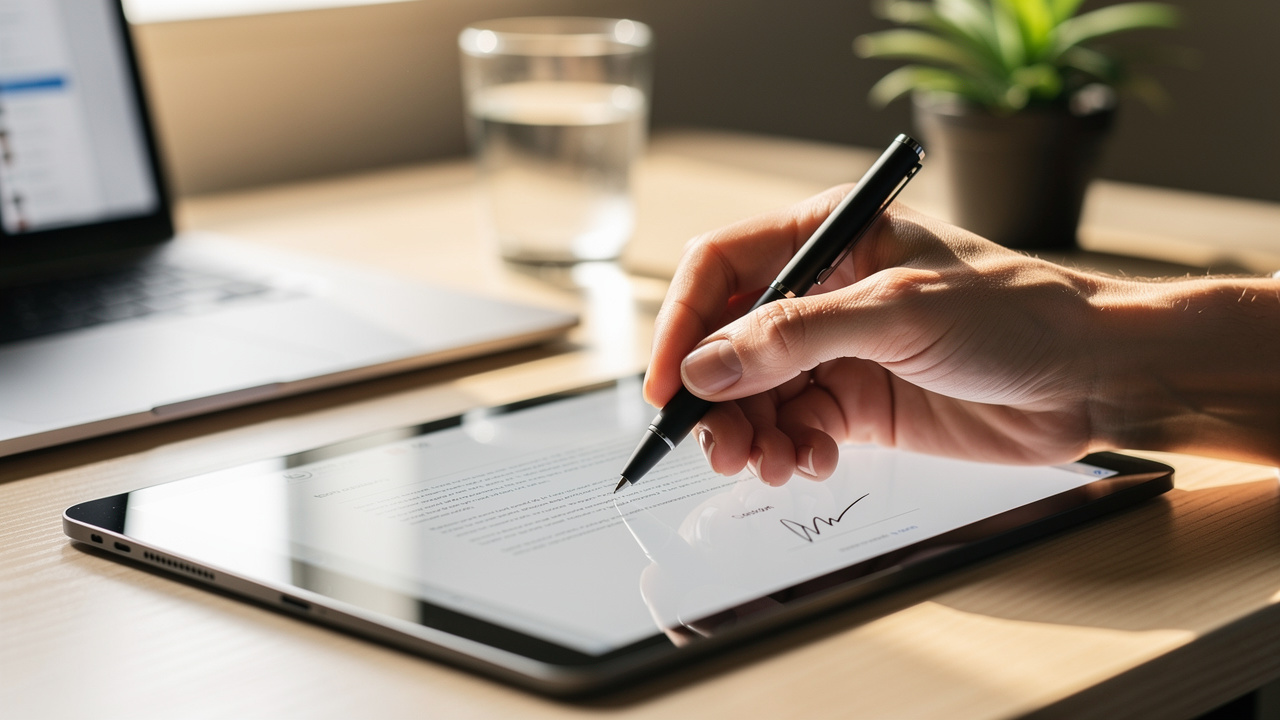
    Person signing a PDF document on a tablet with a stylus

    Before digging into how to digitally sign a PDF, it helps to understand what a digital signature actually is. At a basic level, it is an electronic way to show agreement with the contents of a PDF, just like writing a name on paper — covering everything from the underlying cryptography to how digital signatures and certificates work together to verify identity. The signer clicks to add a signature area, confirms it, and the mark becomes part of the file.

    People often hear both electronic signature and digital signature used in similar ways. In strict technical terms:

    • A digital signature usually includes extra cryptographic protection under the hood that can help confirm who signed and whether the file has been changed — and developers working in C# environments can find a technical deep-dive on how to digitally sign and verify PDF signatures programmatically.

    • An electronic signature is any sign of consent, such as a typed name, a checkbox, or a drawn squiggle.

    For everyday use, especially when thinking about how to digitally sign a PDF for school, work, or client projects, both terms point to the same idea and are widely accepted.

    In the United States, the ESIGN Act gives electronic signatures legal force for most types of agreements. That means a signed PDF contract, a freelance statement of work, or an HR form is treated just like a paper document. A few document types, such as wills or certain court forms, may still require special rules, but ordinary business and school files are covered.

    “A signature, contract, or other record relating to such transaction may not be denied legal effect, validity, or enforceability solely because it is in electronic form.”
    — U.S. Electronic Signatures in Global and National Commerce Act (ESIGN), 15 U.S.C. § 7001

    Digital signatures also solve several security problems that come with paper. Instead of copies lying around on printers and scanners, everything stays inside secured online tools and the signer’s devices.

    • Many signing platforms keep an audit trail with dates, IP addresses, and actions. This record shows who opened the document, when they signed, and what changed, which makes faking a signature much harder.

    • Sharing often happens through protected links rather than email attachments. That approach limits how many uncontrolled copies of the PDF end up on random computers and inboxes.

    • Strong services offer options such as password-protected downloads or view-only links. These extra steps help keep contracts, grades, and payment details away from unintended readers.

    Because of these benefits, students uploading enrollment forms, office professionals managing HR packs, and freelancers closing client deals all gain from knowing how to digitally sign a PDF the right way.

    How To Digitally Sign A PDF: Step-By-Step
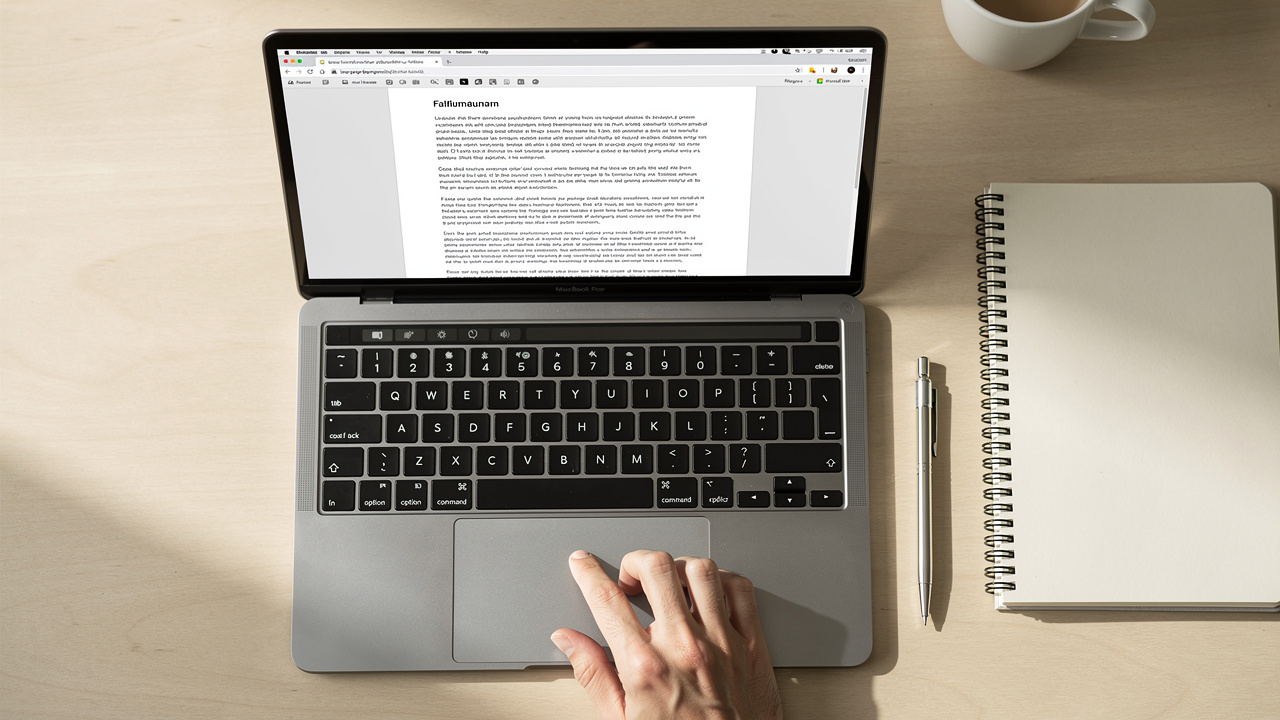
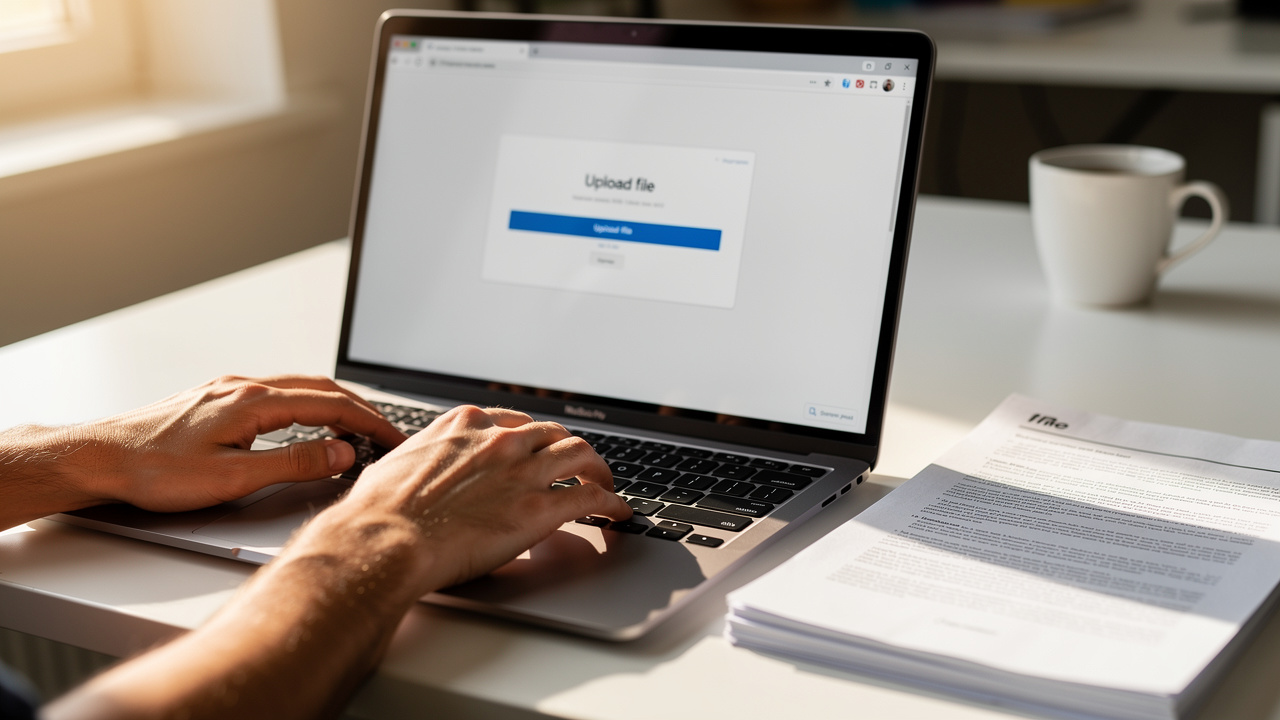
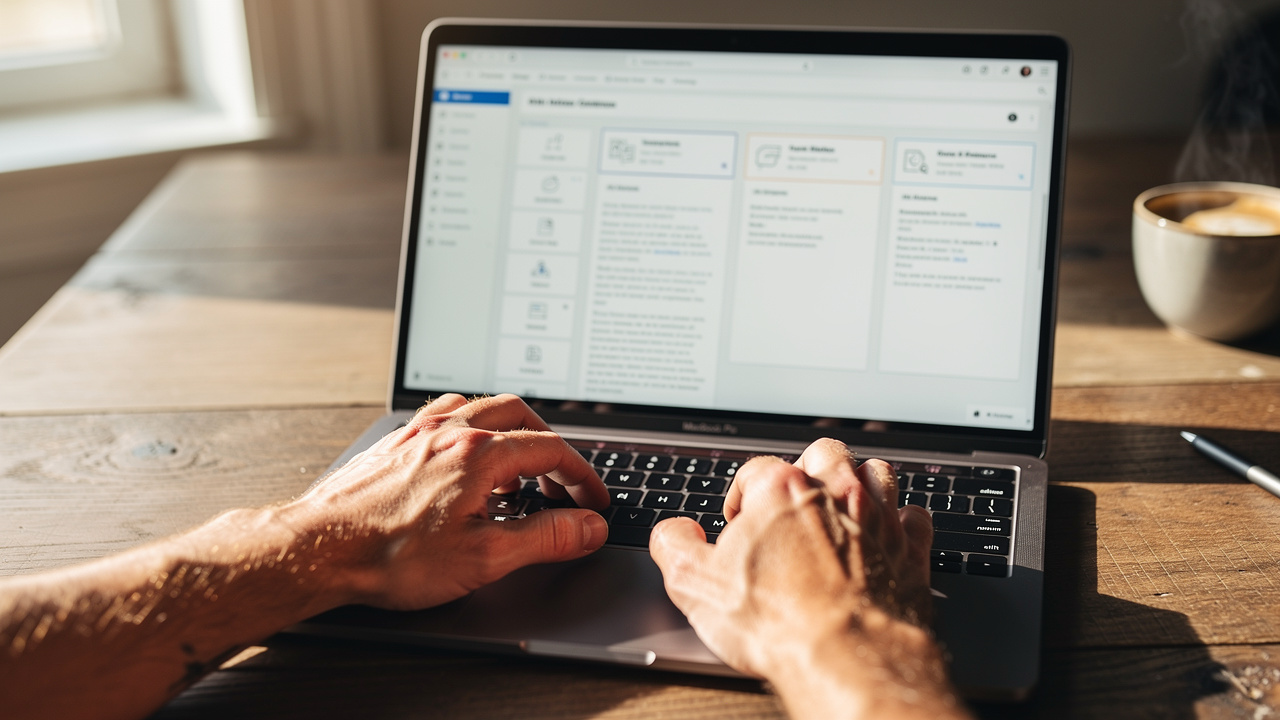
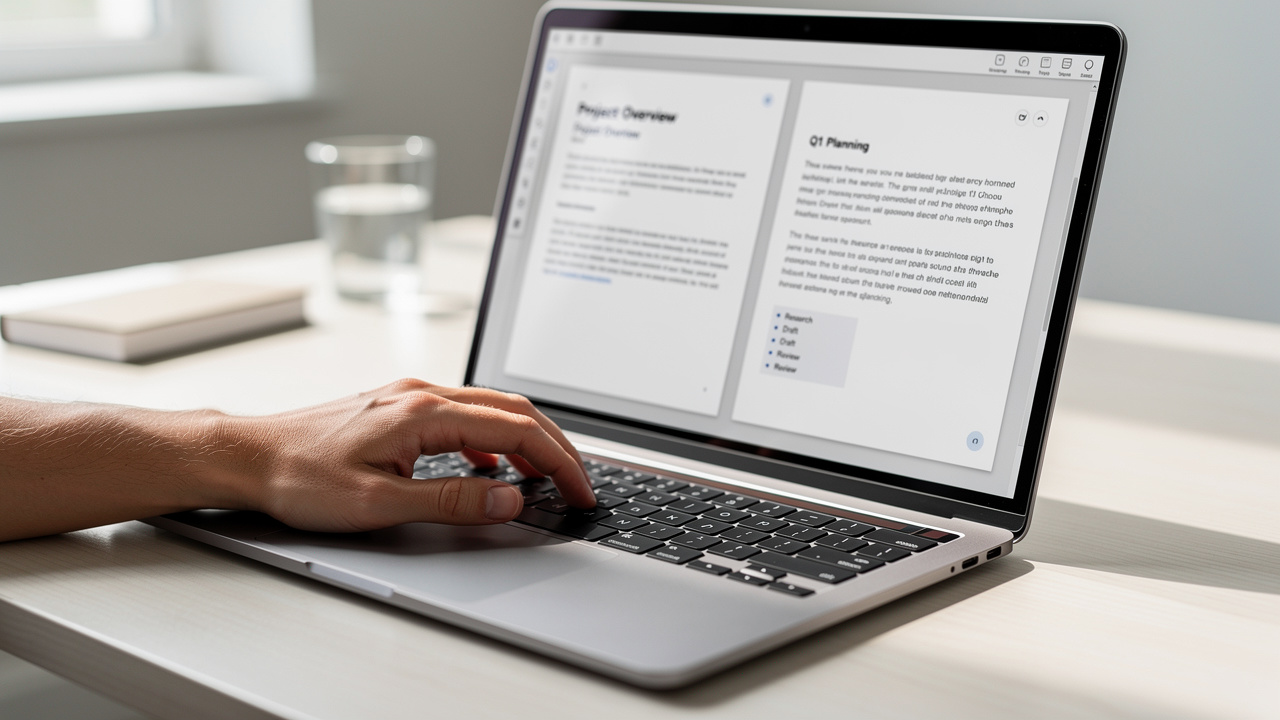
    Laptop browser open with PDF signing tool ready to use

    Most modern tools follow the same basic path, so once someone understands these steps, they can apply them almost anywhere. This section walks through how to digitally sign a PDF from start to finish.

    1. Prepare And Upload The PDF

      Start by opening a trusted online signing tool in the browser, then upload the document. This usually happens through a drag-and-drop area or a simple upload button. If the file is a Word, Excel, PowerPoint, or image instead of a PDF, first send it through iLovePDFKit to convert it into a clean, pixel-perfect PDF so formatting and fonts stay intact before signing. Always double-check that the document is final, because editing after signing may require a fresh signature.

      Before moving on, take a moment to:

      • Scan for spelling mistakes or missing pages.

      • Confirm that all fields and blanks are visible.

      • Remove any draft comments that should not appear in the final copy.

    2. Open The Signing Tools

      Once the PDF is uploaded, the service displays it in an online editor — if you need a practical walkthrough of adding a signature to a PDF using browser-based tools, detailed guidance on how to add signature fields and place them correctly can help clarify the process. A toolbar or side panel usually holds options named something like Sign, Fill And Sign, or similar. Some platforms ask the user to create a free account so the signature can be reused, while others allow signing without registration, which keeps the process very quick.

    3. Create The Electronic Signature

      The next step in learning how to digitally sign a PDF is creating the actual signature. Most tools offer three simple methods so the signer can choose what feels best.

      • Type the signature. This is the fastest choice. The signer types a full name into the box, and the tool shows several handwriting-style fonts. Picking one gives a clean, readable mark that works well for formal contracts and forms.

      • Draw the signature. This gives a more personal touch. Using a mouse, trackpad, finger, or stylus, the signer writes out their usual signature in the box. It might take a couple of tries to look right, but the result looks very close to ink on paper.

      • Upload a signature image. This keeps things as close to the real thing as possible. The signer writes on white paper with a dark pen, takes a clear photo, and uploads the image. The tool trims the background and turns it into a digital stamp that can be reused.

      All three approaches are accepted for normal business, school, and personal paperwork, so the choice is mainly about style and convenience.

    4. Place The Signature On The Document

      After the signature is created, it appears on screen as a movable object. The signer clicks and drags it to the correct spot, such as the signature line at the end of the document. Most tools let the user resize the signature so it fits neatly inside the space. At this stage, it is also easy to add other details like the signing date, printed name, initials on certain pages, or checkmarks in required boxes.

    5. Finalize, Download, And Share

      The last step in how to digitally sign a PDF is locking everything in. The signer scrolls through the pages to confirm that every field looks correct and nothing is missing. Then they click a button labeled Finish, Apply, Done, or something similar, which embeds the signature into the file.

      After that, the signed PDF can be:

      • Downloaded and stored on a computer or phone.

      • Saved to cloud storage in a clearly named folder.

      • Shared directly from the tool through a secure link, which keeps email attachments to a minimum.

      Keeping a separate backup copy, organized by client or project name, makes future reference much easier.

    How To Prepare Your PDF Before Signing With iLovePDFKit
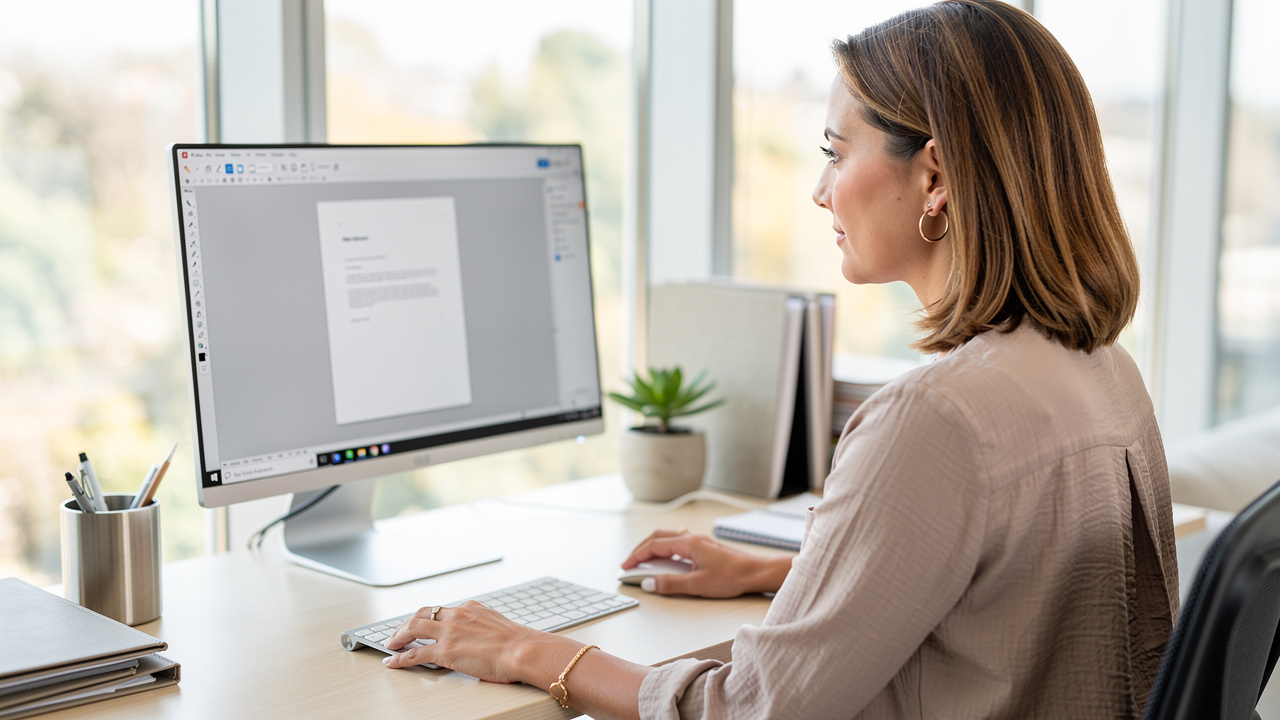
    Professional woman preparing a PDF document in a browser tool

    Many headaches with signing happen before anyone thinks about how to digitally sign a PDF. Pages might be out of order, the file may still be in Word format, or images might appear blurry after export. Fixing these issues at the last minute wastes time and can delay important agreements or submissions.

    This is where iLovePDFKit fits into the workflow as a document preparation companion. Instead of handling signatures, it focuses on getting files ready for that stage. Students can turn essays and research papers into polished PDFs. Office staff can combine reports and exhibits. Freelancers can turn messy scans or mixed file formats into a single professional document.

    iLovePDFKit works entirely in the browser, so there is no software to install and no account to create. Someone can open the site, upload a file, choose the needed action, and download the result within moments.

    Key benefits that make iLovePDFKit helpful before signing include the following points.

    • Accurate conversions keep every detail of the original file. Fonts, images, margins, and spacing stay exactly where they belong, which means there is no need to fix broken layouts just before signing.

    • Works on almost any device. The service runs on any modern device with a browser. Desktop computers, laptops, tablets, and phones can all turn Word, Excel, PowerPoint, JPG, and PNG files into clean PDFs that are ready to send to a signing tool.

    • Encrypted transfers use SSL from the moment files leave the device. Processing happens automatically in real time, and there is no manual review of content, which helps protect sensitive information.

    • Short-term processing means both the original and converted files are removed from iLovePDFKit servers soon after processing and download. Since the platform does not keep files for long periods, there is much less risk of someone accessing old documents without permission.

    • Free tools without watermarks are available for document preparation. That is especially helpful for students and small businesses who need to manage costs while still sending professional-looking documents.

    Once a document has passed through iLovePDFKit and looks correct, it is ready for whichever signing service the user prefers. From there, the steps for how to digitally sign a PDF stay the same every time.

    Conclusion

    Two professionals shaking hands after completing a digital contract

    Paper-based signing made sense when printers and scanners were the only option, but that era has passed. Knowing how to digitally sign a PDF means contracts, school forms, and client agreements can be reviewed, signed, and returned within minutes from almost any device. The process is fast, secure, and legally valid for most everyday documents in the United States.

    There are really two simple phases. First, prepare the file so it looks polished and is in PDF format, which is where iLovePDFKit shines with clean conversions, merging, and compression. Second, send that finished PDF into a trusted e‑sign tool to create and place the actual signature.

    Anyone can start right now by opening iLovePDFKit, converting a document to a clear PDF, and then following the steps in this guide. Whether someone is a student, a freelancer, or an office professional, getting a document signed digitally is now one of the easiest tasks to handle online.

    FAQs

    Electronic signing raises a few common questions, especially for people new to the process. These quick answers clear up the most frequent concerns about how to digitally sign a PDF in a safe and reliable way.

    Is A Digital Signature On A PDF Legally Binding In The US?

    Yes, a properly applied electronic signature is generally legally binding in the United States under the ESIGN Act. That covers most everyday documents such as contracts, school forms, and business agreements. Certain types of documents, including wills or some court filings, may still require special procedures set by local law.

    Can I Digitally Sign A PDF For Free?

    Yes, many browser-based tools let users sign a limited number of PDFs at no cost. iLovePDFKit is completely free for document preparation, so files can be converted to polished PDFs before sending them to a signing service. Some dedicated signing platforms may place limits on how many documents can be signed each month on their free plans.

    Do I Need To Download Software To Sign A PDF Digitally?

    No, in most cases downloading software is not necessary. Modern signing tools run directly in the browser on Windows, macOS, and mobile devices. iLovePDFKit also works fully online, so converting files and preparing them for signature can happen from any device with internet access.

    Is It Safe To Upload My Documents To An Online Signing Or Preparation Tool?

    Yes, as long as the service follows strong security practices. Look for SSL-encrypted connections, clear privacy policies, and a promise to remove files from servers once processing is finished. iLovePDFKit uses encrypted uploads, real-time automated handling, and a short-term storage approach, which reduces the chance that sensitive contracts or forms remain on remote systems longer than needed.

    What Is The Difference Between A Digital Signature And An Electronic Signature?

    A digital signature adds technical protections, such as cryptographic checks, that can help verify the signer’s identity and detect tampering. An electronic signature is any electronic mark that shows agreement, including a typed name, clicked checkbox, or drawn signature. For most everyday PDFs, standard electronic signatures are accepted, but some highly regulated industries may prefer cryptographic digital signatures.
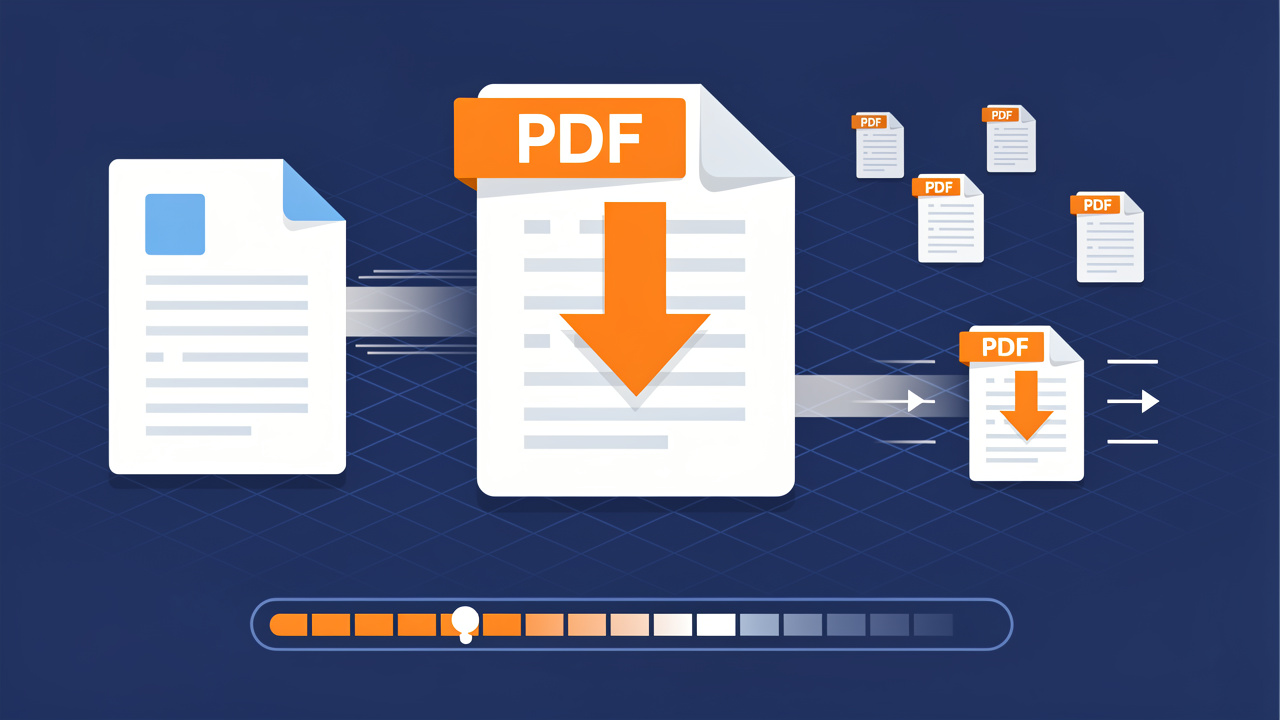
  • How to Reduce PDF File Size Without Losing Quality

    How to Reduce PDF File Size Without Losing Quality

    Introduction

    A deadline is close, the report looks perfect, and the last step is to upload the PDF. Then the form shouts that the file is too large, or the email bounces back with an attachment error. At that moment, how to reduce PDF file size stops being a nice‑to‑have skill and feels pretty urgent.

    Large PDFs slow everything down. They fail to send through email, fill up Google Drive, and load painfully slowly on phones. Many people worry that the only fix is a blurry, unreadable document, so they avoid compression or keep trying to send the heavy file anyway.

    The good news is that it does not have to work that way. With the right tools and a few smart choices, it is easy to cut file size while the pages still look clean and sharp. This guide walks through simple methods for how to reduce PDF file size on any device, from fast online tools like iLovePDFKit to built‑in Mac and PC apps.

    By the end, it will be clear which method fits each situation, how to pick the right compression level, and how to keep professors, clients, and teammates happy with clear, fast PDFs.

    Key Takeaways

    Before diving into the details, it helps to see the big picture of what this guide covers.

    • Big PDFs can shrink a lot without hurting readability. With the right compression level and method, file size may drop sharply while text and key images still look clear. The result is easier sharing with no stress about blurry pages.

    • Online tools such as iLovePDFKit are the fastest option for most people. They skip installs and sign‑ups, so a browser is all that is needed. This works well for students, office staff, and freelancers on shared or locked‑down devices.

    • Built‑in or desktop apps suit offline or high‑security work. Preview on Mac and Acrobat Pro on Windows give more control and work without internet access. They fit offices with strict policies or people who often work on the go.

    • Checking file size before and after compression avoids guesswork. A quick look at the size in MB or KB confirms that a method worked. This simple habit also helps pick the right level next time.

    Why PDF File Size Matters (And When To Compress)

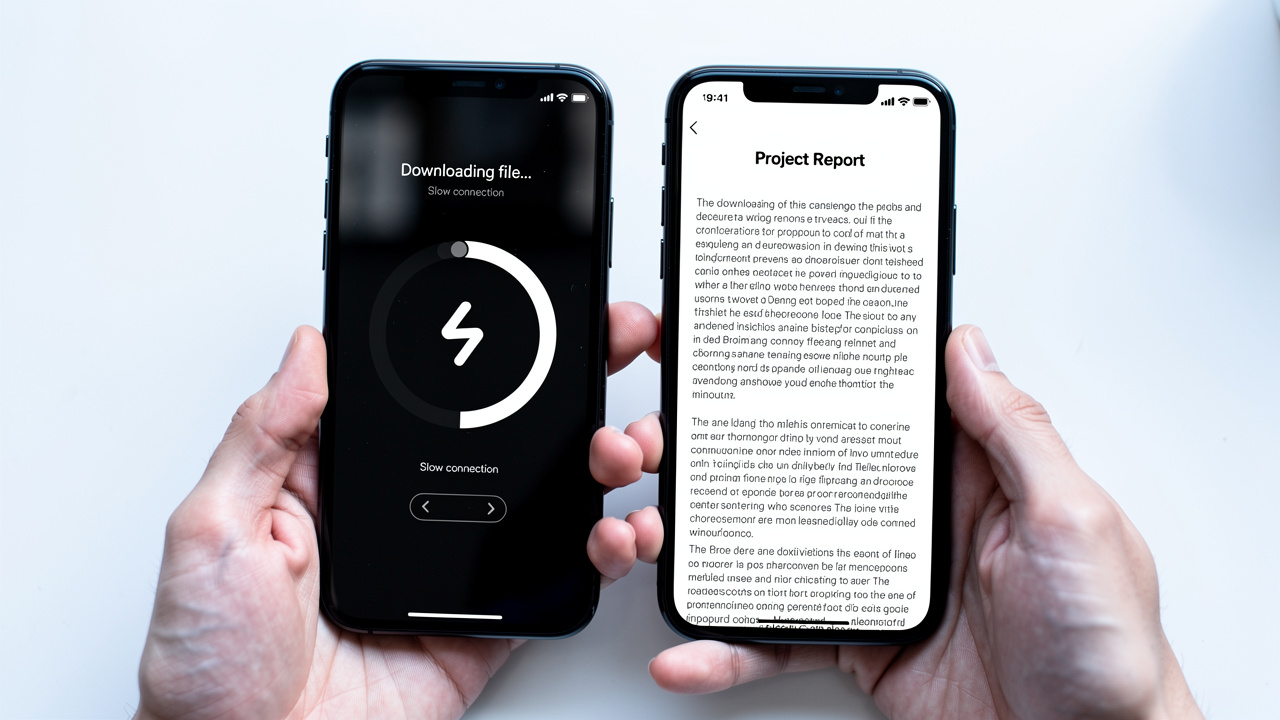
    Two smartphones comparing slow and fast PDF loading speeds

    File size feels like a small detail until it blocks an important task. A 40 MB project report might look fine on one laptop, yet fail hard when a professor’s portal only allows 10 MB uploads. The same happens with client proposals, scanned contracts, or slide decks that include many images.

    Email services often stop attachments around 20–25 MB. Many online submission portals accept even less. Cloud tools such as Google Drive, OneDrive, and Dropbox give a fixed space limit, and big PDFs fill that space much faster than plain text files. Over time, this pushes people to buy more storage, delete older work, or juggle external drives.

    Large PDFs also slow work down. They open slowly, scroll with lag, and make phones heat up. On weak Wi‑Fi, a huge file can take minutes to download, which annoys teachers, managers, and clients who just need to read the content.

    For most people, three main reasons explain why and when to compress:

    • Shareability. Files that stay under common email and upload limits attach without errors and pass through submission systems without complaints. This helps students meet deadlines and helps teams share reports smoothly.

    • Storage. When each file takes less space, free cloud tiers and office drives last longer. Smaller PDFs help avoid sudden “storage full” warnings that appear at the worst time.

    • Speed. Lighter files download faster, open almost at once, and scroll without delay. This feels better on phones and slower computers, where every extra megabyte matters.

    Once those pain points show up, learning how to compress a PDF is often the simplest fix.

    “Perfection is achieved, not when there is nothing more to add, but when there is nothing left to take away.” — Antoine de Saint‑Exupéry

    For PDFs, that often means trimming extra weight while the content stays exactly the same.

    How PDF Compression Works (Without Ruining Quality)

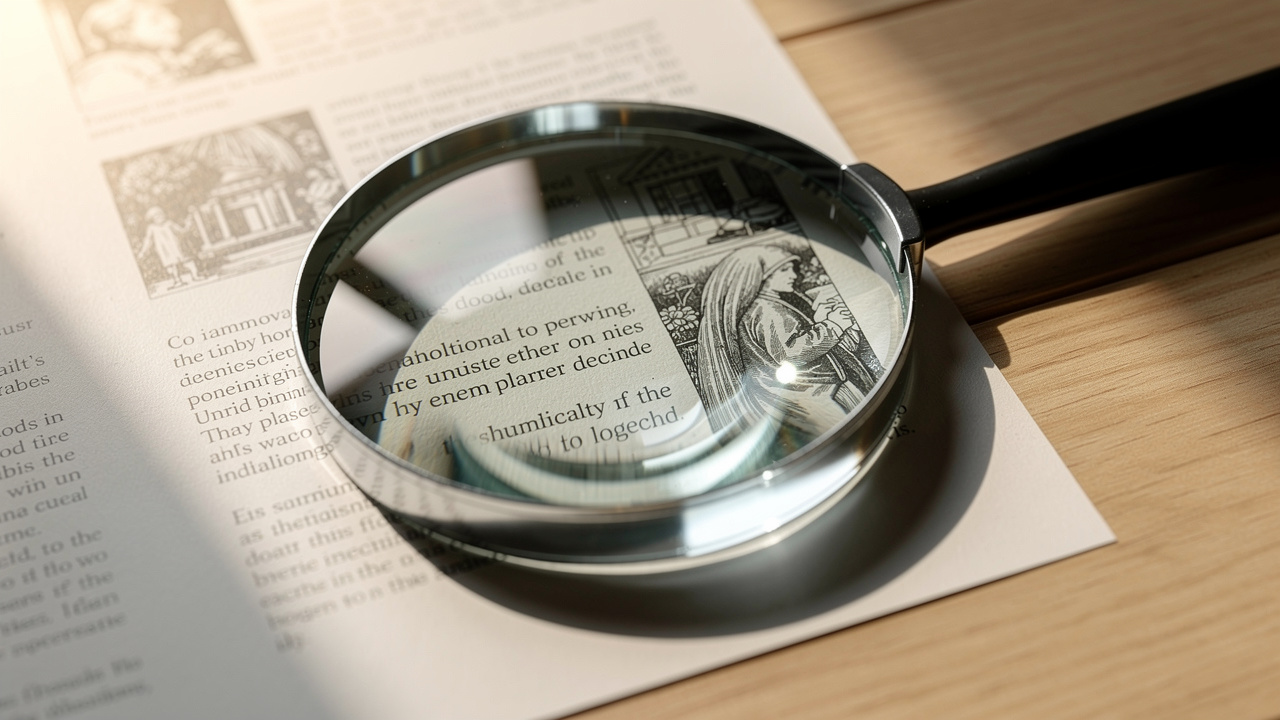
    Magnifying glass examining PDF document print quality after compression

    To choose a smart method, it helps to know what is inside a heavy PDF. Size usually comes from three main parts: images, fonts, and extra data that people never see.

    High‑resolution photos inside a PDF can be huge. A single full‑page image that was meant for print may carry far more pixels than a screen needs. Compression tools lower the pixel count, which shrinks the data. This process, called downsampling, can cause blur if pushed too far, but mild use still looks good on screens.

    Fonts also add weight. When a PDF file includes full font sets, it packs every possible character, even ones that never appear in the text. Font subsetting keeps only the letters that the document actually uses. Viewers still see the same style, but the file no longer hauls around extra characters.

    Next comes hidden data. That includes:

    • Author and edit history

    • Old comments and mark‑ups

    • Form fields that are no longer needed

    • Layers, thumbnails, and other previews

    None of this shows during normal reading. PDF compression tools strip that extra data and keep only what matters on each page.

    Most tools present this as simple compression levels, which work roughly like this:

    Compression LevelFile Size ChangeVisual QualityBest Use Case
    LowSmall dropVery highLegal or formal documents
    MediumClear dropStill sharpEveryday reports, homework, and proposals
    HighLarge dropNoticeable lossWhen strict size limits matter more than looks

    Lossy steps, especially on images, cannot be reversed. For that reason, it is always safer to compress a copy of the PDF and keep the original somewhere safe.

    The real goal is not the smallest number of megabytes. The real goal is the smallest file that still looks great for its job.

    With that idea in mind, it becomes much easier to pick the right tool and level when planning how to reduce PDF file size.

    How To Reduce PDF File Size Using Online Tools

    Person using an online PDF compressor tool on laptop

    Online tools are the fastest answer for most people who ask how to reduce PDF file size. Nothing needs to install, and the same steps work on Windows, Mac, Linux, and even phones or tablets with a browser.

    Open a site, drop in the file, wait a few seconds, and download the lighter version — there are how to compress a PDF guides that walk through exactly this process step by step. For many students, busy office staff, and small business owners, that is all they ever need from an online PDF compressor.

    iLovePDFKit — The Fast, Free, No-Install Option

    iLovePDFKit acts as a complete PDF and document toolbox that runs inside any modern browser. There is no software to download, no account to create, and no registration wall. This makes it ideal on shared computers, school machines, or locked‑down office laptops.

    When the goal is how to reduce PDF file size, iLovePDFKit helps in a few direct ways:

    • Its Page Deletion Tool removes blank or unneeded pages from long reports, contracts, or multi‑chapter documents. Less content means a smaller file, and this method keeps every remaining page at full quality.

    • The conversion tools use pixel‑perfect accuracy, so when a file moves between PDF, Word, PowerPoint, or image formats, fonts, layout, and spacing stay tight without adding extra weight.

    The workflow stays simple:

    1. Visit the iLovePDFKit website.

    2. Choose the tool that fits the task, such as page deletion or file conversion.

    3. Upload the PDF from your device or cloud storage.

    4. Let the browser process it.

    5. Download the finished, lighter file.

    All transfers use SSL encryption, and the service has a strict no‑file‑storage policy, so documents process in real time and leave the server right away. There are no watermarks and no hidden fees, which suits students and professionals who need clean results on a tight budget.

    Best of all, everything works the same way on desktops, laptops, tablets, and phones, as long as a browser can open the site.

    A common rule of thumb among file‑sharing pros: “If sending the file feels stressful, make it smaller first.”

    Other Reputable Online Compressors

    Alongside iLovePDFKit, many other online services also claim to help with how to reduce PDF file size, and resources like 4 easy ways to make a PDF smaller offer useful comparisons of popular options. Well‑known options include Adobe Acrobat online tools, Smallpdf, and iLovePDF. They compress files in a similar way and often give a simple slider or preset list of compression levels.

    However, many of those sites add small hurdles:

    • Some ask for account creation before download or block higher compression levels behind a paid plan.

    • Others place strict limits on the number of files per day or the maximum size per upload.

    For people on a deadline, those limits can slow work or force a search for yet another tool.

    Privacy rules can also differ a lot between services. Some tools keep files on their servers for longer periods or use them for internal data models. For anyone who works with grades, legal papers, internal reports, or client work, this matters.

    A safe habit is to read the privacy or data section before uploading anything sensitive. Then compare that to iLovePDFKit, which uses SSL across all transfers and deletes files right after processing, without user accounts or stored histories.

    Offline Methods — How To Reduce PDF Size On Mac And PC

    Some people prefer not to upload any files at all. Others work in offices where security rules limit web tools. For them, offline options on Mac and Windows still offer solid ways to handle how to reduce PDF file size.

    Desktop tools do not depend on internet access and sometimes give more fine‑grained control; for a comprehensive overview of approaches, 4 effective methods to reduce PDF file size cover both online and offline strategies worth exploring. The trade‑off is that they often cost money or hide inside menus that feel less direct than a simple web page.

    On A Mac: Using The Preview App

    MacBook on a desk using Preview app to compress PDF

    Mac computers ship with Preview, a built‑in app that opens PDFs and images. It also gives a quick method to reduce file size with just a few clicks:

    1. Open the PDF in Preview.

    2. In the menu bar, choose File → Export.

    3. In the window that appears, open the Quartz Filter menu.

    4. Pick Reduce File Size.

    5. Choose a name and location for the new file.

    6. Press Save.

    The saved copy should be smaller than the original.

    This method works well when a fast reduction matters more than perfect image quality. The Quartz filter can compress images quite hard, so photos and graphics may look softer. For better control, some users:

    • Keep a high‑quality version for print.

    • Save a lighter version for email, learning portals, or quick reading.

    On A PC: Using Adobe Acrobat Pro

    Windows PC workstation with PDF optimization software open

    On Windows, Adobe Acrobat Pro provides one of the most powerful routes for how to reduce PDF file size. It runs fully offline and gives deep control over images, fonts, and extra data.

    To shrink a file in Acrobat Pro:

    1. Open the PDF in Adobe Acrobat Pro.

    2. Go to Tools → Optimize PDF.

    3. Choose Reduce File Size.

    4. In the small window, pick a version for compatibility; a recent version often gives better compression.

    5. Save the result under a new file name so the original stays safe.

    Users who need more control can open Advanced Optimization instead of the quick button. That panel lets them:

    • Pick image resolution (PPI).

    • Adjust compression methods for color and black‑and‑white images.

    • Remove metadata, unused objects, and other hidden content.

    This kind of tuning works well for professionals, though it does take some practice. Keep in mind that Acrobat Pro uses a paid subscription, so for a free, no‑install option, iLovePDFKit remains an easy starting point in the browser.

    Conclusion

    Oversized PDFs do not have to block grades, deals, or approvals. With a bit of knowledge about images, fonts, and hidden data, it becomes simple to choose how to reduce PDF file size in a smart way. Light compression protects quality, heavier compression focuses on hard limits, and page cleanup cuts waste without any blur at all.

    Students, office teams, and business owners can pick between quick browser tools and offline desktop apps, depending on access and rules. Among these choices, iLovePDFKit stands out as a fast, safe, and free place to start, with no accounts, no watermarks, and real‑time secure processing.

    The next time a PDF feels too heavy to send, open iLovePDFKit in a browser and try its free tools. No sign‑up is needed, and a lighter, clean‑looking file is only a few clicks away.

    FAQs

    Does Compressing A PDF Reduce Its Quality?

    Compression can reduce quality, but the effect depends on the level chosen. Low and medium settings focus on gentle changes, so text stays sharp and images still look clear on screens. High settings press file size harder and may cause blur, especially on photos. It is always wise to compress a copy so there is an easy way to compare.

    Is It Safe To Upload Sensitive PDFs To Online Compression Tools?

    Any upload carries some level of risk, so data care matters. A safer service uses SSL encryption so files travel over a protected connection and also removes every file soon after processing. iLovePDFKit follows that pattern with encrypted transfers and a strict no‑file‑storage rule. People should avoid tools with vague or missing privacy policies, especially for grades, legal work, or client data.

    What Is The Best Free Tool To Reduce PDF File Size?

    For most everyday tasks, iLovePDFKit is a strong first choice. It runs in the browser, adds no watermarks, costs nothing, and does not ask for registration or software installs. Mac users may also use Preview, but its filters give less control over quality. Adobe Acrobat adds more options, though many advanced features sit behind a paid plan.

    Why Is My PDF Still Large After Compression?

    Some PDFs do not shrink much because they already use simple text and low‑resolution images. In that case, there is less extra data to remove. It can help to try a higher compression level or a tool that allows control over image resolution and fonts.

    Another smart trick is to remove extra pages with a page deletion feature, as iLovePDFKit offers. Scanned PDFs that hold pages as images often act very differently from native digital files, so they may need OCR or deeper tuning before compression makes a big difference.

  • How to Convert JPG to PDF Quickly and Free

    How to Convert JPG to PDF Quickly and Free

    Introduction

    Anyone who has searched how to convert JPG to PDF knows the situation. A teacher wants a scanned assignment as a PDF, a client needs a receipt in one file, or a manager asks for a proper document instead of a blurry photo — and understanding how to extract data from images into shareable formats is a growing everyday need. The image is ready, but the format is wrong and the clock is ticking.

    PDF is a favorite format because it works almost everywhere, keeps page layout consistent, and looks professional on screen and on paper. The issue is that many tools that claim to convert JPG to PDF make the job harder than it should be. They ask for sign-ups, limit free use, add watermarks, or push paid plans when all you need is a quick, clean file.

    iLovePDFKit removes that friction. It is a free, browser-based JPG to PDF converter with no registration, no watermarks, and fast, secure processing. Open the site, drop in the image, and download your ready-to-share PDF in seconds.

    This guide shows exactly how to convert JPG to PDF with iLovePDFKit, step by step. You will also see how to combine multiple JPG files into one PDF, what happens to your files behind the scenes, and clear answers to common questions.

    Key Takeaways

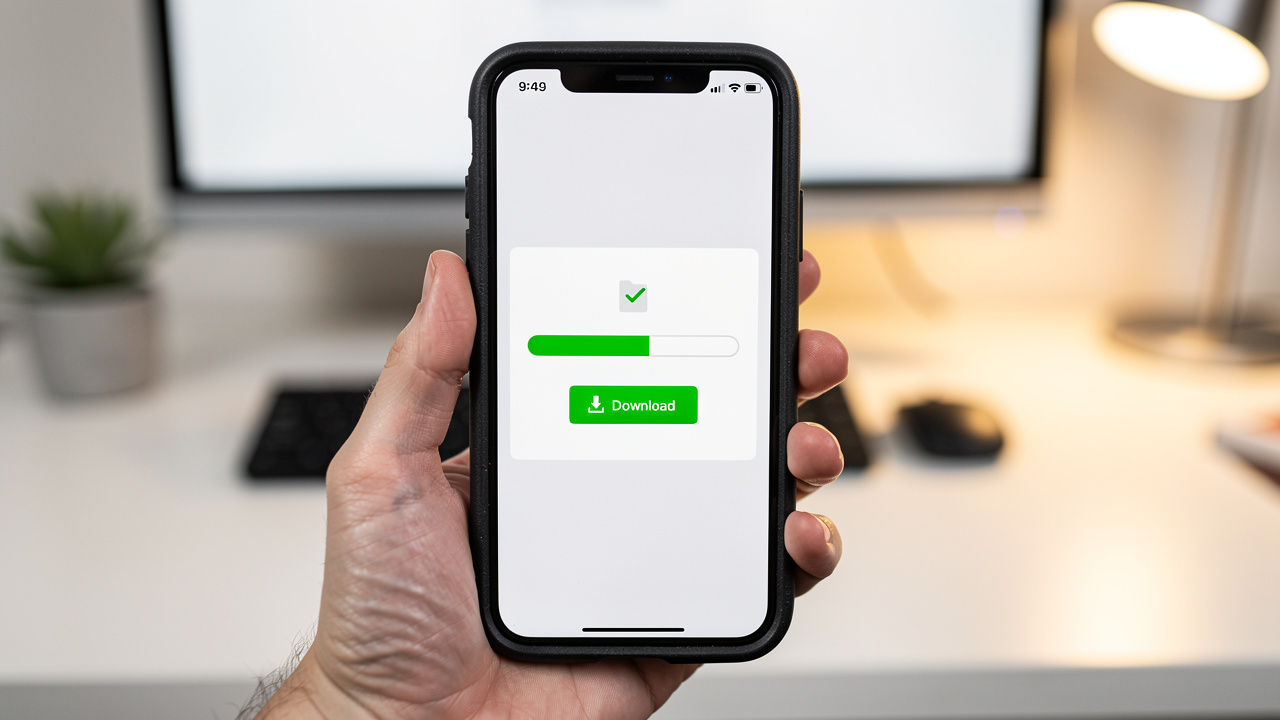
    Downloading a converted PDF file on a smartphone

    Before diving deeper, here are the main points from this guide:

    • Converting a JPG to PDF with iLovePDFKit usually takes under a minute, with no software to install, no sign-up, no payment, and no watermark.

    • The same simple process works on laptops, desktops, tablets, and phones. You only need a modern browser, and the steps stay the same on every device.

    • iLovePDFKit keeps near pixel-perfect image quality in the final PDF. Colors stay accurate, text stays sharp, and the PDF closely matches the original JPG.

    • Files are processed over secure, encrypted connections and removed shortly after download, so your documents are not kept on the server.

    How To Convert JPG To PDF Using iLovePDFKit (Step-By-Step)

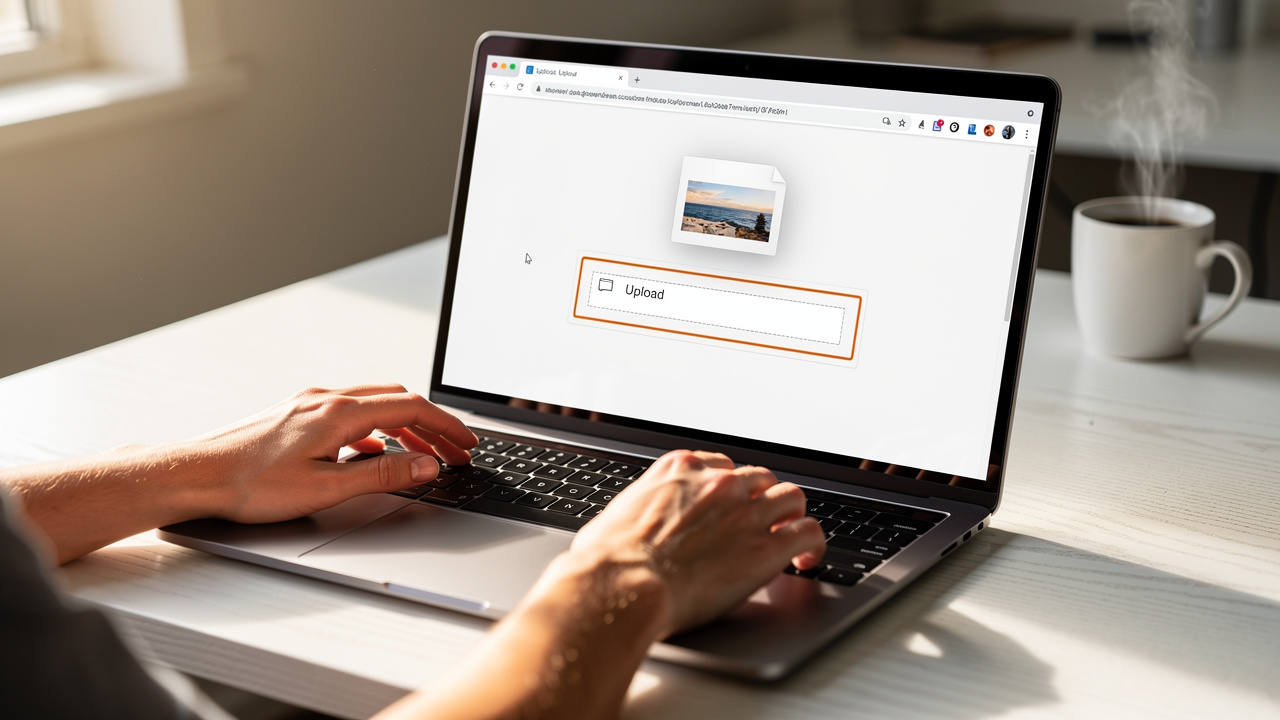
    Person uploading a JPG file in a browser on a laptop

    Knowing how to convert JPG to PDF shouldn’t require tech skills. With iLovePDFKit, the whole process feels as simple as attaching a file to an email—no installs, no accounts, and no confusing menus.

    Here’s how to convert JPG to PDF with iLovePDFKit in four quick steps.

    1. Open The Tool
      Open a modern browser such as Chrome, Safari, Firefox, or Edge and go to iLovePDFKit. On the homepage, choose the JPG to PDF converter. Because everything runs in the browser, it works on Windows, macOS, Linux, Chromebooks, and mobile devices without extra apps.

    2. Upload Your JPG
      On the JPG to PDF page, the upload area is front and center. You can:

      • Drag your JPG file from a folder and drop it into the upload zone, or

      • Click the button to browse your computer, phone, or tablet.

      iLovePDFKit also accepts other image formats, but starting with JPG keeps the process fast and straightforward.

    3. Let Conversion Run Automatically
      As soon as the image finishes uploading, iLovePDFKit starts converting it. There are no settings you must change unless you want fine control. The tool reads the image and builds a clean PDF page that matches the original resolution, colors, and layout. Even large photos usually convert in just a few seconds.

    4. Download Your PDF
      When conversion is done, a download button appears. Click it and save the new PDF file wherever you prefer—Downloads, Desktop, cloud storage, or a project folder. The file opens in any standard PDF reader and is ready to send to a teacher, upload to a portal, or attach to an email.

    Pro tip – If you need to know how to convert JPG to PDF for a whole stack of images, iLovePDFKit can process them all at once. Upload several JPG files together and it creates one organized, multi-page PDF in a single pass.

    These same steps work on iPhone and Android devices. Open the browser, visit iLovePDFKit, choose the JPG from your photo gallery, convert, and download. There’s no app to install, which is a real help when storage space is limited.

    Why iLovePDFKit Is The Best Free JPG To PDF Converter

    Professional office setup with documents ready for secure PDF conversion

    There are many tools that claim to show how to convert JPG to PDF, but they often add friction. Some hide limits behind “free trial” buttons, others stamp watermarks on every page, and many push account creation before you can even upload a file. iLovePDFKit keeps things simple and fair.

    “Simplicity is the key to brilliance.”
    Bruce Lee

    Here’s what sets iLovePDFKit apart:

    • Truly Free To Use
      iLovePDFKit is free for everyone—students, teachers, freelancers, and small teams. There are no surprise paywalls, no credits to manage, and no “premium” options suddenly appearing after a few conversions. Every file goes through the same clean process with no watermark on the final PDF.

    • High-Quality Output
      When you send an image through iLovePDFKit, the converter works to keep every detail sharp. Text stays readable, small elements in photos remain clear, and colors don’t wash out. If the input JPG looks good, the exported PDF will look just as good, whether it’s a research scan, a receipt, or a design preview.

    • No Sign-Up Or Installation
      You can arrive at the site, learn how to convert JPG to PDF in seconds, and finish the task without creating an account or installing software. This makes it ideal for shared computers, school devices, or quick one-off tasks where you don’t want to leave personal data behind.

    • Privacy And Security First
      Files travel over encrypted connections during upload and download, which helps protect sensitive information. iLovePDFKit follows a clear no-file-storage approach: documents are removed from servers soon after processing. The team sums this up with a simple idea: the safest data is the data we don’t keep.

    • Works Across All Your Devices
      Because everything runs in the browser, the same tool works on phones, tablets, and computers. A student can convert notes on a phone, an office worker can create PDFs from scans on a desktop, and a freelancer can finalize a project on a laptop at home.

    Here is how iLovePDFKit compares with typical converters:

    FeatureiLovePDFKitTypical Converters
    Free To Use✅ Always⚠️ Limited or paid
    No Watermarks✅ Yes❌ Often added
    No Registration✅ Yes❌ Often required
    Files Deleted After Use✅ Shortly after processing⚠️ May be stored
    Mobile Friendly✅ Fully⚠️ Varies

    For anyone wondering how to convert JPG to PDF without stress, these points make iLovePDFKit a reliable first choice.

    How To Combine Multiple JPGs Into One PDF

    Multiple image files combined into one organized PDF document

    Very often, the question isn’t only how to convert JPG to PDF, but how to create one clean file from many images. Think of:

    • A multi-page assignment photographed page by page

    • A stack of receipt photos for an expense report

    • A project portfolio saved as several pictures

    iLovePDFKit makes it easy to bring all those images together in a single multi-page PDF.

    Method 1 — Upload Multiple Files At Once

    On the JPG to PDF page, you can select more than one image during upload:

    • On a computer, hold Control (Windows/Linux) or Command (macOS) while clicking files.

    • On a phone, pick several photos from your gallery.

    Drag them into the upload area or choose them through the file picker. iLovePDFKit shows the images in order and prepares one combined PDF. Before converting, you can reorder pages simply by dragging the thumbnails, which makes it easy to fix anything that ended up out of order. After that, click to convert and download one complete document instead of many single-page files.

    This is the fastest option when you already know how to convert JPG to PDF and just want to bundle a group of images into one document.

    Method 2 — Convert Then Merge With Other Files

    Sometimes you need more control, especially when mixing images with other documents. In that case:

    1. Convert each JPG to its own PDF using the JPG to PDF tool.

    2. Open the Merge PDF tool on iLovePDFKit.

    3. Add your newly created PDFs, plus any Word, Excel, PowerPoint, or existing PDF files.

    4. Arrange pages in the order you want and merge them into one final report.

    This method works well for combining scanned signatures, photo pages, and office documents into a single, professional-looking PDF.

    iLovePDFKit is more than a simple JPG to PDF converter. The same site lets you merge, split, compress, and convert between formats including Word, Excel, PowerPoint, PNG, and PDF. That makes it a handy online workspace whenever you’re dealing with files in different formats.

    Time-saving tip – When scanning or photographing pages, store them in the right order in one folder or album before upload. That way, combining them into a neat multi-page PDF in iLovePDFKit takes only a few quick clicks.

    “Details are not details. They make the design.”
    Charles Eames

    Keeping pages straight and readable may seem small, but it makes a big difference to the person who opens your final PDF.

    Conclusion

    Changing an image into a clean, shareable document doesn’t need to be hard. Once you learn how to convert JPG to PDF with iLovePDFKit, it becomes a quick task you can handle from almost any device in under a minute.

    iLovePDFKit stays free, fast, and simple to use. There are no sign-ups, no credit card forms, and no watermarks on your files. The converter keeps high visual quality, so assignments, receipts, and project pages look sharp and professional. Security stays strong as well, thanks to encrypted connections and a no-file-storage policy that removes documents soon after processing.

    There’s no reason to struggle with clunky software or limited free trials. Ready to convert a JPG to PDF right now? Open iLovePDFKit in a browser, drop in the image, and see how quick and easy the process can be.

    FAQs

    Is It Really Free To Convert JPG To PDF With iLovePDFKit?
    Yes. iLovePDFKit is free to use and doesn’t ask for hidden fees, subscriptions, or credit card details. You can learn how to convert JPG to PDF, run the conversion, and download clean files without watermarks every single time.

    Will My Image Lose Quality When Converted To PDF?
    No. iLovePDFKit is designed to keep strong visual quality during conversion. The PDF preserves the original resolution, sharpness, and colors from the JPG. If the source image is clear, the converted PDF will look just as clear on screen and on paper.

    Can I Convert JPG To PDF On My Phone?
    Yes. Open a mobile browser such as Safari on iPhone or Chrome on Android, go to iLovePDFKit, and choose the JPG from your photo gallery. The steps for how to convert JPG to PDF on a phone match the desktop process: upload, wait a few seconds, then download the ready PDF.

    Is It Safe To Upload My Files To iLovePDFKit?
    Yes. Safety is a main focus. Files are sent over secure, encrypted connections, which protects them during upload and download. iLovePDFKit follows a strict no-file-storage policy, so documents are removed from servers shortly after processing. No account is required and no unnecessary personal data is stored, which makes the tool suitable for contracts, receipts, academic work, and other private documents.

  • How to Extract Pages from PDF Files Online Free

    How to Extract Pages from PDF Files Online Free

    Introduction

    A giant PDF can feel like a packed binder on a desk when the only thing that matters is one chapter, one invoice, or one slide. Maybe the file holds a 300‑page textbook or a long client contract and the task is simple: the goal is to extract pages from PDF and keep just the parts that matter.

    To extract pages from a PDF means to pull out specific pages and save them as a separate, clean file. The original document stays the same. That way a student can send only the chapter they need to review, an office assistant can send one invoice, and a freelancer can share a single polished proposal page instead of a bulky bundle.

    The problem is that many tools turn this simple task into a headache. Paywalls appear after one use, random limits block, or a signup screen demands an email and password before anything happens. On some computers, installing software is not even allowed, and some tools add watermarks that look unprofessional.

    iLovePDFKit removes all that friction. Its Delete PDF Pages tool runs right in the browser, costs nothing, and never asks for registration. In this guide, the steps to extract pages, the features that matter in any PDF page extractor, and the way iLovePDFKit protects files will be clear. By the end, that huge PDF will feel simple and under control.

    Key Takeaways

    • Fast Browser-Based Extraction: It is possible to extract pages from a PDF in just a few seconds through a browser without any software download. The whole process stays simple and clear from start to finish, even when the original file is very large.

    • No Account Required: iLovePDFKit lets anyone extract pages instantly for free with no account and no email form. Every visit works as a fresh session with no profile to manage. That keeps the task fast and private at the same time.

    • Batch Deletion For Long Files: Batch deletion in iLovePDFKit makes long documents much easier to handle by removing many pages. That saves time for big textbooks, slide decks, or monthly reports so the final file holds only the pages that matter.

    • Safe Handling And Encryption: Files move through SSL‑protected connections and leave iLovePDFKit servers shortly after processing. Free tools like this already cover almost every daily need, so there is no need for a paid plan in most cases. Users get safe, quick, and reliable results.

    What Does It Mean to Extract Pages from a PDF?

    To extract pages from a PDF means to pick certain pages out of a larger file and save them in a new document. The original file does not change at all. The tool reads the big PDF, copies the chosen pages, and creates a second file that contains only those pages.

    There are two main ways this new file can look.

    • Single Combined PDF is the most common choice. This option groups several selected pages into one new document. The pages can sit next to each other in the original file or be far apart. It works well for custom study guides, short reports taken from long research papers, or a handout built from several parts of a slide deck. The layout, fonts, and images stay the same as in the source file.

    • Individual PDF Files give more control for record‑keeping. Each chosen page turns into its own single‑page PDF. This setup fits tasks such as filing separate invoices, receipts, or scanned forms that first came in one big scan. It makes it easier to label and store each record by date, client, or project.

    This simple action shows up in many real situations:

    • A student might pull out three chapters from an ebook to keep a lighter file on a tablet.

    • A lawyer can share only the key clauses of a contract with a client.

    • An office worker can send a single pay stub instead of a full payroll report.

    • A freelancer can share one strong portfolio page without sending the whole archive.

    In every case, PDF page extraction keeps the original file safe while giving a focused document that saves time for both sender and reader.

    How to Extract Pages from a PDF with iLovePDFKit

    Person selecting PDF pages on a laptop browser interface

    iLovePDFKit centers its Delete PDF Pages tool on a clear idea: by deleting the pages that are not needed, the pages that should stay form a clean new PDF. In practice this works as a simple way to extract the important pages without editing anything by hand.

    The whole process follows four easy steps.

    1. Upload Your PDF
      Open iLovePDFKit in any modern browser on a computer, phone, or tablet. The main area shows a clear zone where the file can move. Drag and drop the PDF into that zone or click once to choose it from local storage. There is no need to create an account or enter any personal data before the file loads, and large files upload just like small ones.

    2. Preview and Select Pages
      After upload, the tool shows a grid of page thumbnails along with a larger preview. This layout makes it simple to see which pages belong to a chapter, an invoice, or a slide section. Click on the pages that should go away and mark several at once through batch deletion support, even when the pages are far apart in the document. This method works very well for long documents because large blocks can vanish in only a few clicks.

    3. Delete Unwanted Pages
      Once the pages to remove are marked, check the preview to make sure the pages left behind are the ones needed. Then press the process button to start. iLovePDFKit runs an optimized engine that finishes the task in a short time even when the file has many pages or heavy images. The pages that stay form the base for the new PDF file.

    4. Download Your New PDF
      When the process ends, a clear download option appears on the screen. The new PDF now holds only the pages that were kept. Click to save this file to the device or pass it on through email, chat, or a learning platform. No sign‑up blocks this step and no hidden paywall appears after one or two uses.

    This workflow fits school computers, office machines, and any shared device because no software install is needed at any point. The tool runs fully in the browser on Chrome, Edge, Safari, Firefox, and other common options.

    For very long reports or slide decks, a helpful method is to use batch deletion to mark many unwanted pages at once. This often cuts the task from many minutes of clicking into a quick pass that feels much easier to handle.

    “Simplicity is the ultimate sophistication.” — Leonardo da Vinci

    That idea sits at the core of tools like iLovePDFKit: a clear layout, a few buttons, and no distractions.

    Key Features to Look For in a PDF Page Extractor

    Tablet displaying PDF page thumbnail grid for preview and selection

    Not every tool that claims to extract pages from a PDF gives the same experience — a comparison of best AI tools for parsing PDF documents shows just how widely quality and features can vary. Some hide simple features behind sign‑up walls while others change the look of the file. A short checklist makes it easier to pick a tool that matches real needs, and iLovePDFKit follows this list closely.

    • No Forced Sign‑Up Or Accounts
      A strong PDF page extractor does not force a sign‑up step before any work starts. The best tools let a person land on the page, move a file, and start to work right away. iLovePDFKit treats each visit as a clean session, so there is no profile, no inbox spam, and no password to remember for simple daily tasks.

    • Browser‑Based Access On Any Device
      Browser‑based access matters just as much as speed. A tool that runs in the browser removes worries about system rules on work or school devices. iLovePDFKit works on Windows, macOS, Linux, Chromebooks, and mobile devices without any install or admin rights.

    • Accurate Page Preview
      Clear page preview makes mistakes far less likely. A good tool shows a full grid of thumbnails and a larger view of any page that gets clicked. iLovePDFKit follows this pattern so users can see text, charts, and images before they decide which pages stay or leave. That way, there is no need to repeat the task because the wrong slide vanished.

    • Batch Page Selection
      Batch page selection is another key factor. When a file has hundreds of pages, clicking one by one can wear anyone down. With iLovePDFKit, several pages can be marked in one go, which saves a lot of time for long reports, theses, or pitch decks.

    • Speed Without Queues
      Speed also plays a large role in daily work. A slow queue that asks a person to wait every time breaks the flow of a busy day. iLovePDFKit runs fast, even with image‑heavy files, so the new PDF usually appears within seconds.

    • High Output Quality
      Last, output quality should never drop. Fonts, spacing, images, and colors must look the same as in the original. iLovePDFKit keeps this pixel‑perfect style so an extracted chapter, slide set, or invoice looks just as professional as the full document.

    For a quick overview, these features line up like this:

    FeatureWhy It Matters For PDF Extraction
    No sign‑upKeeps quick tasks from turning into account management
    Browser accessWorks on locked‑down school or office machines
    Page previewReduces mistakes before deleting pages
    Batch selectionSpeeds up work on long documents
    Fast processingFits into busy study or work days
    High quality fileKeeps pages ready for printing or sharing

    Is It Safe to Extract PDF Pages Online?

    Digital padlock symbolizing secure PDF file encryption online

    Many people hesitate before they upload a contract, grade report, or client invoice to any online tool, and research such as SciDaSynth: Interactive Structured Data extraction studies highlights how sensitive structured document data can be when processed through external systems. That concern makes sense. These files often hold personal data, money details, or private project notes, so safety can never be an afterthought.

    iLovePDFKit handles this concern by using SSL encryption for file transfer. This means that when a PDF moves between the device and the service, the content travels through a protected channel. Outside parties cannot read the data in transit, and the same layer of protection appears again when the new file comes back for download.

    “If a tool keeps your documents longer than needed, treat that as a warning sign.” — Common advice in data privacy training

    File handling after the task ends matters just as much. iLovePDFKit follows a no‑file‑storage policy. Both the original PDF and the processed version leave the servers shortly after the operation finishes. They do not sit in long‑term storage, and there is no archive that can be browsed later. This follows a simple idea that guides the platform and says “The safest data is the data you never store.”

    Because the service does not ask for accounts, there is also no central user profile. The tool does not keep a list of processed files, file names, or activity linked to a person. This mix of no account, short‑term file handling, and encrypted transfer makes the tool a good fit for sensitive work.

    With this setup, students can work with transcripts or assignment PDFs without worry. Office staff can handle contracts, invoices, and HR files in a safe way. Freelancers and small business owners can move client proposals and briefs through the tool knowing they will not land in a permanent database.

    Conclusion

    Professional woman efficiently managing PDF documents at her desk

    Extracting pages from a PDF should not feel hard, expensive, or risky. It is a simple task that helps cut big files down to the parts that matter most while the original stays intact. There is no good reason to trade an email address or a credit card just to pull out one chapter or one invoice.

    iLovePDFKit makes this process clear and stress free. The Delete PDF Pages tool runs in any browser, processes files in seconds, and keeps the look of every page sharp and accurate. Batch deletion handles long documents with ease, while SSL encryption, a no‑file‑storage policy, and the lack of user accounts protect privacy.

    There is no need to wait. Open iLovePDFKit, load a PDF, and try the Delete PDF Pages tool right away. No sign‑up, no download, and no cost stand between that bulky document and a clean, focused file ready to share.

    FAQs

    Is it really free to extract pages from a PDF with iLovePDFKit?
    Yes, iLovePDFKit lets users extract pages for free through the Delete PDF Pages tool. There are no hidden fees that appear after a few uses. A subscription is not needed for normal page extraction tasks. The core function stays open every time.

    Will extracting pages modify or damage my original PDF?
    No, the original file stays exactly the same. iLovePDFKit reads the source PDF, then creates a fresh file with only the pages that were kept. The result is two files instead of one and both stay clear and readable. This makes it safe to test different extractions without fear.

    Do I need to install any software to extract PDF pages?
    No, there is no install step at all. iLovePDFKit works fully in the browser on laptops, desktops, tablets, and phones. This fits school labs, office computers, and shared devices where software installs are blocked. As long as a modern browser is available, extraction can start.

    How does iLovePDFKit protect my files when I upload them?
    Files move between the device and iLovePDFKit through SSL‑encrypted connections, which keeps the content private in transit. After processing, both the original and the new PDF leave the servers in a short time, so there is no lasting archive. The service does not use accounts, so there is no personal profile or document history either. This setup makes the tool safe even for contracts, invoices, and academic records.

  • How to Convert PDF to Word Without Losing Format

    How to Convert PDF to Word Without Losing Format

    Introduction

    Picture this. A polished PDF report lands in the inbox. It looks perfect. Then there is a need to edit a few lines, so the next move is to look up how to convert PDF to Word. The file converts, opens in Word, and suddenly the tables break, fonts change, and images slide into strange places.

    This happens because a PDF works like a snapshot of a page. Everything is locked into position. A Word document is more like a flexible canvas that moves as text is added or removed. When a tool tries to move from one style to the other, the layout has to be rebuilt, and that is where things often go wrong.

    The good news is that lost formatting is not a rule. With the right tool, how to convert PDF to Word with clean fonts, neat tables, and lined-up images becomes very simple. At iLovePDFKit, we built a free, browser-based PDF to Word converter that focuses on page-accurate output, works on any modern browser, and does not ask for registration. In this guide, we walk through a fast three-step process, explain why formatting sometimes breaks, show how OCR helps with scanned files, share real-world use cases, and talk about staying safe when converting sensitive documents.

    “Formatting should help the reader, not fight them.”
    This simple rule guides every good document conversion.

    Key Takeaways

    This quick summary helps before diving deeper into how to convert PDF to Word without losing formatting.

    • Formatting often breaks when people learn how to convert PDF to Word with weak tools. A better converter carefully reads fonts, layouts, and tables. That level of care keeps the Word file very close to the original and cuts down the time spent fixing small errors by hand.

    • iLovePDFKit gives a free, browser-based way to handle how to convert PDF to Word. There is no sign-up step and no software to install. The tool aims for near pixel-perfect layout in seconds and works smoothly on laptops, phones, and tablets.

    • Scanned or photo-based PDFs need OCR for clean results when learning how to convert PDF to Word. OCR turns picture text into real text that Word can edit. iLovePDFKit includes OCR in the same simple interface, so one tool can handle both standard and scanned PDFs.

    How To Convert PDF To Word In 3 Simple Steps

    Woman converting PDF files on laptop at desk

    When people look up how to convert PDF to Word, they usually want the fastest path that still keeps the layout intact. With iLovePDFKit, the whole process stays inside the browser, works on any device, and never asks for an account. Everything takes just three clear steps.

    1. Upload The PDF To iLovePDFKit
      Start by heading to the iLovePDFKit PDF to Word page in a browser such as Chrome, Firefox, Safari, or Edge. Click the button that lets a file be selected, then choose the PDF from the device. Another option is to drag the file from a folder and drop it into the upload area. Either way, the upload is quick, even for longer reports or homework files.

    2. Start The Conversion And Let The Engine Work
      Once the file is in place, iLovePDFKit begins to handle how to convert PDF to Word right away. The engine scans the PDF, finds headings, paragraphs, tables, images, and even multi-column layouts, then rebuilds them in DOCX format. For most files, this takes only a few seconds. There is no need to adjust any settings, so the process stays friendly for every skill level.

    3. Download The New Word Document
      As soon as the conversion is ready, a clear download button appears. A click saves the DOCX file to the device with no email, account, or payment step in the way. The new Word document opens in Microsoft Word, Google Docs, or any compatible editor and is ready for direct editing, comments, and sharing.

    From the first upload to the final download, iLovePDFKit handles how to convert PDF to Word while also caring about privacy. Files move over encrypted connections, and they are cleared from the servers after the work is finished.

    Why Formatting Gets Lost — And How To Prevent It

    Document formatting preserved after PDF conversion on screen

    To understand how to convert PDF to Word without a messy result, it helps to know why things sometimes go wrong. A PDF is fixed in place. It stores where every letter, image, and line should appear on the page. A Word file, on the other hand, lets text wrap and move as lines are edited. During conversion, a tool must read the fixed layout and then rebuild it as flexible content.

    If a converter uses simple rules, small errors stack up:

    • Headings may slide away from the paragraphs they belong to.

    • Tables can lose borders or merge cells that should stay apart.

    • Images drift away from their captions or move to the next page.

    • Multi-column pages may flatten into one long column.

    • Missing fonts may be swapped with plain system fonts.

    These changes create that “broken” feeling when people first test how to convert PDF to Word.

    We built iLovePDFKit to reduce these problems as much as possible. The engine pays close attention to font sizes and styles, table lines, image positions, margins, and even page count. The goal is a Word file that looks almost the same as the original PDF, so only light editing is needed.

    To make this clearer, here is a quick comparison:

    Common Formatting ProblemWhat A Good Converter Tries To Do
    Headings shift or change sizeDetect heading styles and keep them aligned with paragraphs
    Tables lose cell structurePreserve rows, columns, and borders in an editable table
    Images move to random positionsKeep image size and placement close to the original
    Fonts look differentMatch original fonts or use close substitutes consistently

    Scanned PDFs bring a different challenge, since they are just images of pages. Without extra help, a converter cannot see real text in those files. That is why OCR matters so much when learning how to convert PDF to Word. We include OCR in iLovePDFKit so scanned pages can turn into editable Word text. After any conversion, it is still smart to give the file a quick scan before sending it to a teacher, client, or manager.

    “If you care about how a document reads, you also have to care about how it looks.”
    Good conversion is part of that visual care.

    What Is OCR And When Do You Need It?

    Office scanner converting paper document for OCR processing

    OCR stands for Optical Character Recognition, and it plays a big part in how to convert PDF to Word when the file is a scan. Instead of starting with real text, a scanned PDF is more like a photo of each page. A normal converter only sees pixels, not letters or words.

    OCR acts like a reader that looks at each letter shape and matches it to real characters. It turns the picture of text into actual text that Word can edit, search, and copy. This matters any time a contract was printed and scanned, an old book was digitized, or homework was photographed and saved as a PDF.

    You will usually need OCR when:

    • The PDF looks like a set of photos or scanner pages.

    • Text cannot be selected or copied in the PDF viewer.

    • The file comes from a camera, phone, or office scanner.

    When someone tries to learn how to convert PDF to Word for a scanned syllabus, invoice, or academic paper, they need OCR for a clean result. iLovePDFKit includes OCR inside the same simple workflow, so there is no need to switch tools or learn new menus. A scanned invoice, for example, can turn into an editable Word file where amounts, dates, and names can be changed in seconds.

    When And Why You’d Convert PDF To Word — Real-World Use Cases

    Students and professionals editing documents in co-working space

    Many people search for how to convert PDF to Word only when a deadline is close. Seeing everyday cases can help spot chances to save time earlier. Students, office staff, and small business owners all deal with PDFs that would be easier to handle in Word.

    • Students And Academics
      Research papers, journal articles, and lecture notes often arrive as PDFs. Converting them to Word makes it easy to copy quotes, add comments, or mix sections into essays and reports. Some schools also share assignment templates in PDF form, and turning those into Word lets fields be filled and layouts adjusted. This keeps focus on content instead of retyping long passages.

    • Office Professionals And Admin Staff
      Contracts, HR policies, and internal forms are usually stored as PDF files. When details change, nobody wants to rebuild a document from scratch. Knowing how to convert PDF to Word with iLovePDFKit turns these fixed documents into editable files in seconds. Teams can update clauses, dates, or rules, then export back to PDF for sharing with staff or clients.

    • Freelancers And Small Business Owners
      Service quotes, invoices, brochures, and product sheets often start as PDFs. Converting them to Word allows prices, logos, and branding to be updated quickly for new clients. Old paper or scanned forms can also be rebuilt as modern digital templates. Alongside PDF to Word, iLovePDFKit offers tools such as PDF to Excel and PDF to PowerPoint, which helps when sales data or slide decks also need edits.

    In all these cases, having a clear method for how to convert PDF to Word can cut hours of manual typing down to a few clicks.

    Is It Safe To Convert PDF To Word Online?

    Metal padlock on laptop symbolizing secure document conversion

    Anyone who looks up how to convert PDF to Word with real work files will wonder about safety. Uploading contracts, grades, or billing records to a website can feel risky if the platform is unknown. That concern is healthy, and it helps to know what a safe tool looks like.

    First, a trusted converter uses encrypted connections. When iLovePDFKit processes a file, the data moves over secure HTTPS links so outsiders cannot read it in transit. Second, files should not sit on servers for long periods. Our service clears both the original PDF and the converted Word file after the task is done, so they do not stay online.

    Another good sign is how much personal data is requested. With iLovePDFKit, there is no account, email, or credit card needed just to handle how to convert PDF to Word. This means there is no profile to track and no payment details at risk. The tool is also free to use, with no surprise paywalls in the middle of a rush job.

    For any online converter, people can check a few simple things — tools like the Free PDF to Word converter from Systweak are examples of services that publish clear policies around file handling and security.

    Security FeatureWhat To Look For When Converting PDFs Online
    HTTPS ConnectionA lock icon in the browser bar and an address starting with https
    File Deletion PolicyA clear statement that files are removed after processing
    Data CollectionMinimal personal data requested for basic conversions
    Transparent TermsA readable privacy policy and terms of service

    We designed iLovePDFKit with students, freelancers, and office teams in mind, so security is part of the core design rather than a hidden setting.

    Tip: Treat any converter that asks for lots of personal data for a simple file task with extra caution.

    Conclusion

    Learning how to convert PDF to Word without wrecking the layout does not have to be hard. Once the difference between fixed PDFs and flexible Word files is clear, the rest comes down to picking a careful, modern tool. That is where iLovePDFKit comes in.

    Our online converter focuses on accurate output, keeps the service free and registration-free, and protects each file with encrypted transfer and quick deletion. Built-in OCR makes it easy to turn scanned pages into real, editable text as well. The next time a report, contract, or homework file needs edits, head to iLovePDFKit, drop in the PDF, and let the tool handle how to convert PDF to Word while the focus stays on the actual work.

    FAQs

    Question 1. Can I Convert A PDF To Word Without Losing Formatting For Free?

    Yes. With iLovePDFKit, people can handle how to convert PDF to Word at no cost. There is no need for an account, payment card, or software download. The converter is designed to keep fonts, images, and tables close to the original layout. Everything runs in the browser on almost any device.

    Question 2. Why Does My PDF Look Different After Converting It To Word?

    A PDF keeps every item fixed, while a Word file lets text move and wrap. When a weak tool handles how to convert PDF to Word, it may guess wrong about fonts, tables, or image positions. That is why headings may shift or tables may break. iLovePDFKit uses a smarter layout engine that works hard to keep the converted file aligned with the original.

    Question 3. Can I Convert A Scanned PDF To An Editable Word Document?

    Yes, as long as the tool supports OCR. Scanned PDFs and photo PDFs only contain images of text, not real characters. When a person tries how to convert PDF to Word without OCR, they only get pictures in the DOCX file. iLovePDFKit includes OCR, so scanned contracts, invoices, or handouts become searchable and editable Word documents.

    Question 4. Is It Safe To Upload Sensitive Documents To An Online PDF Converter?

    Safety depends on how the site handles data. Before using any service for how to convert PDF to Word, check that the page uses HTTPS and read the privacy policy. iLovePDFKit processes files over encrypted links and clears them after conversion. Since no account is needed, there is very little personal data in play, which keeps the process simple and private.

  • Editing PDF Documents for Free with iLovePDFKit

    Editing PDF Documents for Free with iLovePDFKit

    Introduction

    We all know the moment when a deadline is close and a PDF gets in the way. A student has to fix one line in an essay, an office worker spots an error in a contract, or a freelancer needs to swap a price in a proposal. There is no time to search, compare tools, or fight with a sign-up form. Editing PDF documents for free feels like it should be simple, yet it often is not.

    Most sites make a promise, then hide what matters. They ask for an account, push a free trial, or lock the real tools behind payment walls. Instead of just editing PDF documents for free, people end up sharing emails, payment details, and personal data for a task that takes just a couple of minutes.

    “PDF is a universal file format that preserves fonts, images, and layout of any source document.” — Adobe

    That reliability is exactly why PDFs are everywhere, and why a smooth, free PDF editing option matters so much.

    We built iLovePDFKit for the opposite experience. Our tools focus on fast, accurate work with no account, no cost, and no stored profiles. You open the site, choose what you need, and you are already close to the download step. Editing PDF documents for free becomes a normal, everyday task instead of a headache.

    In this guide we walk through what is possible when editing PDF documents for free with iLovePDFKit, how the process works step by step, and how your files are handled from a privacy point of view. By the end, it should feel easy to move between formats, clean up pages, protect files, and get back to real work in just a few clicks.

    Key Takeaways

    • Free online tools make editing PDF documents for free simple for quick fixes and full document changes without any software install. With iLovePDFKit everything runs in the browser, and the tools stay open to everyone without hidden pay walls. This keeps basic document tasks fast for school, work, or business.

    • iLovePDFKit gives access to conversion, page control, and security tools with no sign-up at any point. People upload a file, wait a short moment while our engine works, then download the result straight to their device. The whole path from upload to download usually finishes in only a few minutes.

    • Files pass through our servers only while they are processed, then they are cleared to reduce exposure. This setup supports students, office staff, and freelancers who care about privacy but still want editing PDF documents for free on laptops, tablets, and phones.

    What Can You Actually Do When Editing PDF Documents for Free?

    Overview of PDF editing tools on a clean workspace

    When people think about editing PDF documents for free, they often picture typing directly on the page in the browser. Many tools keep that feature for paid plans. With iLovePDFKit we focus on a smarter path that still gives full control over text and layout. We convert your PDFs into formats that are easy to edit, then you send them back to PDF once the changes look right.

    The core of this method is our PDF to Word tool. It turns a static PDF into an editable Word file while holding on to fonts, styles, images, and page layout with pixel-perfect accuracy. After that, editing PDF documents for free becomes the same as working in Word. You correct lines, move sections, or replace pictures, then save back to PDF for sharing or upload.

    We follow this same idea for other file types. With PDF to Excel, tables and data move into real Excel sheets where formulas and sorting are easy. PDF to PowerPoint changes each PDF page into editable slides so that students and professionals can adjust bullet points, swap images, or add speaker notes in a normal slide deck. Editing PDF documents for free is no longer stuck in one format.

    • For content editing you can move in both directions between PDF and other formats. PDF to Word, Excel, and PowerPoint help open up the content so people can rewrite or reshape it. After the work is done, the Word to PDF, Excel to PDF, and PowerPoint to PDF tools turn everything back into clean, shareable PDFs.

    • For page management we provide focused tools that save time during editing PDF documents for free. Delete PDF Pages uses a visual page grid so people can see each page and remove the ones they do not need. Our Add Page Numbers tool lets you place numbers at the top or bottom and choose the style that fits the document.

    • For media and images we help people move between PDF and picture files without any cost. PDF to JPG turns each page into a high quality image for slides, web upload, or design work. JPG to PDF then combines one or many pictures into a single, neat PDF, handy for receipts, scanned notes, or photo sets.

    On the security side, iLovePDFKit also includes the Protect PDF feature. This lets people set a password before they send files to clients, teachers, or partners, which adds control when editing PDF documents for free and then sharing the result. All of these tools stay open and free, with no trial period, no feature caps, and no hidden fees.

    “The best tools are almost invisible: they let you focus on the work, not the software.” — Common productivity advice

    How to Edit a PDF Document for Free Using iLovePDFKit

    Step-by-step PDF editing process on a laptop

    Now we can walk through how editing PDF documents for free works in practice with iLovePDFKit. The same simple flow applies whether someone needs to fix text, manage pages, or protect a file before they send it on. There are no forms, no email checks, and no credit card steps in between.

    First, decide what kind of change is needed. If the goal is to correct text or move parts of a report, start with PDF to Word. If a person only wants to cut pages, add page numbers, or set a password, the Delete PDF Pages, Add Page Numbers, and Protect PDF tools are better fits. Choosing the right tool is the only decision needed before the real work of editing PDF documents for free begins.

    1. Choose the right tool and open the iLovePDFKit page in a browser on a computer or phone. The home screen shows all tools in clear groups such as convert to PDF, convert from PDF, pages, and security. Click the tile that matches the task so the upload view appears with brief text that explains what the tool does.

    2. Upload the PDF from the device or cloud storage and wait for a short moment. People can drag a file into the window or click the central button to browse folders. The upload bar gives direct feedback, and most normal files move into the system in a few seconds. There is no need to sign in before this step.

    3. Let iLovePDFKit process the file and prepare the new version for download. Our engine works in real time while the browser shows a progress status, so people are not left guessing. With conversion tools, we create a new Word, Excel, PowerPoint, or image file that mirrors the layout of the original PDF. With page tools, the interface presents a live preview of each page.

    4. Download the result straight to the same device and continue the task. For conversion tools, open the Word or other output file in local software and finish editing PDF documents for free without any watermark or lock. For tools that change the PDF directly, the new PDF is ready to share as soon as the download completes.

    To keep this smooth:

    • Have the file ready in an easy-to-find folder before you start.

    • Check the output quickly after download so any small issues can be fixed right away.

    • Keep the original PDF as a backup in case you want to compare versions.

    This full path often takes less than five minutes, even for long homework tasks or detailed business reports. The same steps work on Chrome, Firefox, Safari, Edge, and other modern browsers on both Windows and Mac. iLovePDFKit also runs well in mobile browsers on iOS and Android, so people can keep editing PDF documents for free when they are on the move.

    Is It Safe to Edit PDF Documents Online for Free?

    Professional woman safely editing PDF documents online

    Questions around privacy are normal any time a file is sent through the web. School assignments, invoices, and contracts can all hold personal details that people do not want drifting around on random servers. So it is fair to ask how safe editing PDF documents for free can be on an online platform.

    With iLovePDFKit we design the system so files are held only while they are needed. When someone uploads a PDF, our servers keep it during the short time it takes to convert, split, merge, or protect it. After the task finishes and the download link is ready, the file leaves active storage rather than staying in a long term archive. This limits how long sensitive content is present in the system.

    We also avoid accounts for simple work. Because iLovePDFKit keeps every tool open without registration, there is no stored user profile to match with a document. People who care about editing PDF documents for free without leaving a long data trail often prefer this approach. They open the page, upload a file, get the result, and leave without handing over contact details.

    The Protect PDF tool adds another layer for people who want more control after editing. Before sending a file to someone else, the user can apply a password so only the intended person can open it. This is helpful for freelancers sending proposals, staff handling client records, or students who need to submit graded work in a safe way.

    • Students gain a simple path when they send essays, lab reports, and project files online. They can work on editing PDF documents for free, set a password when needed, and upload the final version to their school portal with more peace of mind.

    • Office professionals who handle invoices, contracts, and HR forms can reduce risk. They can clean up pages, convert between formats, and protect key files without passing everything through long account setups.

    • Freelancers and small business owners who share quotes and design drafts can keep client data safer. They can rely on short term processing and password control rather than long term cloud storage linked to a personal login.

    “Treat every document you share as if it matters to someone else as much as it does to you.” — Advice often given in security training

    As with any online tool, it is wise to think carefully before uploading highly sensitive items such as passports, full medical records, or files restricted by company policy — platforms like Canva’s Free Online PDF Editor also highlight how design-focused tools handle uploads, which offers a useful contrast when evaluating privacy practices. By keeping processing short, removing the need for sign-ups, and providing password protection, iLovePDFKit gives a clear path for safe editing PDF documents for free. People keep control of their work and their data while still enjoying fast, easy tools.

    Conclusion

    Young man editing PDF documents on a smartphone in a cafe

    Editing PDF documents for free does not have to feel like a trade between price, time, and privacy. With iLovePDFKit the basic steps stay clear. Open the tool, upload the file, let the engine work, and download the new version without extra steps or surprise pay walls.

    We support conversion in both directions, so people move between PDF, Word, Excel, PowerPoint, and images while keeping layout and style close to the original. Our page tools handle jobs such as deleting pages or adding page numbers, and our Protect PDF tool adds passwords when sensitive files need extra care.

    Most important, there is no registration step and no long term profile. That means anyone can try iLovePDFKit right away and start editing PDF documents for free from a laptop, work desktop, or mobile browser. The best way to see the difference is to open a file and watch how quickly the task is done.

    FAQs

    Do I need to create an account to edit a PDF for free on iLovePDFKit?

    No account is needed at any stage when people use iLovePDFKit. Every tool is open from the moment the site loads, so editing PDF documents for free starts right away. There is no email form, password setup, or trial sign-up before upload or download.

    Can I edit the text in a PDF for free?

    Yes, although the method is different from typing straight into a PDF in the browser. With iLovePDFKit, people first use PDF to Word to turn the file into a fully editable Word document that keeps fonts, images, and layout close to the original. They then change the text and design inside Word and use Word to PDF to create a fresh, final PDF. This keeps editing PDF documents for free simple and flexible.

    Is there a file size limit for free PDF editing?

    iLovePDFKit is built for normal daily files such as essays, reports, proposals, and contracts, so those usually process with no trouble. Very large documents with many high resolution images may take longer or might not fit within practical limits. The easiest way to check is to upload a typical file and see how fast editing PDF documents for free completes.

    Can I edit a PDF on my phone without downloading an app?

    Yes, iLovePDFKit works in mobile browsers on both iOS and Android. People open the site in Chrome, Safari, or another modern browser, then follow the same upload and download steps as on a computer. This means editing PDF documents for free is possible from a phone or tablet during a commute, between meetings, or away from a desk.

  • Removing Password From PDF: Simple Methods Explained

    Removing Password From PDF: Simple Methods Explained

    Introduction

    Everyone has that moment: a deadline is close, the report is ready, and the file is stuck behind a password prompt. The document is yours, yet opening or sharing it suddenly feels harder than writing it. At that point, removing password from PDF stops feeling optional and becomes urgent.

    We see this often with students, office teams, and small business owners. A thesis draft cannot be printed, a contract cannot be edited, or a client cannot review a proposal because the PDF is locked.

    This guide walks through clear, safe ways to remove a password from a PDF that you own and are allowed to edit. We focus only on legitimate use where the current password is known. You will see how to do it with iLovePDFKit in the browser, when desktop software is a better fit, and where the hard limits are.

    Before we dive into the details, here is a short overview.

    Key Takeaways

    If you are in a hurry, these points cover what matters most when you need help with removing password from PDF.

    • PDF files use two main password types. A Document Open password stops anyone from opening the file without the code. A Permissions password lets people read the file but can block printing, copying, or editing.

    • Every safe method for removing a PDF password starts the same way: we must already know the current password, and the tool only removes it after we enter that code. No trusted service will guess or break a password for us.

    • iLovePDFKit gives fast, free, browser‑based PDF work with strong privacy. Desktop apps help when files must stay offline. Both approaches process files securely and remove them soon after the work is done.

    Understanding PDF Password Types Before You Remove Them

    Two padlocks representing different PDF password types

    Before we talk about removing password from PDF, it helps to know what type of lock you are dealing with. PDF security is not all the same. Some passwords block access to the file, while others allow reading but restrict actions like printing or editing.

    A Document Open password is the strict option. When this is set, opening the PDF always shows a prompt asking for the code. Without the right text, no one can view, print, or copy from the document. This is common for files that carry grades, salaries, contracts, or other sensitive data — and researchers have shown that even password-protected PDFs can carry risks, as outlined in this piece where Researchers Find New Hack to read content of password-protected PDF files.

    A Permissions password works differently. The file opens without a prompt, so anyone who has the PDF can read it. However, the creator can block actions such as editing, copying text, adding comments, or printing pages. To turn these limits off, you need the Permissions password inside a PDF editor or trusted tool.

    Here is a quick comparison that sums up both types:

    FeatureDocument Open PasswordPermissions Password
    Blocks file access✅ Yes❌ No
    Restricts editing or printingN/A✅ Yes
    Password needed just to view✅ Yes❌ No
    Password needed to remove protection✅ Yes✅ Yes

    Once you know which type is in use, removing a PDF password becomes clearer, and it also makes sense why every method still asks for the password at least once.

    How To Remove A PDF Password Using A Free Online Tool

    Person uploading PDF file to browser-based online tool

    For most people, the quickest way of removing password from PDF is an online tool that works directly in the browser. This avoids installing software, asking for admin rights at work, or dealing with updates. That is exactly where iLovePDFKit helps.

    iLovePDFKit is built for quick tasks that pop up during class, meetings, or freelance work. The service is free to use, does not ask for signup, and runs in any modern browser on Windows, macOS, Linux, phones, or tablets. When you remove a password from a PDF with our tool, processing happens in real time on our servers.

    Security sits at the center of this process. Files travel with SSL encryption, are stored only while the task runs, and are erased automatically right after. For tools that add protection, we use AES‑256 encryption and never store the password itself. The same care applies when we help with removing password from PDF, so documents stay private.

    Here is how the online method works, step by step:

    1. Open iLovePDFKit In Your Browser
      Visit our website from any device with internet access. There is no need to download a program or create an account. The remove password from PDF tool sits alongside our other PDF tools and is ready whenever you need it.

    2. Add Your PDF File
      Click to choose a file from your computer, or drag and drop it into the upload area. If you prefer cloud storage, you can import from services such as Google Drive or Dropbox. In every case, the file reaches us through an encrypted connection.

    3. Confirm That You Know The Password
      After upload, the tool checks the file and notices that it is protected. A prompt asks for the current password so we can continue. Enter the same password you use to open the PDF on your own device, which confirms that you are allowed to edit it.

    4. Start The Password Removal Process
      With the correct code entered, start the task with a single click on the button that removes the password. The iLovePDFKit engine reads the file, takes away the requested protection, and creates a new copy. This usually takes only a few seconds.

    5. Download The New PDF Without A Password
      When the task finishes, a clear link appears to save the fresh copy. You can store it on the local device or send it back to the same cloud drive used earlier. The new document opens without a prompt, so printing and sharing are much faster.

    iLovePDFKit processes files in seconds and deletes them right after the task finishes, so documents and passwords never stay on our servers.

    This method fits our main audiences very well:

    • Students can remove passwords from lecture notes or old assignments on shared campus computers without asking to install anything.

    • Office workers can handle protected invoices or reports directly in the browser they already have open.

    • Freelancers and small business owners get a free, fast way of removing password from PDF files from any laptop or phone.

    For most everyday files where you know the password and just want quick access, iLovePDFKit is the easiest tool to keep in mind. In the next section, we cover when desktop software makes more sense.

    How To Remove A PDF Password With Desktop Software

    Desktop computer with PDF editor security settings open

    Sometimes removing password from PDF needs to happen fully offline. This can be the case for internal company reports, medical records, or any file that workplace rules say must never be uploaded anywhere. In these cases, desktop software that runs on your own machine is the better fit.

    Popular PDF editors on desktop, such as Adobe Acrobat Pro and similar tools, can remove both types of passwords as long as you know the current code — Adobe itself offers guidance on Protecting privacy: Securely removing PDF passwords for data safety. The free Adobe Acrobat Reader can open a protected file when the password is entered, but it cannot save a new copy without that protection. For removing password from PDF, a full editor or another paid tool is usually required.

    For a PDF with a Permissions password, the steps in a desktop editor usually look like this:

    1. Open The PDF In The Desktop Editor
      Start the program and open the protected file. Because a Permissions password only limits actions, the content normally appears right away, even if editing and printing are blocked.

    2. Go To The Protection Settings
      In the toolbar, look for a section that handles security features. In Adobe Acrobat Pro this sits under Tools → Protect → Encrypt. Other editors use similar paths.

    3. Remove The Security And Confirm The Password
      Inside the security settings, choose the option that turns off protection for the current file. When the program asks for the Permissions password, type the code you already know. Once confirmed, the restrictions on editing and printing are removed.

    4. Save A Fresh Copy Of The File
      Save the PDF using Save or Save As. The new copy opens without extra prompts and allows edits, copying, and printing according to the changes you made.

    For a PDF with a Document Open password, the flow is almost the same, with one extra step at the start:

    1. Open The PDF And Enter The Password
      When you open the file, the program asks for the Document Open password before showing anything. Type the code to access the content.

    2. Go To The Same Protection Menu
      Once the file is open, use the same path to reach the security settings, such as Tools → Protect → Encrypt, and choose the option that turns off security.

    3. Confirm Removal And Save
      The editor may ask if you really want to remove the password. After you agree, save a new copy. From then on, that PDF opens without a password request.

    Desktop software keeps the entire process on your computer, which can be important when company policy is strict. It often includes extra tools like redaction, form editing, and batch work. The trade‑off is cost and the need to use the same device where the software is installed.

    When You Cannot Remove A PDF Password — Key Limitations

    Heavy vault door representing PDF password removal limitations

    With all this talk about removing password from PDF, it is important to be clear about what cannot be done. Trusted tools, online or offline, must respect the limits set by file owners, laws, and security standards. That is why the same simple rule appears again and again: we must know the current password, and some special types of protection cannot be removed at all.

    “Security is a process, not a product.” — Bruce Schneier

    Here are the main limits that matter in practice:

    • 🔒 Forgotten Passwords
      When a password is forgotten, regular tools cannot help. They always ask for the code first, even if you only want to take the lock away. This protects sensitive information from being opened by guesswork. In business settings, an IT team may hold backup copies of important passwords.

    • 🏢 Server‑Based Security
      Some PDFs use server‑based security that comes from a central system. Large companies and public offices often protect documents in this way. Only an administrator or the person who set up the policy can change or remove it. Web tools like iLovePDFKit and home software cannot override these rules.
    • ✍️ Digitally Signed Or Certified PDFs
      Many official PDFs carry digital signatures or certificate‑based locks. These features prove that the file has not been changed since the signer approved it. Taking away the password would damage that proof, so trusted tools simply refuse to do it. The only safe path is to ask the signer for a new version.
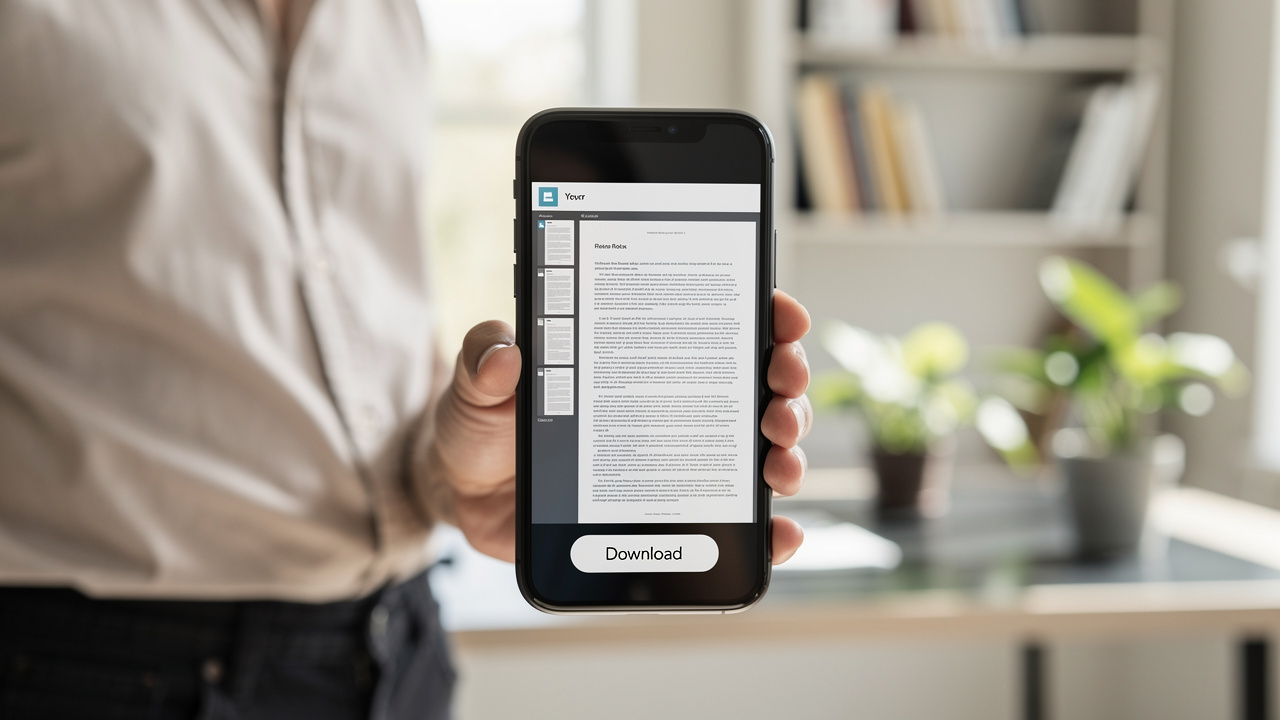
    • 📚 DRM‑Protected E‑Books And Paid Content
      E‑books and other paid content often rely on digital rights management (DRM). This extra layer is meant to stop copying or sharing beyond the license. Standard PDF editors and online tools are not able to remove DRM, and trying to bypass it may break store rules or local law.

    If none of these limits apply and you know the password, removing password from PDF is safe and simple with tools such as iLovePDFKit or desktop apps. Knowing where the line sits helps set fair expectations and keeps your work on the right side of policy.

    Conclusion

    Person relieved after successfully removing PDF password

    Password protection has a clear role, but it should not block your own work once access is allowed. When you understand the difference between Document Open and Permissions passwords, removing password from PDF feels less like a puzzle and more like a short routine.

    For everyday study, work, and freelance projects, iLovePDFKit offers the quickest path: open the site, add the file, type the known password once, and save a fresh copy in seconds. There is no software to install, no account to remember, and files are erased right after processing.

    Desktop software still has a place when documents must stay offline or when you work with very strict company rules. In many other cases, though, the browser is enough. The next time a report, thesis, or invoice appears with a lock icon, you can head to iLovePDFKit, upload the PDF, and remove the password without stress.

    FAQs

    We hear the same questions again and again when people talk about removing password from PDF. Here are short answers that clear up the most common doubts.

    Can I Remove A PDF Password If I Have Forgotten It?

    No, not with regular, trusted tools. Every method we describe, including iLovePDFKit and desktop editors, asks for the current password before changing security. These tools are made to remove a password that you already know, not to guess or break one. In some offices, an IT team or document owner may be able to reset access through their own systems.

    Is It Safe To Upload A Sensitive PDF To An Online Tool Like iLovePDFKit?

    Yes, as long as the service treats privacy with care. iLovePDFKit uses SSL encryption for every upload and download, so files cannot be read in transit. Documents are stored only while the task runs and are deleted from our servers right after. We do not keep the password entered during removing password from PDF. For highly secret files that must never leave a closed network, offline desktop software remains the safer choice.

    Do I Need To Pay Or Create An Account To Use iLovePDFKit?

    No, iLovePDFKit is free to use and does not ask for registration. You simply visit the site, choose the tool for removing password from PDF, add the file, and start the task. This makes it easy to handle one‑time jobs on borrowed devices, school computers, or a quick work session without new logins or fees.

  • How to Delete PDF Pages Online in Seconds

    How to Delete PDF Pages Online in Seconds

    Introduction

    A report is ready, the deadline is close, and then a last look at the PDF shows a random blank page in the middle. Or a contract is about to be shared, and one section still holds sensitive notes that should not leave the team. In moments like this, knowing how to delete PDF pages can save a grade, a client, or even a job.

    PDFs are great for keeping formatting intact, but they are not easy to edit with standard tools. Built‑in viewers on laptops and phones rarely let anyone remove pages. Many desktop editors ask for paid subscriptions before they allow even a simple delete action. That makes a basic task feel far more painful than it should be.

    Common reasons people need to remove pages include:

    • Getting rid of accidental blank pages after printing or scanning

    • Deleting internal notes or draft sections before sending a file

    • Shortening long PDFs for email or upload limits

    • Removing duplicated chapters or outdated annexes

    We built iLovePDFKit to make this simple. With our Delete PDF Pages tool, anyone can remove pages in seconds, right in the browser, without installing software or creating an account. In this guide, we walk through exactly how to delete PDF pages with iLovePDFKit, why this tool is a better fit than heavy desktop programs, and how we keep every file safe and private. By the end, the goal is for every reader to feel calm when a PDF needs a quick clean‑up, not stressed.

    “If a page does not help the reader, it gets in the way.”
    — Common principle in technical writing

    Key Takeaways

    • It is easy to learn how to delete PDF pages online using iLovePDFKit, and the tool works in any modern browser for free. No sign‑up, plug‑ins, or software downloads stand in the way of a quick edit. This keeps the whole process fast and simple.

    • iLovePDFKit shows every page as a clear thumbnail so each one is easy to recognize at a glance. Pages can be selected one by one or in groups, which makes batch deletion very smooth. A larger preview helps prevent mistakes before anything is removed.

    • Every file passes through SSL‑protected connections, and our servers erase documents shortly after processing finishes. Because no user account is needed, there is no long‑term data trail tied to personal details. This lets people delete pages with strong privacy and peace of mind.

    How To Delete PDF Pages Online Step-By-Step

    Person uploading a PDF file in a browser on a laptop

    When someone searches for how to delete PDF pages, what they really want is a short, clear path from messy file to clean final version. That is why our Delete PDF Pages tool focuses on four simple steps. The whole flow usually takes less than a minute, even for large documents.

    1. Upload The PDF File That Needs Editing
      First, open the Delete PDF Pages tool on iLovePDFKit in any browser. On the page, either drag and drop the PDF into the main area or click the upload button and choose the file from the computer, phone, or tablet.

      • The tool works smoothly with files that come from cloud folders once they are downloaded locally.

      • Thanks to real‑time processing, the document is ready to edit within a few seconds, even when it has many pages.

    2. Select The PDF Pages To Remove
      After the upload, iLovePDFKit shows a visual grid made of high‑quality page thumbnails. This view makes how to delete PDF pages feel closer to sorting slides than dealing with code or complex settings.

      • Click any page to select it.

      • Keep clicking to mark several pages at once for batch deletion.

      • When a page is hard to recognize from the small thumbnail, tap the eye icon to open a larger preview, so you know exactly what you are about to remove before going further.

    3. Delete The Selected PDF Pages
      Once every unwanted page is selected, click the delete button in the interface. Our engine removes those pages almost instantly, even when many are selected at once. This is the moment when blank pages, duplicate sections, long appendices, or sensitive content disappear from the working copy.
      The grid updates right away, so you can scroll and confirm that the remaining pages look clean and that the order still makes sense.

    4. Download The New, Cleaned PDF
      When the page list looks right, click to process and download the edited file. iLovePDFKit creates a fresh PDF that contains only the pages you decided to keep. The original PDF on the device stays exactly as it was, which means there is always a backup if you ever want it.
      Now the new file is ready to share by email, upload to a learning platform, or send to a client without extra clutter.

    Pro tip: Always use the larger page preview before confirming deletion. This small habit makes how to delete PDF pages much safer, since it cuts the risk of removing an important page by mistake.

    Why Use iLovePDFKit To Delete PDF Pages

    Tablet screen showing PDF page thumbnails for selection

    There are many ways to learn how to delete PDF pages, but not every method is friendly, fast, or free. Some tools hide page deletion behind paywalls, while others ask users to install heavy programs that slow down older laptops. We designed iLovePDFKit to remove that friction.

    With our Delete PDF Pages tool, we focus on a clean visual experience. That matters when someone is rushing to trim a report, clean a slide deck, or cut extra pages from a research article. Instead of digging through menus, you see every page in a tidy grid and act within a few clicks.

    “Good tools get out of the way and let you focus on the work.”
    — Common saying among software designers

    Here is what sets iLovePDFKit apart:

    • Free To Use For Deleting Pages
      iLovePDFKit is completely free to use for deleting PDF pages, with no trial timers or surprise upgrade screens. Students can polish assignments, and small business owners can tidy proposals without worrying about budgets. This keeps basic PDF tasks open to everyone, not only to teams that pay for large software packages.

    • No Registration Or Login Needed
      The tool works with no registration at all, which saves time and protects privacy. There is no need to hand over an email address or create a profile just to delete one or two pages from a file. When someone only wants to learn how to delete PDF pages, they should not have to manage yet another account.

    • Visual, Accurate Page Selection
      Our visual interface makes page selection accurate, even in long documents. High‑quality thumbnails show text blocks, tables, and images clearly, so it is easy to spot blank pages or repeated sections. The eye icon offers a bigger preview, which gives extra confidence before pressing delete, especially when the PDF holds research data or contracts.

    • Fast Processing On Common Devices
      We built the processing engine to be fast on common devices and networks. That means page removal feels quick, not like waiting through long loading bars. Office teams on tight schedules and freelancers sending last‑minute proposals can clean their PDFs and move on with real work instead of wrestling with their tools.

    Because iLovePDFKit runs fully in the browser, it works the same way on Windows, macOS, Linux, and mobile systems. If a person knows how to delete PDF pages on one device with iLovePDFKit, they already know how to do it on all of them.

    How iLovePDFKit Keeps Your Documents Safe

    Desktop computer screen showing PDF page being deleted

    Whenever someone uploads a contract, a transcript, or a medical form, safety is the first concern. Learning how to delete PDF pages is not enough if the file is left exposed on a random server. We keep security at the center of how iLovePDFKit works, so people do not have to trade privacy for convenience.

    • SSL Encryption For Every File
      Every file moves through SSL‑protected connections from the moment it leaves the device until the edited file is downloaded. This level of protection is the same style that banks and trusted online stores rely on for sensitive data. It helps keep other parties from reading or copying documents while they are on the way to our servers or back to the user.

    • Automatic File Removal After Processing
      After the tool finishes removing pages and the new PDF is ready, our systems erase the uploaded files and the processed versions within a short time. We do not keep long‑term archives of personal documents on our side. This means a cleaned report or contract does not sit around on our servers after the task is done.

    • No Central User Profile Or History
      Because iLovePDFKit does not require an account, there is no central profile that collects every file a person has ever edited. No sign‑up also means we do not store passwords or contact details that could be tied to document history. Each visit to the Delete PDF Pages tool is treated as a fresh, simple session.

    To add an extra layer of safety on the user side, it is good practice to:

    • Avoid using shared public computers for very sensitive files

    • Check that the browser shows the padlock icon before uploading

    • Delete downloaded copies from shared devices once they are no longer needed

    Whether someone is trimming pages from legal paperwork, internal budgets, or classroom reports, the same protections apply to every user and every file, every time. We design the tool so that strong security and simple use work side by side, which lets users focus on how to delete PDF pages while we handle the hard work behind the scenes.

    Conclusion

    Person downloading a clean edited PDF on a smartphone

    For many years, people thought learning how to delete PDF pages meant buying complex software or calling the one tech‑savvy person in the group. That is no longer the case. With iLovePDFKit, page deletion becomes a quick stop in the browser that fits into any workday.

    Our Delete PDF Pages tool stays free, clear to use, and focused on visual precision. Strong built‑in security, SSL protection, and automatic file removal help keep private documents safe from prying eyes. The original file on the device never changes, and the edited version comes out clean and ready to share.

    We invite anyone who needs a leaner, more professional PDF to try iLovePDFKit right now. Open the Delete PDF Pages tool, upload a file, click away what is not needed, and download the final version. A cleaner document is only one upload away.

    FAQs

    Will Deleting Pages From A PDF Reduce Its File Size?

    Metallic padlock on stack of documents representing security

    Yes, deleting pages almost always reduces the size of a PDF file. The change is strongest when the removed pages contain large images, graphs, or rich design elements. When we delete blank or text‑only pages, the file still becomes smaller, just by a smaller margin. This helps when email services or upload forms have strict size limits.

    Can I Delete Multiple Pages At Once?

    Yes, iLovePDFKit supports batch deletion, which makes how to delete PDF pages in long documents much faster. Simply click every thumbnail that needs to go, then use the delete option once. There is no need to repeat the process page by page, which saves a lot of time in reports, books, or slide decks.

    Is It Safe To Upload Sensitive PDFs To This Online Tool?

    With iLovePDFKit, safety is built into the normal workflow. SSL encryption protects every file while it moves between the device and our servers. After processing, both source and edited files are removed from our systems within a short window, so they are not stored long term. Because we do not require an account, there is no personal profile that gathers document history. This makes how to delete PDF pages online safer for contracts, invoices, or other private records.

    Will My Document Formatting Change After Deleting Pages?

    No, deleting pages with iLovePDFKit does not change the layout or style of the remaining pages. Fonts, images, margins, and spacing all stay as they were before. The tool simply removes the selected pages and builds a new PDF from the pages that remain. As a result, the document keeps the same professional look while losing only the parts that are no longer needed.

    Do I Need To Create An Account Or Install Software To Use iLovePDFKit?

    No, there is no need to register or install anything to learn how to delete PDF pages with iLovePDFKit. The tool runs fully in the browser on laptops, desktops, tablets, and phones. Just open the page, upload the PDF, delete the unwanted pages, and download the new file. This keeps the process quick for students, office teams, and freelancers who work across many devices.

  • Convert PDF to Word Without Losing Formatting (Free 2026 Guide)

    Convert PDF to Word Without Losing Formatting (Free 2026 Guide)

    Introduction

    Anyone who works with reports or assignments has lived through this. You upload a clean, well‑spaced PDF to a converter, open the Word file, and everything looks wrong. Headings jump to new pages, tables fall apart, and your once polished document now needs an hour of fixing. So here is the Convert PDF to Word Without Losing Formatting: The Free 2026 Guide

    This happens because a PDF and a Word file play by different rules. A PDF freezes every line, image, and table in a fixed position, like ink on paper. Word, on the other hand, is flexible, so text can move when settings change.

    In this guide, I will show how to convert PDF to Word without losing formatting using only free tools. I will focus on iLovePDFKit, a browser‑based converter that keeps layouts, fonts, and images close to the original with no installation and no sign‑up. By the end, you will know which method to pick, how to avoid messy conversions, and how to get a clean Word file in just a few clicks.

    I write and edit documents every day, so I have tested the same tools people rely on. Here I share what actually works for real‑world files, without asking for a credit card. I have seen the failures too.

    Key Takeaways

    If time is short, these quick points give the main ideas from this guide.

    • PDFs freeze every element in place. Word lets text move and reflow. That gap, plus scanned PDFs that act like images, causes most formatting issues.

    • iLovePDFKit converts PDF to Word for free in any browser. No account or download is required. It aims to keep layouts, fonts, tables, and pictures almost identical.

    • Word and Google Docs help with plain text files. They often change complex designs. Simple checks before and after conversion can still cut down repair time.

    Why Formatting Gets Lost When You Convert PDF To Word

    Two documents showing formatting differences between PDF and Word

    To fix formatting problems, it helps to understand what the converter is trying to do. A PDF works like a photo of a page, where every word and image sits at set coordinates. A Word document is more like a text file, ready to stretch, shrink, or wrap around new content.

    “Think of a PDF as a snapshot of your page and a Word file as a living document that keeps rearranging itself.”

    When a tool converts your file, it has to guess where paragraphs begin and end, how tables were built, and which fonts should appear. That guesswork is where things start to slip. Even a small change in font size or spacing can push elements onto the next line or page.

    Most people see the same problems:

    • Fonts often change during conversion. That happens when a font is missing. Spacing shifts, and titles may wrap badly.

    • Paragraphs can break into separate pieces. The tool may think each wrapped line is new. You end up with tiny text boxes.

    • Tables and columns lose alignment. Merged cells confuse the converter. Numbers and labels can slide into the wrong place.

    • Images may move or shrink. They sometimes drift away from the text they explain. In bad cases, pictures even disappear.

    • Headers and footers can vanish. The converter does not always see them as special areas. Page numbers and dates then go missing.

    Scanned PDFs make things even harder, because the file is only a picture and needs OCR (Optical Character Recognition) to read text. Digital PDFs with selectable text usually keep their layout better.

    Not sure which type you have? Try selecting some text:

    • If you can highlight individual words, it is a digital PDF.

    • If the whole page selects like a photo, it is a scan and needs OCR.

    That is why picking the right converter for your file type matters.

    The Best Free Methods To Convert PDF To Word Without Losing Formatting

    When I test converters, I care about one thing first, which is how close the Word file looks to the original PDF. Cost, speed, and extra features come after that. The good news is that you do not need paid software to get strong results, as long as you pick the right method for your document — tools like Free PDF to Word from Nitro are among the options worth knowing about.

    I usually reach for two free paths, depending on how complex the file looks:

    • For heavy layouts with tables, images, or multi‑column text, I go straight to iLovePDFKit.

    • For plain reading copies or quick edits, built‑in tools like Microsoft Word or Google Docs can be enough.

    Let me walk through these options so you can match each file to the method that will protect its formatting best. In every case, the goal is to convert PDF to Word without losing formatting while keeping the process fast and free.

    Method 1 — Use iLovePDFKit For Pixel-Perfect Free Conversion (Recommended)

    Laptop browser showing online PDF to Word conversion tool

    For serious work, iLovePDFKit is the tool I trust most. It runs inside any modern browser and charges nothing, and it also skips the usual sign‑up wall. The stand‑out part is how closely the Word file matches the PDF, with fonts, spacing, and images lining up almost exactly where they began.

    “The closer your converted file is to the original, the more time you save. Good formatting is a quiet kind of productivity.”

    Files are processed online for conversion rather than stored as permanent archives. That matters when sharing contracts, grades, or client work. Because the converter reads the original structure instead of snapping a picture, it handles digital PDFs from Word, PowerPoint, or other editors very well, which is ideal for students, freelancers, and office staff who live in those programs.

    Here is how to use iLovePDFKit step by step:

    1. Open your browser and go to iLovePDFKit. The page loads quickly. You do not need to create an account or type an email address.

    2. Click the button for PDF to Word and add your file. You can choose it from a folder or drag it onto the page. If the file is large, give it a moment to upload.

    3. Start the conversion with a single click. During this time the service reads fonts, spacing, tables, and images instead of flattening them. For most everyday documents, this step finishes in a few seconds.

    4. Download the Word file to your computer. Open it in Word or another editor and glance through the pages. In most cases the layout looks ready to share or print right away.

    If a file is light on design and images, I sometimes use built‑in tools instead.

    Method 2 — Use Microsoft Word Or Google Docs (Free Built-In Options)

    Woman comparing PDF and Word documents on dual monitors

    Microsoft Word from 2016 onward can open a PDF and turn it into a DOCX file. You start Word, choose Open from the File menu, pick your PDF, accept the notice about making it editable, and then save the new document. This method is free if you already pay for Office and gives decent results for simple, text‑heavy pages. It often struggles, though, when the PDF has many images, complex tables, or more than one column.

    Google Docs also converts PDFs inside the browser. You upload the PDF to Google Drive, right‑click it, choose Open with → Google Docs, then download it again as a Word file. Because everything runs online, this is helpful when working on a shared computer or switching between devices. The built‑in OCR can read clear scans, but formatting can shift quite a bit, especially with photos, charts, or more detailed page layouts.

    Both of these options are handy when all you need is quick editing, comments, or group work. For a thesis, report, or contract where the layout matters, I still prefer iLovePDFKit, because it keeps the structure of the original PDF much closer to what you expect. That way I spend less time fixing broken tables or wandering images.

    Expert Tips To Preserve Formatting Before And After Conversion

    Desk with checklist and magnifying glass reviewing formatted document

    No matter which method you choose, a few simple habits can save a lot of repair time. I think about the process in three stages: before conversion, during conversion, and after conversion. If you give each stage a small bit of attention, your Word files will look far closer to the original PDFs.

    Quick tip: Simpler PDFs convert more cleanly.

    These habits help the most:

    • Start with the best PDF you can. If you scan a paper file, choose a higher DPI so letters stay sharp. A clean source makes life easier for any converter and improves OCR accuracy.

    • Match your tool to the document type. For scanned PDFs, use a converter that supports OCR so text can be selected and edited. For digital PDFs where formatting matters, I reach for iLovePDFKit so the layout stays as close as possible.

    • Keep fonts simple and common. Choices such as Arial, Times New Roman, or Calibri usually survive the trip without changes. Unusual fonts can trigger substitutes, which stretch lines and push paragraphs around.

    • Remove decorations when you can. Big logos, background patterns, and random shapes make it harder for a converter to see where real content begins and ends. A cleaner layout almost always gives a cleaner Word file.

    • Always compare the new Word file with the original PDF. Scroll side by side and check headings, tables, pictures, and page breaks. Fix small issues right away, before you start editing or adding new content.

    • Work from a copy instead of your only file. Store the original PDF in cloud storage or on a second drive. If anything goes wrong with a conversion or edit, you can go back to that untouched version.

    “The cleaner your source file, the better your conversion.” That simple rule saves editors and students a surprising amount of time.

    Conclusion

    Person typing and editing converted Word document on laptop

    Formatting does not fall apart by chance. It breaks because a fixed PDF page and a flexible Word page speak different languages. Once you know that, it becomes easier to pick the right approach and avoid surprise shifts after conversion. Good tools and small habits take care of most issues.

    In this guide I walked through the free ways I rely on to convert PDF to Word without losing formatting. For work that needs clean, stable layout, my first choice is iLovePDFKit, since it runs in the browser, asks for no registration, and keeps the page structure close to the original. The next time you prepare an assignment, a contract, or a presentation, open iLovePDFKit and see how smooth the conversion can feel.

    FAQs

    Is It Safe To Use iLovePDFKit To Convert PDF To Word Online?

    I treat safety as a key check for any online tool, and iLovePDFKit scores well here. Files move through an encrypted connection, are processed for conversion, and then cleared instead of being used as long‑term storage. You also skip account creation, so no profile or payment data sits on the site.

    Will My Fonts, Tables, And Images Stay Intact After Conversion?

    Converters such as iLovePDFKit are built to keep the original layout as close as possible. In many files, fonts, table lines, and images show up in Word exactly where they were. You may see shifts when the PDF uses rare fonts, so it is wise to skim important pages.

    What Is OCR, And Do I Need It To Convert A Scanned PDF To Word?

    OCR means Optical Character Recognition, which lets software read letters from an image. A scanned PDF is only a picture of a page, so without OCR the converter cannot treat anything as text. If you want to copy, search, or edit words from a scan, you need a tool that offers OCR.

    Why Does My Converted Word File Still Look Different From The Original PDF?

    Even with a strong PDF to Word converter, a Word document will not be a perfect copy of a fixed PDF page. Word has to reflow paragraphs and rebuild tables inside its own rules. Complex designs may need manual cleanup, but using iLovePDFKit usually keeps those fixes small.

  • How to Convert PDF to Word Without Losing Formatting

    How to Convert PDF to Word Without Losing Formatting

    Introduction

    Converting a PDF to Word often leads to broken layouts, missing fonts, or misplaced images. This is frustrating, especially when you need to edit documents for work, school, or official use. If you’re searching for a way to convert PDF to Word without losing formatting, you’re in the right place.

    In this guide, you’ll learn why formatting issues happen, what methods work best, and how to convert PDF files accurately while keeping text, images, and layout intact. The steps are simple, require no technical knowledge, and work on any device.

    Why PDF Formatting Breaks During Conversion

    PDF files are designed to preserve layout, not to be edited. This makes conversion tricky.

    Common reasons formatting breaks include:

    • PDFs store text and layout differently than Word documents
    • Fonts may not be embedded in the PDF
    • Scanned PDFs are image-based, not text-based
    • Complex layouts with columns or tables are harder to convert

    Best Ways to Convert PDF to Word Accurately

    There are several ways to convert PDF to Word, but not all give good results.

    • Manual copy-paste often breaks spacing and removes formatting entirely.
    • Desktop software is accurate but usually paid.
    • Online PDF to Word converters are fast and simple.

    Step-by-Step Guide to Convert PDF to Word Online

    1. Open PDF to Word converter
    2. Upload your PDF file
    3. Start the conversion
    4. Download the Word file

    The tool requires no signup, adds no watermark, and is privacy-friendly.

    Common Mistakes That Ruin Formatting

    • Using low-quality converters
    • Converting scanned PDFs incorrectly
    • Editing before reviewing layout

    Tips to Keep Layout, Fonts, and Images Intact

    • Use text-based PDFs
    • Avoid re-saving PDFs
    • Review converted files

    Trust & Privacy

    Files are processed automatically and removed after conversion. Privacy-focused tools ensure security.

    FAQs

    Is it possible to convert PDF to Word without losing formatting?

    Yes, with a reliable converter like ilovepdfkit.com PDF to Word converter.

    Is converting PDF to Word online safe?

    Yes, when privacy-focused tools are used.

    Can I convert PDF to Word for free?

    Yes.

    Conclusion

    Converting PDF to Word without losing formatting is easy with the right approach and tool.